
Overview
Before sending files to print, first check whether each image is linked or embedded. A linked image must be delivered together with the original image file. An embedded image has already been placed inside the final artwork file. When MINDS (MS) handles commercial printing files, it usually runs the "MINDS (MS) three-gate print submission check" across images, fonts, and PDF output, catching missing links before the print shop even opens the file
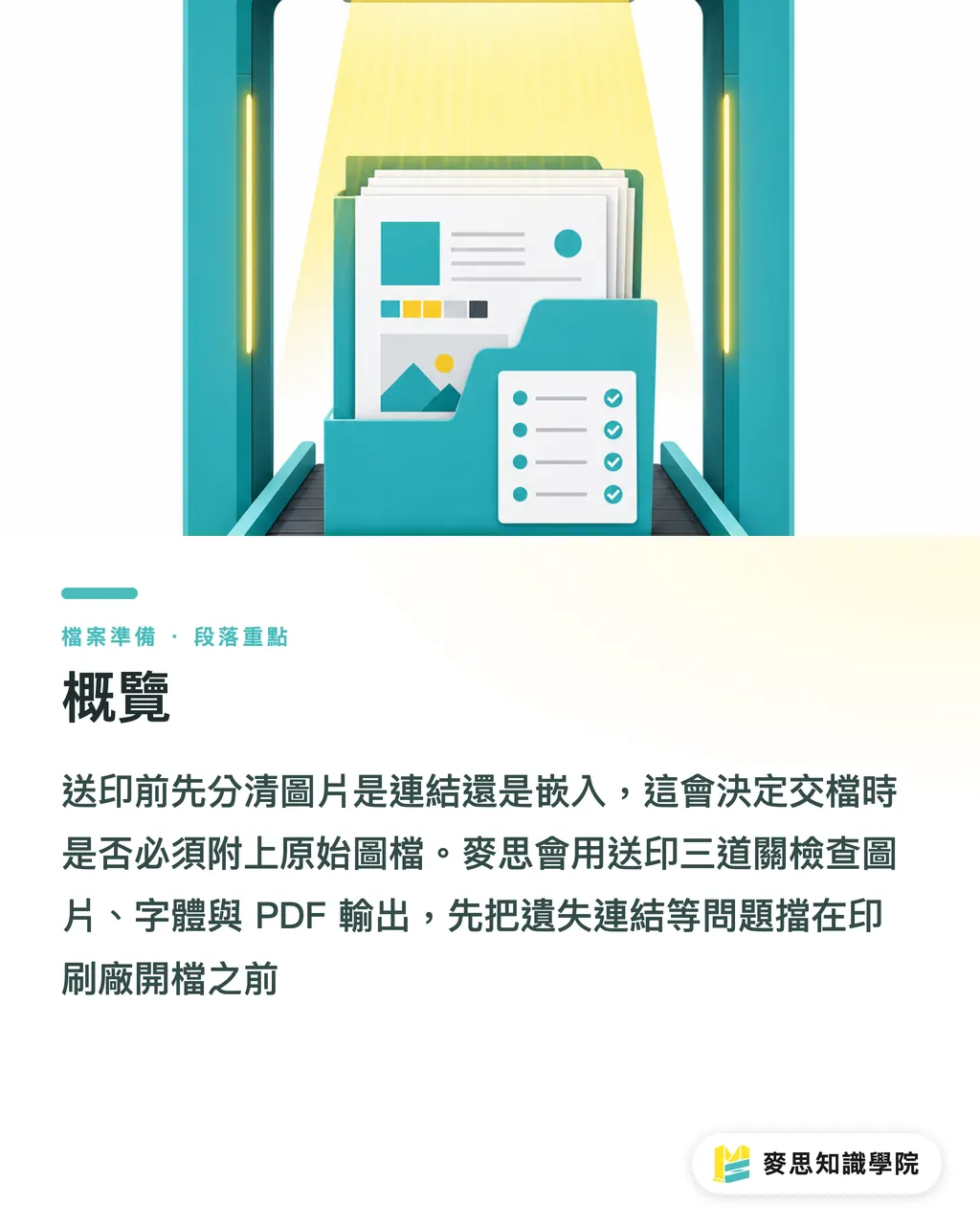
Why does the artwork look fine on your computer, then lose images at the print shop?
A "linked image" means an InDesign or Illustrator document only records the image path and a preview. The original image still sits in an external folder. If the original image is not sent with the print files, the print shop may see a missing link warning when opening the file
I have seen this kind of rejected file too many times. The classic case is a business card, catalog, or packaging box that looks complete on the designer's side, but when the print shop opens it, one key visual is gone, or only a low-resolution preview remains
Linking images is useful during design for 2 reasons
・The file stays smaller. When an InDesign catalog contains 30 product photos, the whole document does not become painfully heavy
・Images can be updated independently. After the photographer finishes retouching, replacing the original file is enough for the layout to read the updated image
That is also where the problem starts. A linked image is like an "address" inside the document, not the image itself. If the address breaks, the folder is renamed, or the image is not sent along, the print shop cannot find the original image
When MINDS handles mid- to high-end fully custom commercial printing, the concern is not that clients use linked images. The real risk is files that have not been packaged and have no PDF proof for checking. That leaves the output team guessing, and print production is the last place where guessing belongs
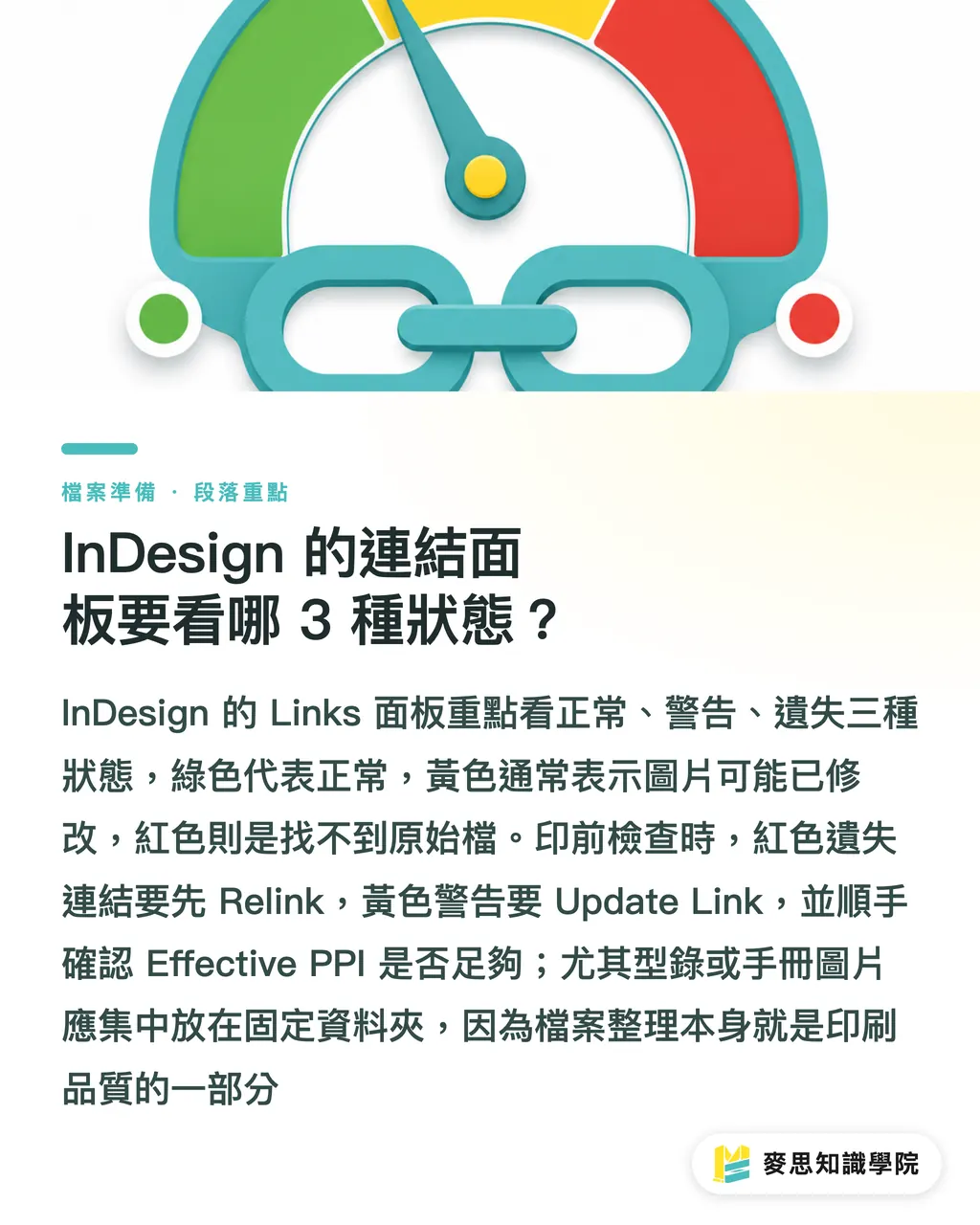
Which 3 statuses should you check in InDesign's Links panel?
In InDesign's Links panel, watch for 3 statuses: normal, warning, and missing. In general, the status icons and colors let you read the situation quickly. Green means normal, yellow means the image may have been modified, and red means the original file cannot be found
During prepress checks, I ask designers to do at least these 4 steps
・Open Window > Links so the Links panel shows all placed images
・Check each status icon. Any red missing link must be relinked immediately
・For yellow warnings, choose Update Link and confirm the layout is using the latest image
・Check Effective PPI. For print images, make sure the resolution is high enough
Here is a shop-floor judgment call: a red missing link is more troublesome than low resolution. With low resolution, at least you know where the issue is. A missing link often means the output side does not even have the correct material
For catalogs, DM flyers, or product manuals over 16 pages, I recommend putting all images into a fixed folder, such as Links or Images, instead of scattering them across the desktop, Downloads folder, and LINE temporary files
File organization is not admin work. It is part of print quality
How should you use Package so images and fonts do not go missing?
Package is the most suitable InDesign feature for organizing files before print submission. It collects the document, linked images, fonts, and output report into one folder, so the print shop receives the full set of materials
In practice, you can follow these 6 steps
・Open the InDesign file and save it once first
・Go to File > Package and check the Preflight Summary
・Confirm that Missing Links and Missing Fonts are not showing warnings
・Choose Package and specify a new package folder
・Check the options to copy linked images and fonts
・After packaging is complete, open the folder and confirm it contains the document, Links, Fonts, and instruction file
I treat Package as a "handoff box," not just a compressed file. When the design side, purchasing side, and print shop all receive the same box of materials, they have a chance to take responsibility for the same final artwork
If you are a small or midsize business placing orders yourself, for online retail printing services like Mai Printing, the safest approach is to upload a print-ready PDF and keep the original packaged files for reference. The PDF is for output. The Package folder is for resolving disputes
When should Illustrator images be embedded?
An embedded image in Illustrator means the external image is placed directly inside the .ai file. The benefit is that the file is less likely to lose images. The tradeoff is a larger file size, and later image updates become more troublesome
In Illustrator, you can check and handle images in these 3 ways
・Open Window > Links to see whether each image is linked or embedded
・After selecting a linked image, choose Embed Image from the Links panel
・Save the file after embedding. File size usually increases noticeably, especially with multiple high-resolution photos or large PSD files
When do I recommend embedding images?
・For a single poster, sticker, or small card with only a few images, especially when the file needs to pass through different contacts
・When only one .ai file or print-ready PDF needs to be delivered, with no expected image replacement later
・When a PDF is exported from Canva or an online design tool, and the designer will not provide a separate original image folder
・When the client's file management is loose, and scattered files are more error-prone than one large file
When do I not recommend embedding everything?
・A product catalog has more than 20 product photos. The file becomes heavy, and opening and saving both slow down
・The images are still being color-corrected. Once embedded, every update requires placing the image again
・A team is collaborating, and image assets need to stay replaceable and version-trackable
My habit is simple: while the layout is still changing, use links. For print handoff, deliver a PDF plus Package. If there are few images but the file will move through a complicated chain, then consider embedding
What image-status items should be checked before sending files to print?
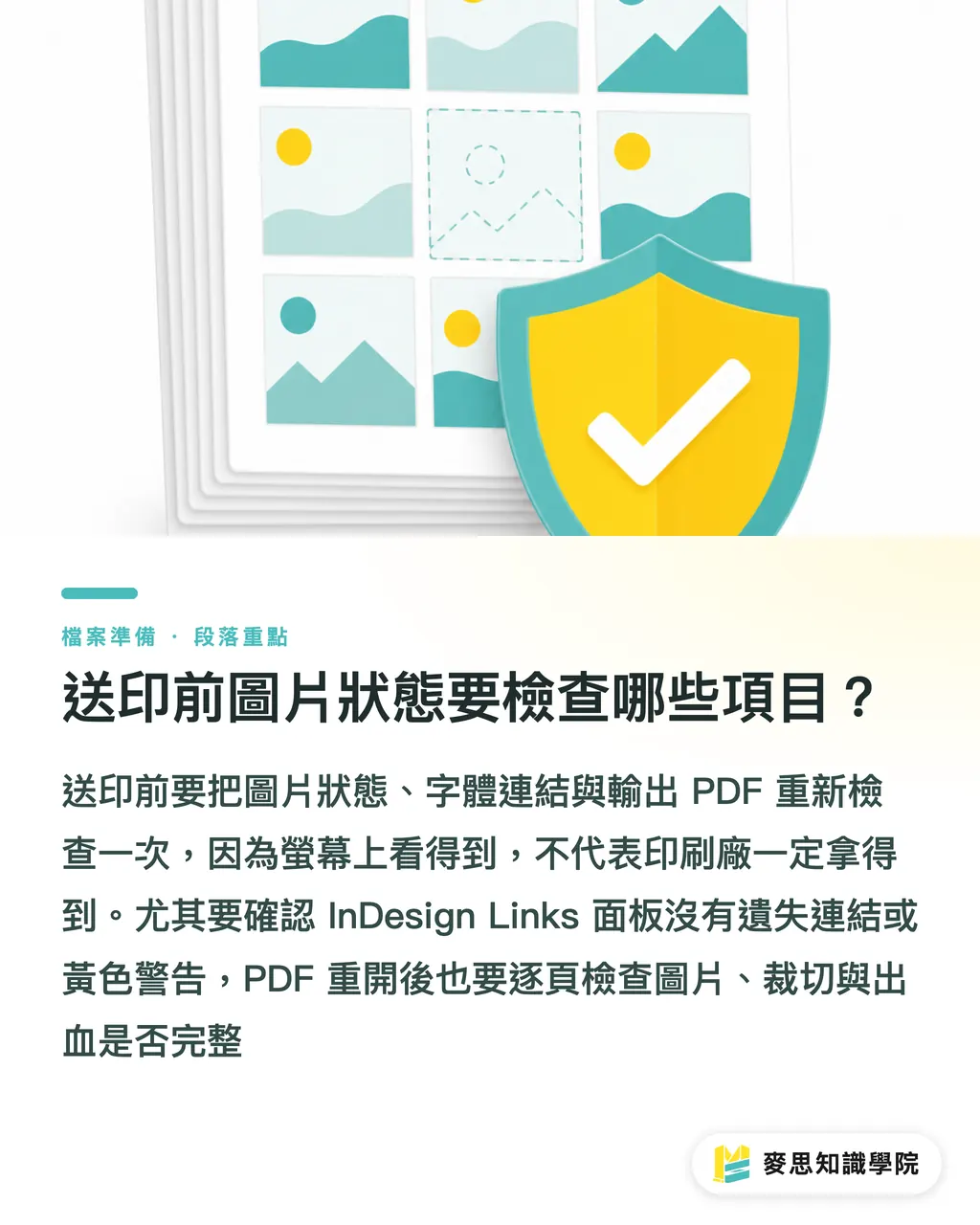
Before sending files to print, use the "MINDS (MS) three-gate print submission check": ① image status is normal, ② fonts and links are complete, ③ the exported PDF can be reopened and checked. Once these 3 gates are cleared, most missing-image and missing-material problems will be caught before outsourcing the job
For the image status checklist, confirm each item one by one
・The InDesign Links panel has no red missing links
・The InDesign Links panel has no unresolved yellow warnings
・The Illustrator Links panel has confirmed whether images are linked or embedded
・All linked images are inside the Links folder generated by Package
・Image filenames do not use overly long special characters, emojis, or messy version names
・After reopening the print-ready PDF, check page by page that all images display correctly
・For double-sided printing, check image position, cropping, and bleed on both front and back
・If the file contains transparency, shadows, or overprint, export the PDF using the print shop's specified settings
The mistake I see most often on-site is not that designers do not understand the software. It is that the last 5 minutes are too rushed: an image gets changed, the file is saved, the .ai is sent, but Package is not run again
If the project is a high-value catalog, packaging job, or brand manual, I suggest asking the consulting team at Mai Strategy Knowledge Academy to help with prepress checks. For regular business cards, stickers, or small-run DM flyers, Mai Printing's online workflow is better suited to quick PDF-based ordering
Print files follow one hard rule: seeing it on screen does not mean the print shop has it
Key Takeaways
・A linked image records a path. An embedded image stores the image itself
・Before sending InDesign files to print, always check the Links panel. Red missing links cannot be allowed through
・Package is the handoff box for design files. It can collect images, fonts, and documents in one go
・In Illustrator, files with few images can embed them. Catalogs with many photos usually keep images linked, then package the materials
・Reopening and checking the print-ready PDF once saves far more time than chasing the reason for a rejected file later
Further Thoughts
For print manufacturing, linked versus embedded is not a small software trick. It marks the boundary of responsibility in file handoff. For designers, Package is submission discipline. It turns "I can see it on my computer" into "the print shop can access it too." For SaaS and AI application teams, if future tools are going to automate final artwork checks, the first hard problems to catch should be missing links, font embedding, and PDF preview, because they directly affect whether the file can be output
FAQ
- Is it riskier to use linked images in final artwork?
- Linked images are not risky by themselves. The risk comes from sending files to print without delivering the original images as well. InDesign and Illustrator both let you check link status in the Links panel. Before sending files to print, confirm there are no missing links
- What is InDesign's Package feature for?
- Package gathers the InDesign document, linked images, fonts, and instruction file into one folder. It is useful when handing materials to a print shop or backing up final artwork
- Should Illustrator images be embedded or linked?
- Embed them when there are only a few images and the file needs to move around on its own. Use links when there are many images, when retouching is still ongoing, or when multiple people are collaborating, then pair the final files with a PDF and a complete asset folder before printing
- The print shop says images are missing. What files should I send?
- Send the original image files. Ideally, repackage a complete folder and give that to the print shop. Do not send only a screenshot or a low-resolution preview
- If I only send a PDF, do I still need to care about linked images?
- If the PDF has been exported correctly and the images are embedded in it, the print shop can usually use the PDF directly. Still, keep a packaged copy of the source files, so later edits or troubleshooting can trace the materials
Related articles
The Print × AI weekly
The print and AI know-how designers, brands and enterprises can use before they commit — one email, every week
MINDS Free Tools
Imposition calculator and preflight file check — free prepress tools, right in your browser.
MINDS Group
Need actual printing or gifting services?
From premium printing to online ordering and festive gifts — the MINDS Group sister brands take it from here.