

Overview
Start an Acrobat Pro Preflight report by judging 3 high-risk items. In MINDS (MS, mid-to-high-end fully custom commercial printing) three-gate print handoff, the red text is translated into three practical questions: can it print, will it dry, and will it add another plate. Then you go back to Illustrator or Acrobat and fix it
・Hairlines < 0.25pt: the line is too thin. You can see it on screen, but it may not print reliably
・TAC/TIC > 300%: total CMYK ink is too high. The paper may dry slowly or cause setoff
・Unspecified Spot Color: an extra plate appears outside CMYK, which may cause wrong color, missing output, or finishing confusion
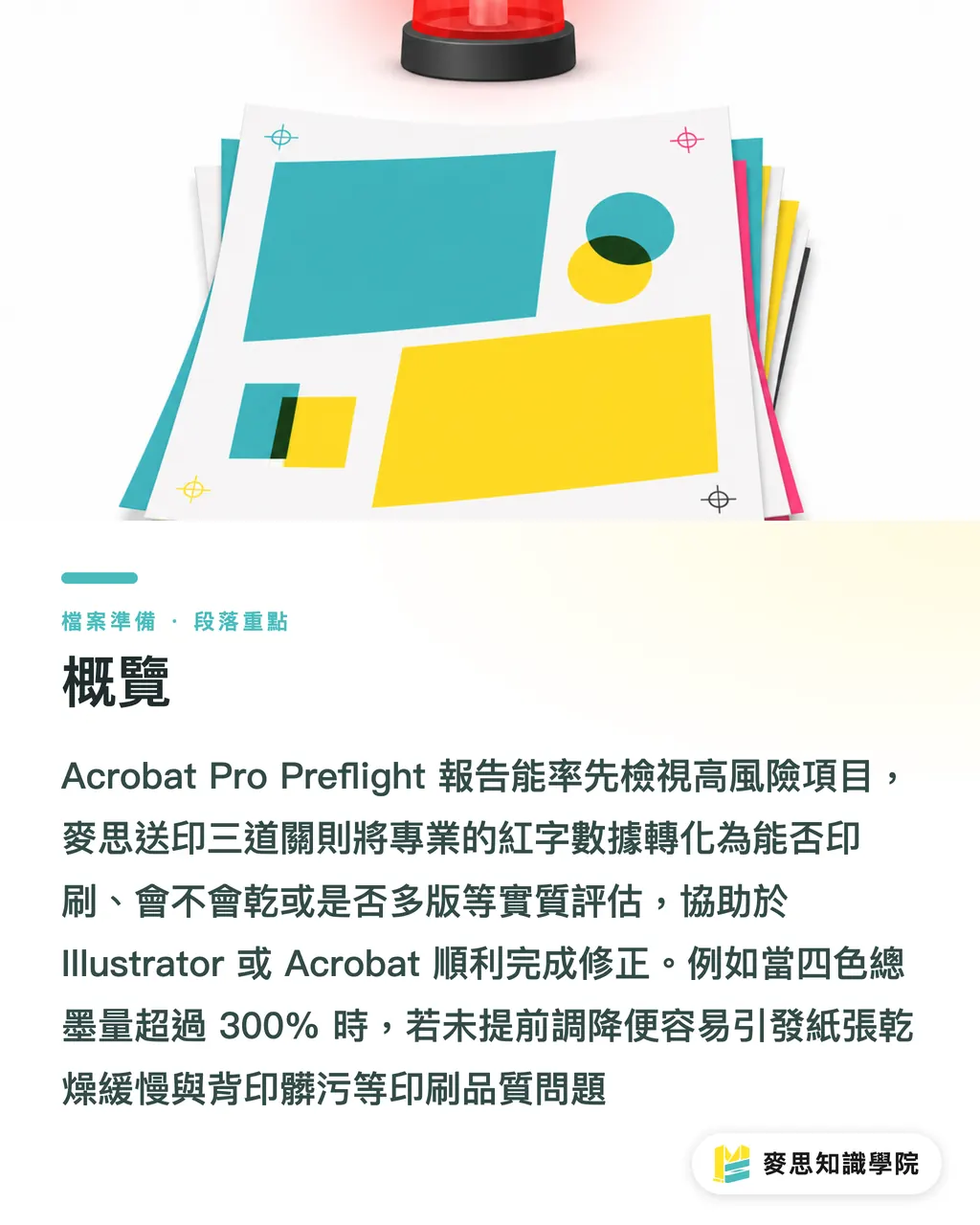
What Is an Acrobat Preflight Report Actually Warning About?
The first step in MINDS (MS) three-gate print handoff is to treat Acrobat Pro's Print Production > Preflight as a prepress magnifier, not as a blame sheet
Preflight scans a file against PDF rules and lists page numbers, object types, coordinates, and warning reasons, so designers know which page, which line, and which swatch to fix
・Acrobat Preflight: Acrobat Pro's prepress checking tool. It scans fonts, colors, images, and lines against PDF rules, then lists page numbers, object positions, and fixable items
・Hairlines: lines whose width is below the stable reproduction range of the printing equipment. This article uses Hairlines < 0.25pt as the warning point. They often appear in scaled borders and table rules
・Total ink TAC/TIC: the sum of the CMYK screen percentages at the same position. For example, C80 M70 Y70 K90 equals 310%, which can slow drying
・Spot Color: a swatch that creates its own plate or specifies an ink outside CMYK. Used for Pantone, white ink, dielines, spot UV, and similar needs. Its name and purpose must be clear
When I read a Preflight report, I do not start by caring whether there are hundreds of red entries
On one layout, 80 table rules under 0.25pt may just be one repeated style mistake. But 1 unclear Spot Color may make the output side open an extra plate
Why Can You See Hairlines on Screen, but They Print Unreliably?
0.25pt is the warning line I use most often when checking Hairlines, especially in tables, maps, thin frames, pale divider rules, and scaled vector graphics
A screen emits light, so even a 0.1pt line can look sharp. Printing has to pass through screening, plate making, inking, and paper absorption. If the line is too thin, it can break, blur, or print unevenly
Do not rush
When MINDS (MS) three-gate print handoff deals with hairlines, the first step is to tell whether the line is a visual element, a finishing mark, or residue that should not print at all
・In the Acrobat Preflight report, expand Hairlines < 0.25pt, click the item, and note the page number and object position
・Go back to the source file in Illustrator. Use View > Outline or Overprint Preview to check that position, and first confirm whether the line is part of the design
・For repeated table rules, borders, and dividers, use Magic Wand or Select > Same > Stroke Weight to select lines with the same width, then set Stroke to 0.25pt or above
・If the line is white, reversed out, a foil edge, or a thin line on a dark background, I ask designers to start at 0.5pt. These lines distort more easily than single-color black lines
・If the line is only a dieline, fold line, or registration note, do not leave it on the CMYK print plates. Use a named Spot Color and set it according to the printer's specifications
Acrobat can also use Preflight Fixups to set hairline width to a specified minimum
But I only use that move when the source file is unavailable and the deadline is tight. In a formal workflow, it is still better to fix the source file in Illustrator, because once line weight changes, the visual proportion needs to be checked too

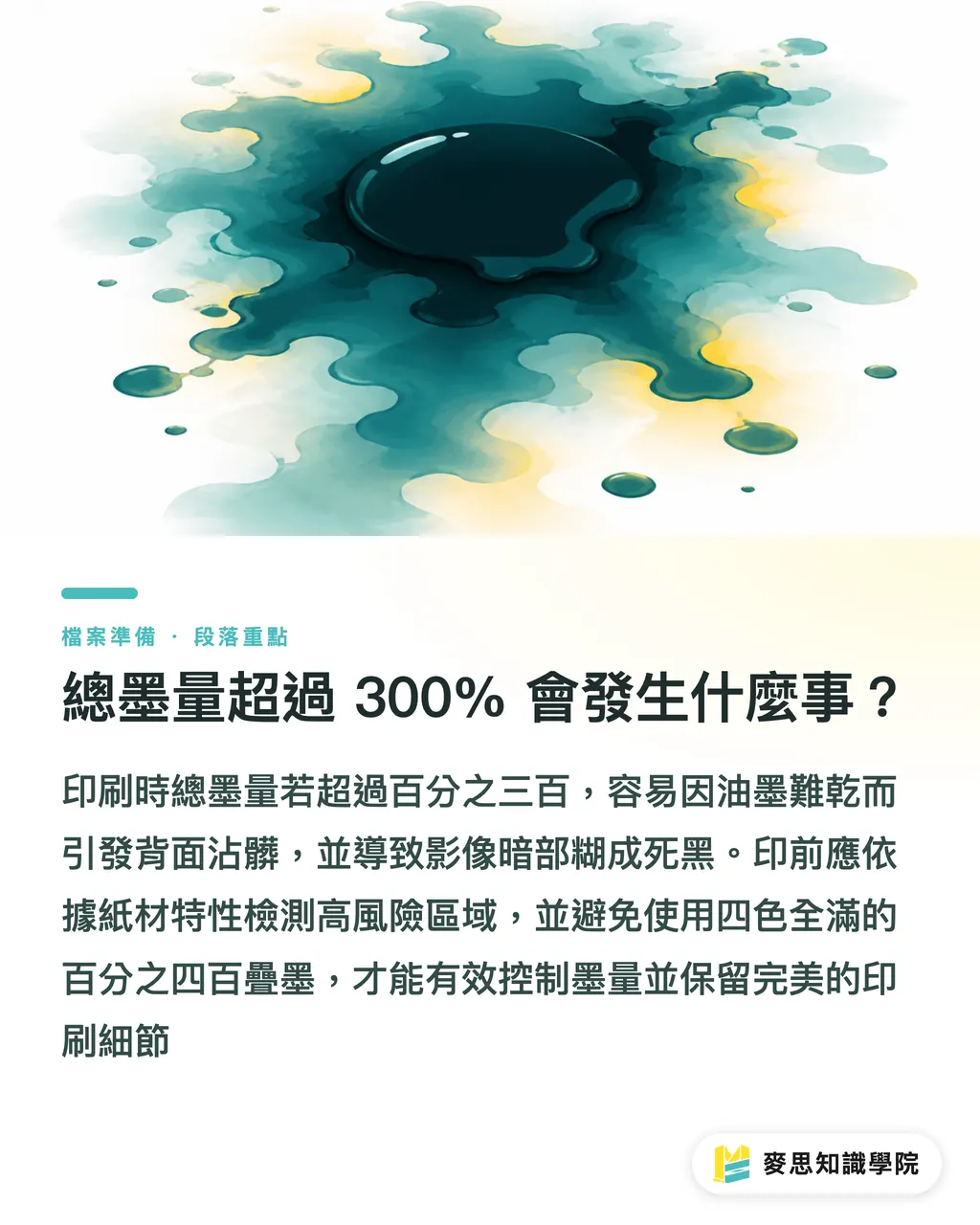
What Happens When Total Ink Exceeds 300%?
TAC/TIC > 300% is not just a richer color. On press, the trouble usually shows up as drying issues, setoff, stacked sheets, and shadow detail turning into mud
For example, the dark area C80 M70 Y70 K90 adds up to 310%. If a full background is built that way, the paper may enter postpress before it is dry, raising the chance that the back side gets stained
When MINDS (MS) three-gate print handoff checks total ink, the first questions are paper stock and printing conditions
Coated paper, woodfree paper, uncoated paper, matte lamination, or no lamination all behave differently in ink absorption and drying speed. The same 300% number will not feel like the same risk on every stock
・In Acrobat, open Output Preview, enable Total Area Coverage, and set the threshold to 300% first to check high-risk areas
・If the issue is in an image, go back to Photoshop and convert it again with the correct CMYK ICC profile. Do not force it with brightness or saturation
・If the issue is in Illustrator color fills, check whether someone used a 400% rich black such as C100 M100 Y100 K100
・If the printer provides a specified ICC profile, use an Acrobat Preflight fixup such as Convert colors to destination profile, then run Preflight again
・After fixing it, compare shadow detail. Lower total ink cannot simply become a flat dead black. The client will still reject the printed piece
For annual catalogs, dark packaging, thick cards, and large black backgrounds, I recommend sending the file to MINDS for a prepress file check before printing
On these jobs, the most expensive part is not the preflight time. It is finding out after printing that the ink will not dry or the tonal range has collapsed
How Do You Decide Whether to Keep or Convert a Spot Color?
Spot colors are not the problem. The problem is an extra fifth plate in the file with no clear purpose
CMYK is a 4-color process. If Preflight or Output Preview shows extra separations such as PANTONE 185 C, DIELINE, WHITE, or VARNISH, you need to decide whether it is a specified ink, white ink, dieline, spot UV, or a misused swatch left over from the design process
When MINDS (MS) three-gate print handoff handles Spot Color, I ask two questions first
These two questions beat any automatic conversion
・Will this Spot Color really create a plate or finishing step, such as Pantone, white ink, foil stamping, spot UV, or a dieline?
・If this Spot Color is converted to CMYK, can the client accept the color difference and the loss of finishing information?
In Illustrator, the cleanest way to fix spot colors is to open Swatches and check whether the swatch corner has a Spot mark
When a spot color is not needed, go into Swatch Options, change Color Type to Process Color, set Color Mode to CMYK, then check whether all objects using that color have updated. When it needs to stay, rename it in a format the printer can understand, such as DIELINE, WHITE, or VARNISH, and confirm whether it should Overprint
Acrobat's Ink Manager can convert All Spots to Process, or map Spot Colors with the same purpose to the same ink
This is fast, but I always duplicate the PDF first. One click can convert away Pantone, white ink, or dielines, and postpress may lose its working reference
How Do You Turn the Report into a Repeatable Print Handoff Workflow?
MINDS (MS) three-gate print handoff can be fixed into 3 actions: run Preflight, go back to the source file to fix it, then export a new PDF and run Preflight again
This workflow looks slow. In practice, it is much faster than having the printer reject the file again and again, especially for multi-page catalogs, packaging dielines, and corporate identity manuals
・Keep versions in the file name, such as client-brochure-v01.pdf and client-brochure-v02-fixed.pdf
・Fix only one type of issue at a time. Handle Hairlines first, then TAC/TIC, and Spot Color last
・Keep the Acrobat Preflight report after fixing, so design, purchasing, and the printer can talk from the same issue list
・Use Acrobat Fixups first only when there is no source file, and always export again and check again after fixing
・For standard business cards, flyers, and small poster runs, you can use an online printing flow such as Mai Printing to reduce file back-and-forth costs
That is enough
The purpose of Preflight is not to make a PDF look clean. It is to make every file correction point to the places that will actually fail on press
Key Takeaways
・Preflight does not judge taste for you, but it does lay out the issues that may not print, may not dry, or may add another plate
・Lines under 0.25pt may look decorative on screen. On press, they often turn into a matter of luck
・TAC > 300% does not mean the color is more saturated. It means drying, setoff, and plugged shadows all become more likely
・For spot colors, ask the purpose first. If there is no purpose, convert to Process Color. If there is a purpose, make the name, plate, and finishing use clear
・Passing file review the first time comes from fixing the source file, rerunning Preflight, and keeping version records
Further Thinking
The print manufacturing side can turn Acrobat Preflight reports into intake standards. The design side can write the 3 thresholds, 0.25pt, 300%, and Spot Color, into its delivery checklist. AI applications and SaaS tools are well suited to parsing reports into task cards that mark the page number, object, owner, and fix status. What still needs human judgment is paper stock, finishing, brand color, and client tolerance. These still depend on consulting experience and alignment with the printer's specifications. For complex commercial print jobs, the Mai Strategy Knowledge Academy consulting team can help build your own preflight SOP before files go to press
FAQ
- Do I always need to fix Hairlines < 0.25pt when Acrobat Preflight reports them?
- For most formal print files, yes. Lines under 0.25pt can become unstable after plate making, inking, and paper absorption. If the line is a dieline or finishing mark, change it to a clearly named Spot Color and handle it according to the printer's specifications
- Why would a printer reject a file because TAC/TIC exceeds 300%?
- TAC/TIC is the total ink amount created by adding the CMYK percentages at the same position. Over 300% means the ink load is high. Large dark areas may dry slowly, cause setoff, or lose shadow detail, especially on stocks with stronger ink absorption
- How can I quickly check spot colors in Illustrator?
- Open Swatches and check whether any swatch is a Spot Color. Then use Separations Preview or Acrobat Output Preview to see whether any separation appears outside CMYK. Convert unneeded Spot Colors to Process Color, and keep needed ones under the printer's specified names
- Can I use only Acrobat automatic fixes and skip Illustrator?
- You can, but it is best reserved for cases where the source file is unavailable or time is tight. Hairlines, Spot Color, and total ink are better fixed in Illustrator, Photoshop, or the original layout file, because automatic fixes may change visual proportion, brand color, or finishing information
- What are the minimum 3 checks before sending a file to print?
- First check whether any Hairlines are under 0.25pt. Then check whether Total Area Coverage is above 300%. Last, check Output Preview for any Spot Color outside CMYK. These 3 checks catch a large share of rejection and reprint risks
Related articles



The Print × AI weekly
The print and AI know-how designers, brands and enterprises can use before they commit — one email, every week
MINDS Free Tools
Imposition calculator and preflight file check — free prepress tools, right in your browser.
MINDS Group
Need actual printing or gifting services?
From premium printing to online ordering and festive gifts — the MINDS Group sister brands take it from here.