
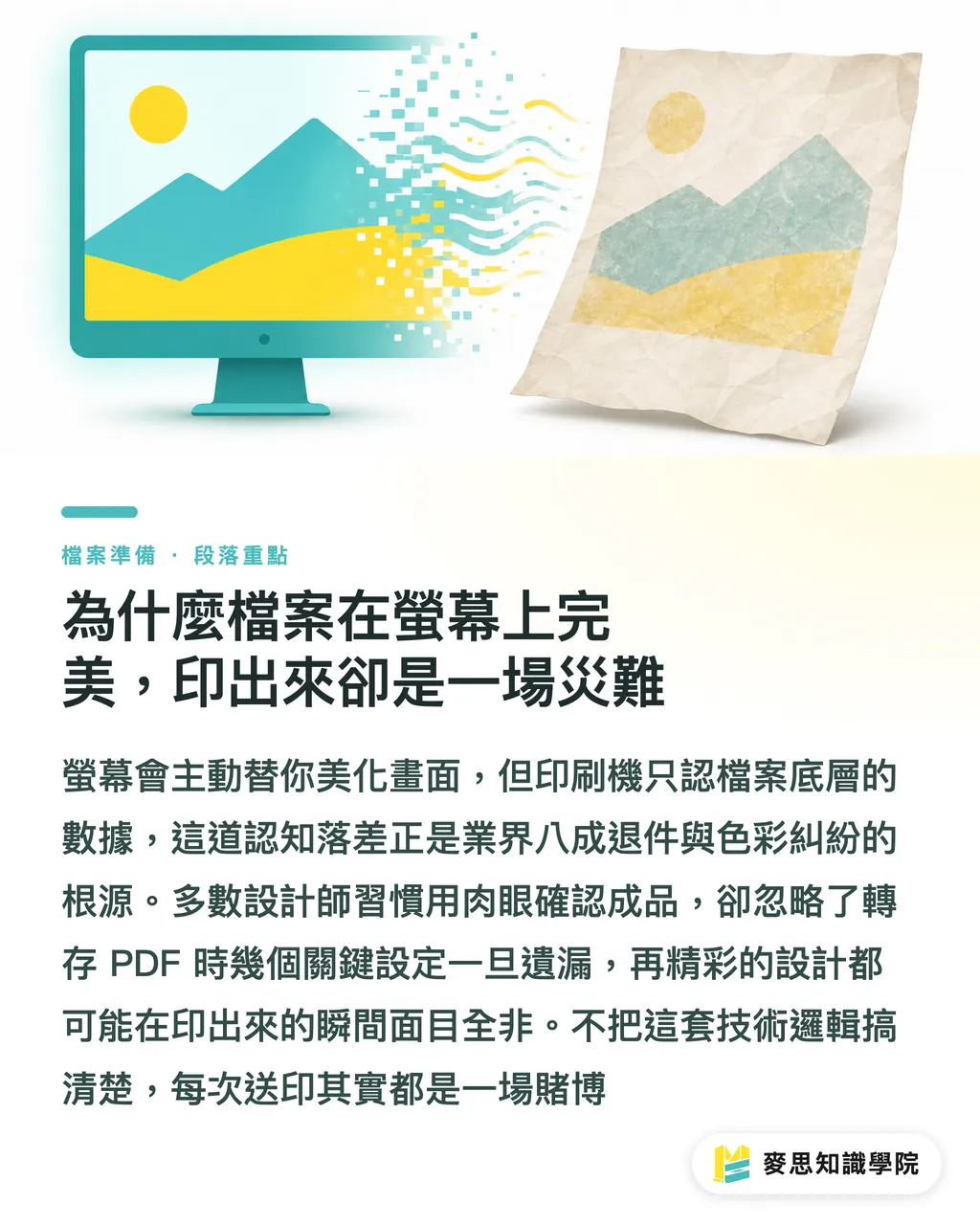
Why Files Look Perfect on Screen but Turn Into Disasters in Print
I've seen too many heartbreaking jobs on the print shop floor. The design was great, but a few missed PDF export settings completely ruined the final product
Emitting light on a screen works completely differently from physical ink on paper. Your computer display automatically fills in details for you, acting like a dangerous visual filter
Most designers rely on a visual check with their bare eyes. Print presses, however, only read the raw data and code beneath the file
Up to 80% of print rejections and color disputes in the industry stem directly from this gap in understanding
If you don't get these technical basics straight, every print run is a gamble where you just pray the press operators catch your mistakes
What Are the 5 Most Common PDF Pitfalls Before Printing?
Treat these five points as your final line of defense before sending files. They will save you endless back-and-forth and rework
・Unprocessed fonts: This is the number one cause of file rejections. If fonts aren't outlined or fully embedded, they will swap automatically or turn into gibberish at the printer
・Low resolution: A 72 DPI image looks sharp on screen, but turns into blurry pixelated squares on press. The absolute baseline for physical printing is 300 DPI
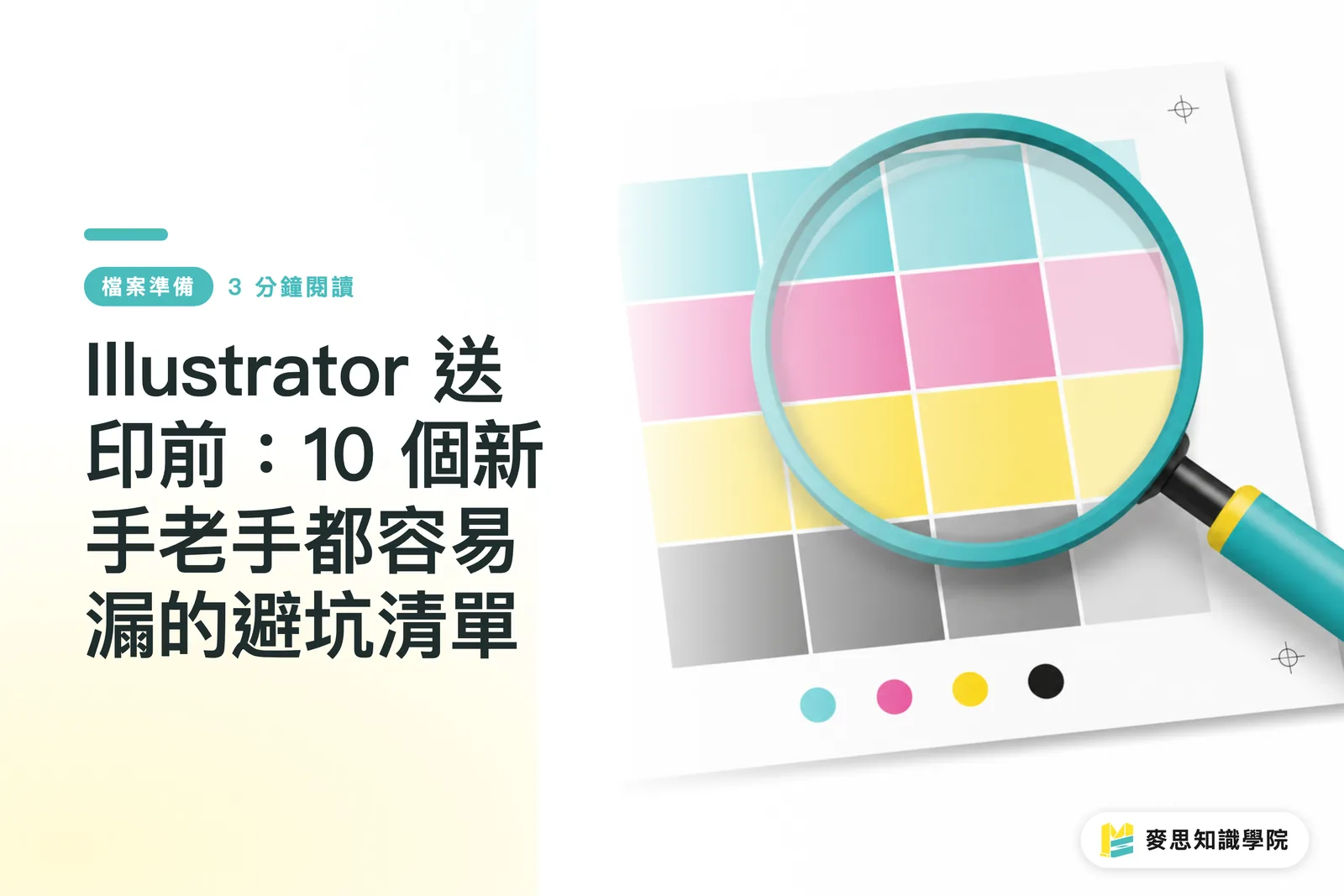
・Wrong color mode: Forget to convert RGB to CMYK, and a bright vibrant orange will turn into dull muddy brown on paper
・Unflattened transparency: If drop shadows or semi-transparent objects aren't handled properly, white boxes or strange cut lines often show up around edges
・Overprint mistakes: Accidental overprinting on white text lets the background color shine straight through, causing your text to vanish into thin air
How to Catch Hidden Traps Using Acrobat Preflight
Stop spotting bugs with your naked eyes. Using the built-in Preflight feature in Adobe Acrobat Pro is the real solution
Think of this tool as an X-ray machine for PDFs. It inspects the underlying file settings in seconds
・Open Print Production in the Acrobat sidebar and click Preflight
・Choose a PDF/X standard or custom check profile, and let the system scan all pages automatically
・The report pinpoints exactly which page and object is RGB, or which image falls below resolution standards
・For common issues, Preflight even offers fixups to convert RGB to the target CMYK color space in one click
Make this standard procedure, and print shops will see your files as the gold standard of professionalism
How Small and Medium Businesses Can Reduce Hidden Rework Costs
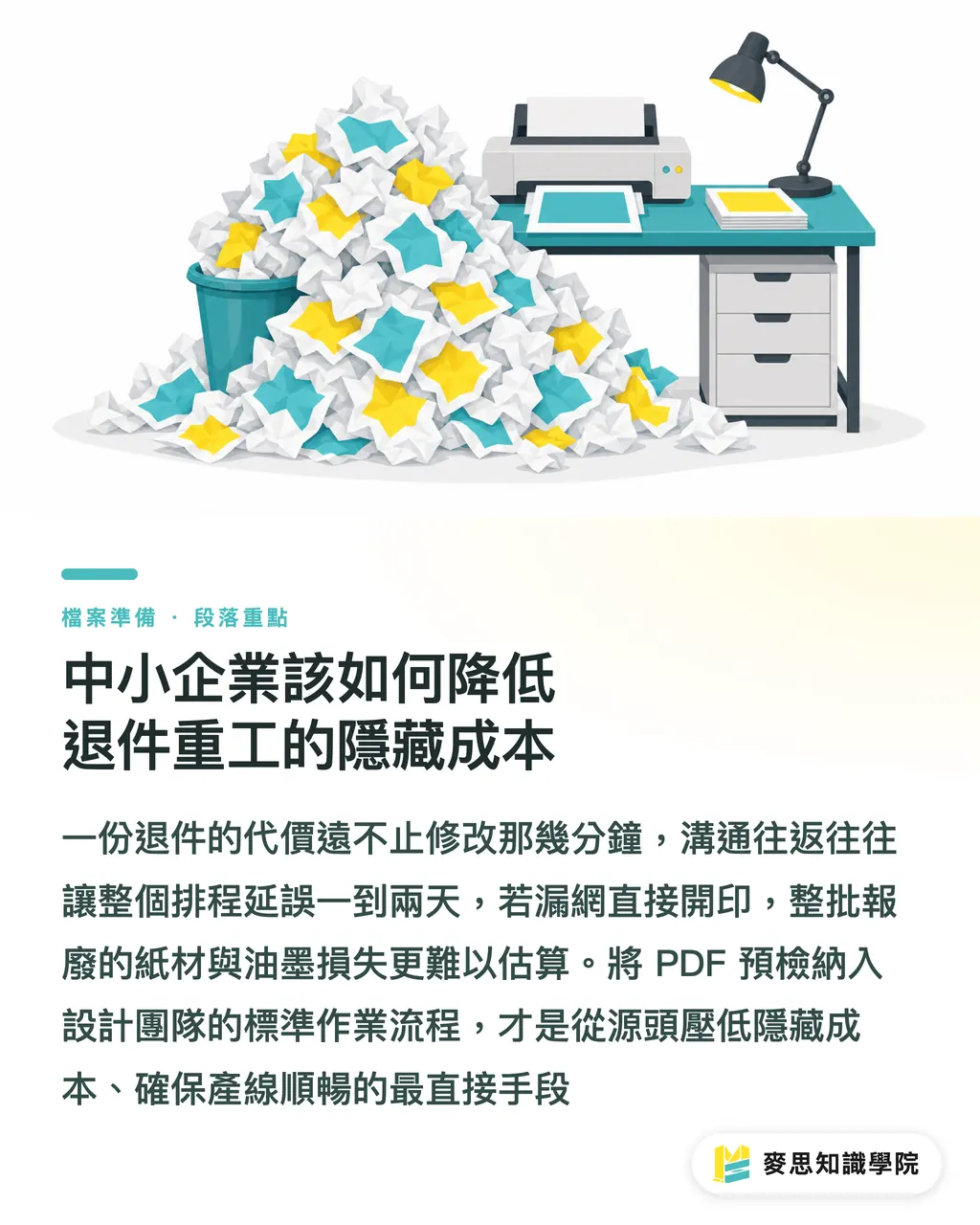
Many brands and freelance designers fail to realize that the cost of a rejected file goes far beyond the ten minutes spent fixing it
The back-and-forth communication friction often pushes the entire project schedule back by 24 to 48 hours
If a flaw goes unnoticed and heads straight to press, the wasted paper and ink costs are staggering
Making PDF preflight a standard operating procedure for your design team is the most direct way to boost pass rates
Fixing file quality early on keeps backend production running smoothly, and this is the professional core MINDS values most when integrating design and manufacturing
Key Takeaways
・What you see on screen can deceive you, print presses only read the exact data under the hood of your PDF
・Outlining fonts, keeping images at 300 DPI, and verifying CMYK color are the three iron rules to prevent rejections
・Acrobat Preflight is your strongest prepress line of defense, replace visual guesswork with automated system scans
・The stricter your checks on the front end, the lower your hidden rework costs on the production line
Further Considerations
Set up a shared PDF preflight profile for your team so every designer runs a standardized scan before sending files
This isn't just a defensive move to cut error rates, it builds real trust between design teams and print manufacturers
When your files are consistently clean and error-free, printers can focus their energy on color tuning and finishing details, ultimately elevating the overall quality of your project
Further Reading
・Common Print PDF Errors Explained: A Preflight-to-Print Checklist
FAQ
- Why does the print shop still say fonts are missing even after I checked them?
- You might be using restricted fonts that cannot be embedded, or the settings shifted during PDF export. The safest practice remains converting all text to outlines before sending
- Will converting RGB images directly to CMYK inside a PDF cause color shifts?
- Yes, absolutely. The RGB color space is larger than CMYK, so forcing a conversion dims bright colors. It's best to convert them first in photo editing software and adjust the contrast manually
- What is overprinting, and should I turn it on?
- Overprinting prints top ink directly over bottom ink without knocking out the background. It is usually reserved for 100% black text to prevent white gaps. Use it cautiously with other colors to avoid unexpected color mixing
- Can Acrobat Preflight fix every error for me?
- Preflight can fix color spaces or flatten transparency, but it cannot magically create resolution out of thin air. Low-quality images still need to be replaced in the original design file
References
- ISO 15930 — PDF/X prepress data exchange standard · International Organization for Standardization (ISO)Specifies color, font embedding, and output intent for print-ready PDFs — reducing prepress errors
- Ghent PDF Workgroup prepress PDF specifications · Ghent Workgroup (GWG)A widely adopted preflight profile set for print-ready PDFs, covering bleed, resolution, and transparency
Related articles


The Print × AI weekly
The print and AI know-how designers, brands and enterprises can use before they commit — one email, every week
MINDS Free Tools
Imposition calculator and preflight file check — free prepress tools, right in your browser.
MINDS Group
Need actual printing or gifting services?
From premium printing to online ordering and festive gifts — the MINDS Group sister brands take it from here.