
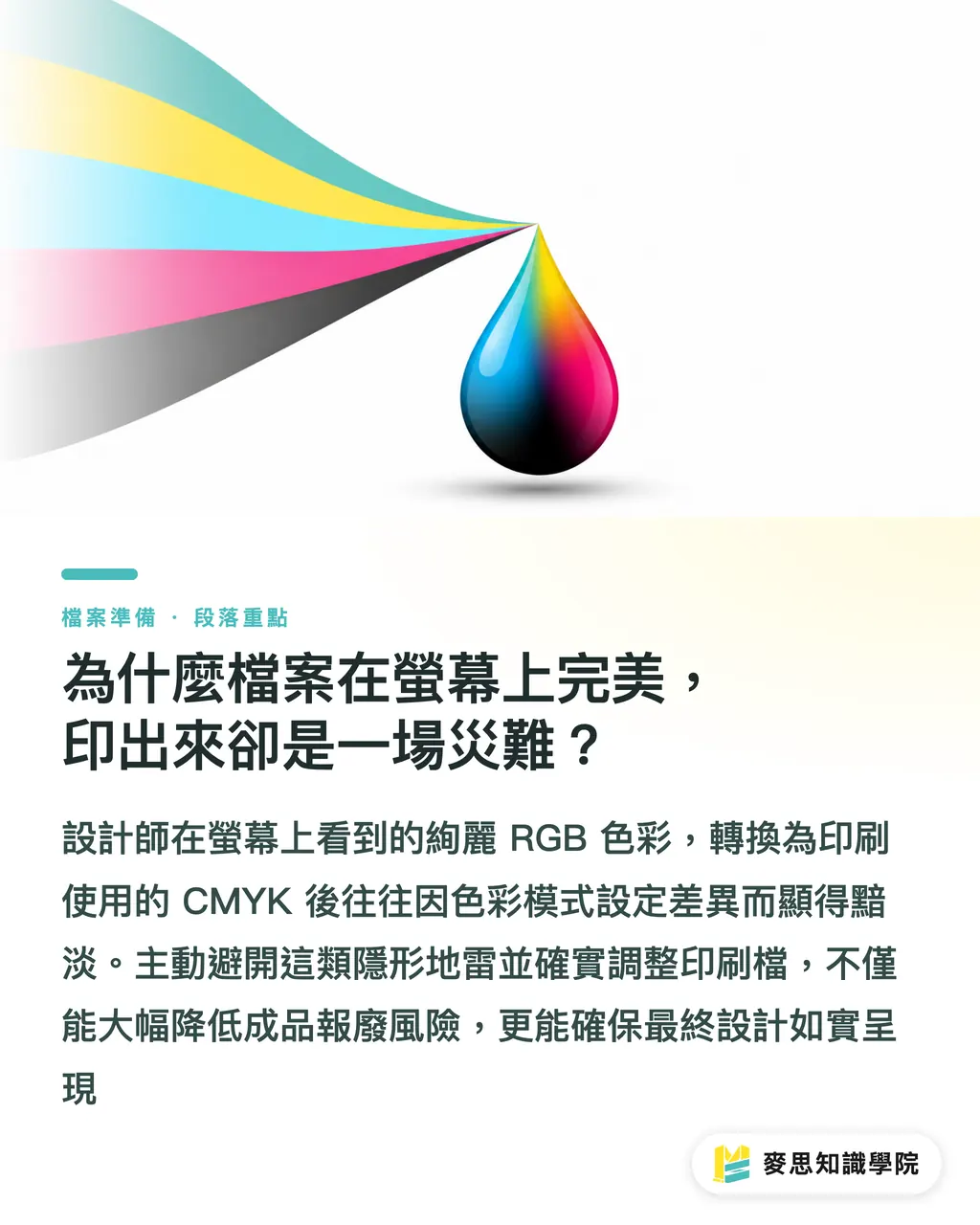
Why Does a File Look Perfect on Screen but Turn Into a Disaster in Print?
Print and screens work on completely different principles, and that is where communication breaks down most often on the print shop floor. Screens emit RGB light, while printing layers CMYK inks. Vibrant colors on your monitor often turn dull once converted to ink. After years in the industry, I have seen too many great projects get scrapped and reprinted simply because someone missed a color mode setting
Preparing print files is not just a technical task. It builds trust between the prepress team and the designer. When designers steer clear of hidden traps early on, the press runs smoothly. That cuts out endless back-and-forth and ensures the finished piece matches the original design vision
10 Pre-Press Traps to Check Before Sending Files: How Many Did You Miss?
Based on years of prepress experience, designers frequently overlook these 10 settings. Treat this checklist as your final line of defense before sending files off:
・Always set the color mode to CMYK when creating your document, rather than keeping the default RGB screen space
・Set a 3mm bleed under Document Setup to prevent unsightly white edges caused by trimming shifts
・Make sure all linked images are embedded by checking Window > Links to avoid missing image placeholders
・Verify that image resolution is sufficient by going to Effect > Document Raster Effects Settings and setting it to 300ppi
・Ensure black text is set to 100% K (single-color black) to prevent misregistration issues from rich black (CMYK 4-color black)
・Check overprint settings on small objects and black text to avoid trapping errors during printing
・When exporting to PDF, check both bleed marks and trim marks so the prepress team has exact cutting guides
・Set the Transparency Flattener preset to High Resolution to prevent pixelated artifacts around transparent elements
・Clean up the Swatches panel by deleting unused or lingering RGB swatches so they do not contaminate the file
・Use the PDF/X-1a:2001 preset for export, as it remains the most stable standard format in the printing industry
How Human-AI Collaboration Delivers Both Speed and Accuracy in Prepress
As design software evolves, AI-assisted checking tools have become remarkably fast at spotting errors. But speed does not equal understanding. Tools run fast, but they do not understand design intent. Fatal print mistakes, like subtle overprint bugs or color rendering on specialty stocks, still need human judgment and final review
We recommend an 'AI runs first, human follows up' workflow. Let automated tools handle the baseline checks on these 10 items, offloading repetitive, mechanical tasks to software. Once the basic errors are cleared, designers have the time and focus for what matters: prepress communication, fine detail adjustments, and paper selection, hitting both efficiency and quality

Key Takeaways
・Bleed and color mode are prepress fundamentals. Never rely on automated conversions
・100% K black keeps text sharp. Rich black should only be used for large, solid background areas
・Automated tools can catch missed settings, but fine details still require human oversight
・Building a habit of exporting to standardized PDF/X-1a will eliminate over 90% of file errors
Further Thoughts
In print manufacturing and graphic design, automation tools are reshaping file preparation. My advice is simple: do not let AI make you abandon basic printing knowledge. Tools should amplify your expertise, not replace your judgment. For SaaS developers building prepress solutions, the real priority is turning veteran print knowledge into automated inspection logic. That helps designers dodge traps intuitively instead of just dumping another raw checklist on them
Further Reading
・10 Pre-Press Checks in Illustrator: Settings Missed by Beginners and Pros Alike
FAQ
- Why does the printed color still look off even though I set the file to CMYK?
- Beyond color mode, ink absorption across paper stocks and individual press characteristics heavily influence the final output. CMYK on screen is only a reference. Check physical color swatches provided by your print shop or request a press proof
- Do I always have to choose PDF/X-1a:2001 when exporting a PDF?
- This format has been proven over decades to be the most stable standard, reducing compatibility issues. It forces all colors into print-ready CMYK and embeds all fonts, keeping the risk of print failure low
- I have hundreds of linked images. Do I really need to check and embed every single one?
- You should always verify the status of every image in the Illustrator Links panel. To save time, make this a habit right when setting up your file. Fixing broken links at the final deadline wastes time and introduces unnecessary risk
Related articles



The Print × AI weekly
The print and AI know-how designers, brands and enterprises can use before they commit — one email, every week
MINDS Free Tools
Imposition calculator and preflight file check — free prepress tools, right in your browser.
MINDS Group
Need actual printing or gifting services?
From premium printing to online ordering and festive gifts — the MINDS Group sister brands take it from here.