
Overview
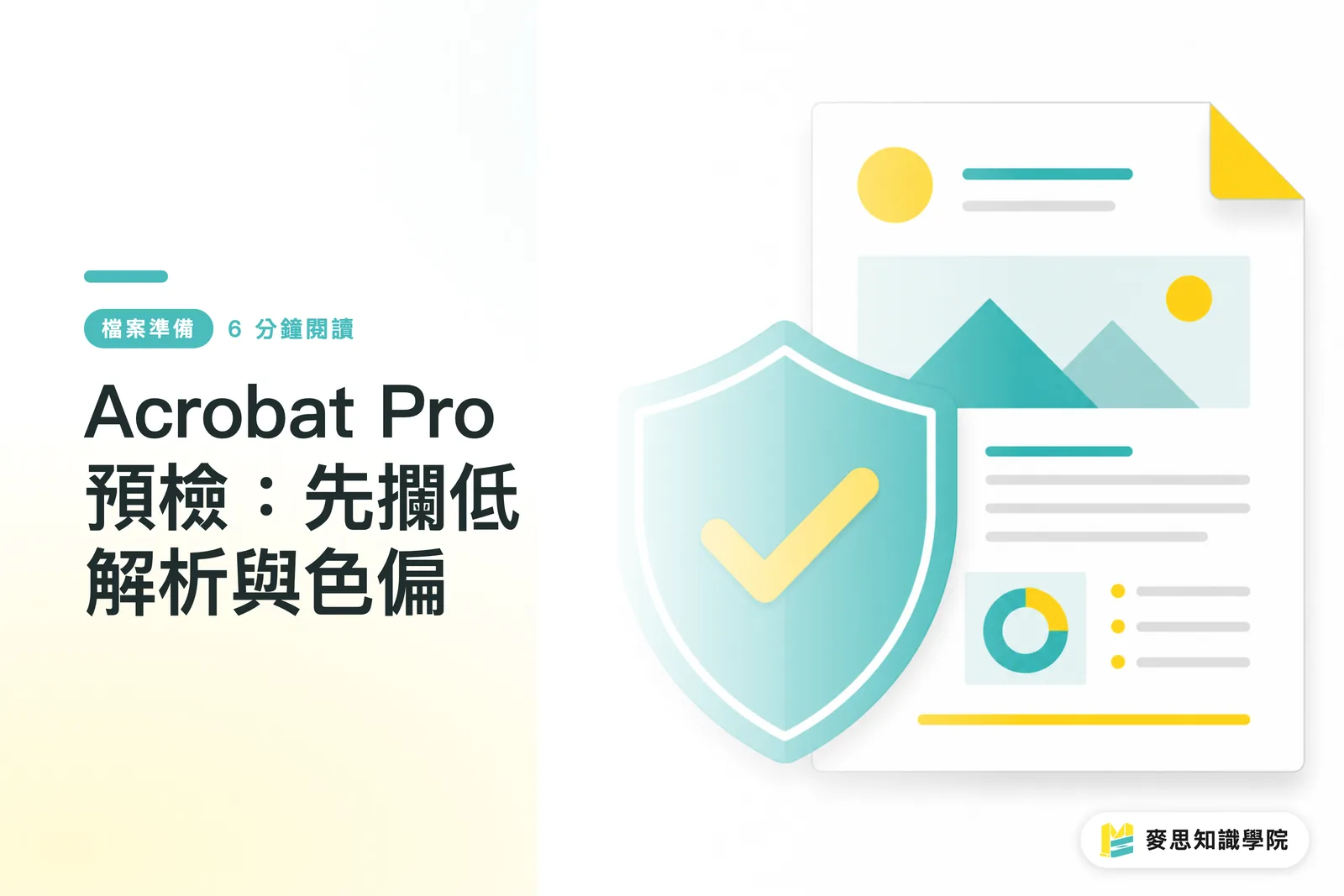
If you want fewer rejected files before print, run the PDF through Acrobat Pro's Preflight first. At minimum, check four things: RGB images, fonts that are not embedded, images below 300ppi, and lines that are too thin. I would place this workflow inside the three-gate print handoff for MINDS Printing (MS, mid- to high-end fully customized commercial printing): designer self-check, procurement review, and printer confirmation
Preflight: scanning a PDF against print rules before submission to catch issues with color, fonts, resolution, line width, and output conditions, so errors do not enter production
Why can a PDF look fine and still get rejected?
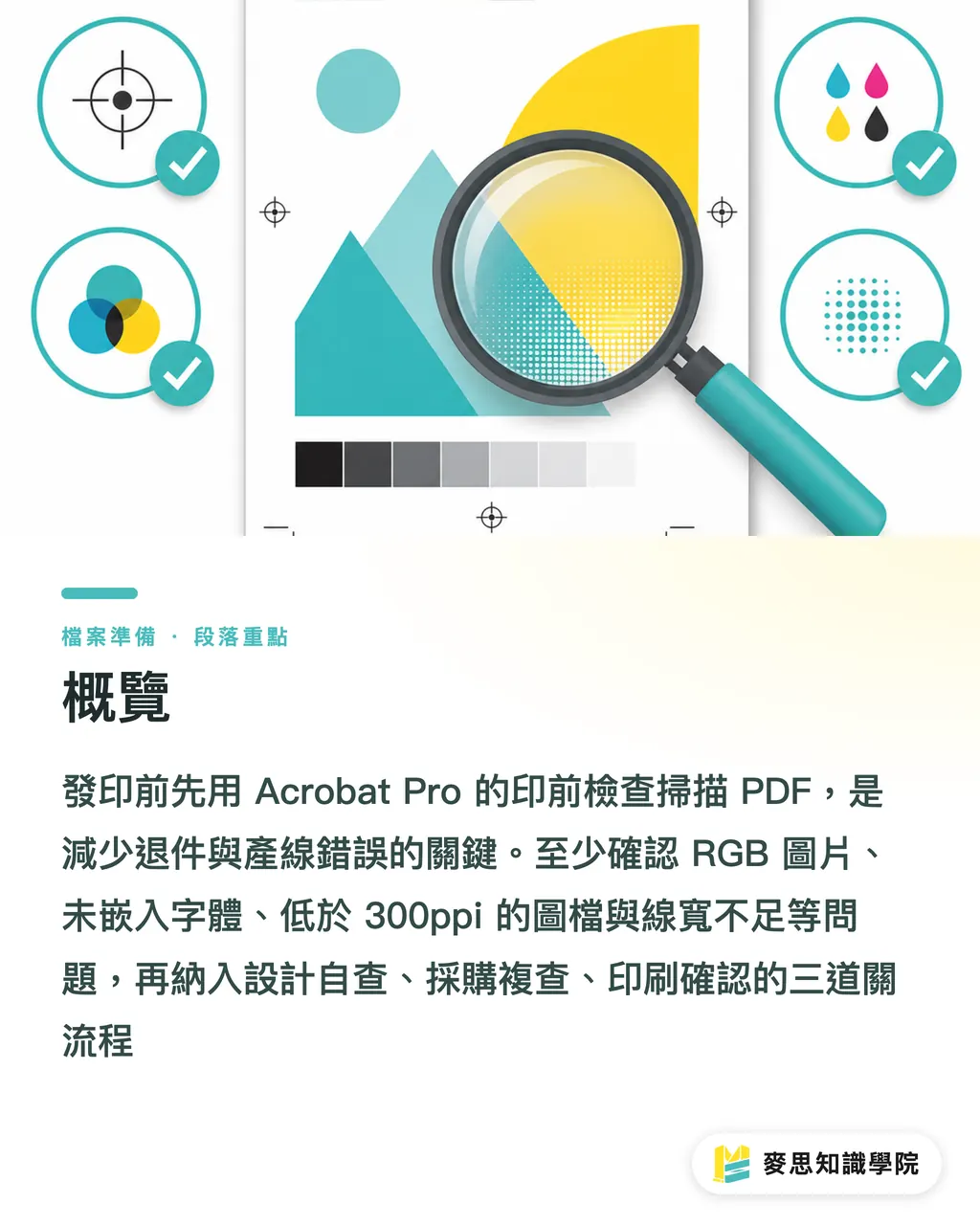
A PDF preview lets you check the layout. Print output follows a different set of conditions: 300ppi, CMYK, embedded fonts, bleed, line width, and output intent. The first gate in the three-gate print handoff is turning "it looks fine on screen" into "the PDF objects truly meet output requirements."
I have seen this many times: a product photo looks sharp on a 27-inch monitor, but once it is placed across a catalog spread, its effective resolution drops to only 180ppi. The designer thinks the original image is large enough. The print shop sees the real ppi after scaling, and the rejection note comes back cold: image resolution too low
Effective resolution means the actual ppi after the original image is placed in the layout. If a 300ppi image is enlarged to 200%, its effective resolution drops to about 150ppi. This kind of issue is hard to catch by eye. Acrobat Pro Preflight scans the image objects inside the PDF one by one and points directly to the page number and object location
Color shifts work the same way. RGB images rely on light from a screen. CMYK printing builds color with ink or toner. Bright blue, vivid green, and neon orange are often the first colors to go wrong. If brand colors, skin tones, or gray backgrounds shift even a little, clients usually notice
What does Acrobat Pro Preflight actually check?
Acrobat Pro Preflight lives under Print Production and scans PDFs with Profiles. A Profile is basically a receiving specification sheet. It checks every image, every font, every color space, every line, and the PDF's output settings
For the three-gate print handoff, companies should at least check these four types of errors on a fixed basis
・RGB images: check whether RGB objects still exist in the PDF, so brand colors do not shift only after the file enters the print workflow
・Fonts not embedded: confirm that fonts are packaged with the PDF, reducing the risk of type being substituted after a machine or RIP change
・Image files below 300ppi: for standard commercial printing, use 300ppi as the internal threshold first. Large-format output should use a separate Profile
・Line width too thin: when lines are too fine, thin borders, light screens, foil-stamping outlines, and small icons can break or disappear
The operation itself is simple. Open the PDF, go into Preflight, choose a print compliance or PDF/X Profile as the base, then add the rejection conditions your company sees most often. Click Analyze and review the report first. Do not rush to click Fix, especially for RGB-to-CMYK conversion and font issues. Going back to the source design file usually gives a cleaner result
How can companies turn Preflight into an internal acceptance gate?
When a company adopts Preflight, the point is to bring the print shop's receiving standards into the company. The MINDS Printing (MS) three-gate print handoff can be put into practice like this
・① Designer self-check: after exporting the PDF, the designer runs a fixed Profile and checks at least four issue types: RGB, fonts, 300ppi, and line width
・② Procurement review: procurement or the project contact reviews the Preflight report and handles Error, Warning, and Info as three separate levels
・③ Printer confirmation: send the Preflight report to the print shop together with size, paper stock, finishing, quantity, and deadline, so everyone can discuss rejection causes from the same document
I would ask procurement to keep the Preflight report and the PDF in the same folder, using the same version number in the file names, such as catalog_v03.pdf and catalog_v03_preflight.pdf. Issues that used to take three emails to explain now show page numbers, objects, and severity right in the report
For catalogs, packaging, spot colors, or multi-step finishing, I would suggest confirming the Preflight Profile and print conditions together with MINDS Printing. For standard items such as business cards, DMs, and stickers, the design side can run the checks first and then place the order online through MINDS Print, which makes communication much simpler
How should you decide what must be fixed in a Preflight report?
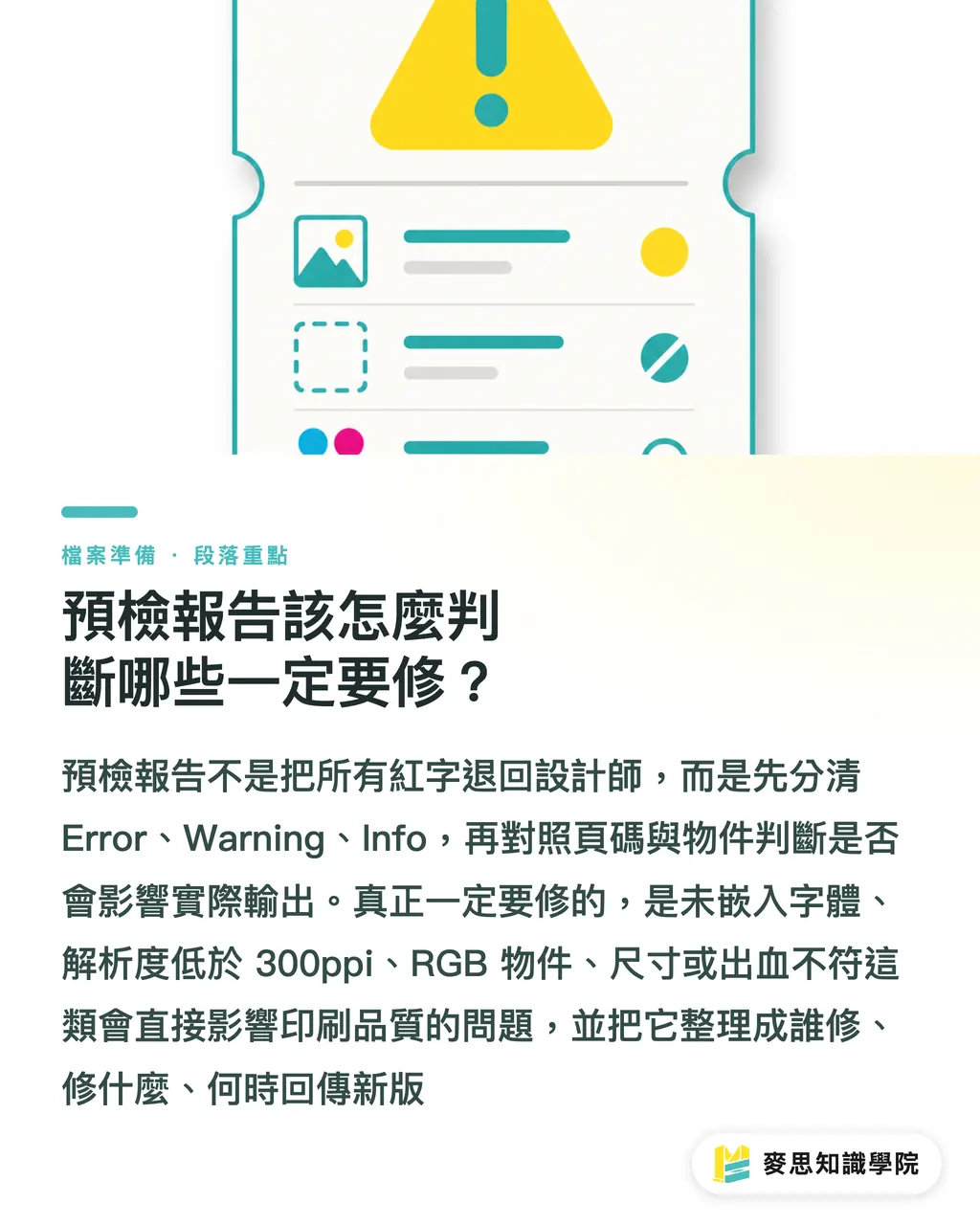
The procurement review in the three-gate print handoff does not mean throwing every red line back to the designer. Read the Preflight report by Error, Warning, and Info first. Then check the page number and object. Finally, decide whether it will affect the actual output
・Must fix: fonts not embedded, effective resolution below 300ppi, RGB objects, incorrect size or bleed, and line width below the print shop's specification
・Need confirmation: inconsistent ICC profile, transparency, spot colors, and overprint settings. The print shop may be able to handle these, but they need to be discussed first
・Acceptable: Info items unrelated to output, such as simple object-property notices. Still confirm whether the object will appear in the printed layout
What I least want to see on-site is not a pile of Warnings. It is that no one knows which page a Warning refers to. If procurement spends just five extra minutes turning the report into "who fixes it, what gets fixed, and when the new version comes back," rejection stops being an emotional problem and becomes a work-order problem
Handle color conservatively. RGB images can be converted to CMYK in Acrobat Pro, but for brand colors, skin tones, and key product visuals, it is better to adjust color in the source design software and export a new PDF. Printing is not finished the moment you drop a file into a machine. One extra look up front saves a lot of opened paper packs later
Key Takeaways
・Acrobat Pro Preflight brings rejection reasons back inside the company first, making revision time easier to control
・For 300ppi, check effective resolution. After an image is enlarged to 200%, it may be only 150ppi
・RGB, fonts not embedded, low resolution, and insufficient line width are the four error types companies should routinely catch before sending files to print
・Preflight reports should be separated into Error, Warning, and Info. Do not throw every red line back to the designer
・Use automatic fixes conservatively. Color and font issues are best handled in the source design file
Further Thinking
Print manufacturing, design, AI application, and SaaS teams can all learn one thing from Preflight: catch errors at the cheapest point in the workflow. Designers can run fixed checks in Acrobat Pro. Procurement can turn the report into an acceptance field. SaaS ordering systems can require uploads to show minimum effective resolution, RGB status, font embedding, and line-width warnings. AI applications are well suited to organizing reports, generating revision lists, and drafting customer service replies. But whether a brand color needs retuning, or whether a paper stock will absorb color differently, still needs to be decided by someone who understands printing
FAQ
- Can Acrobat Pro Preflight fully replace the print shop's file check?
- No, I would not recommend fully replacing it. Acrobat Pro Preflight works well as the company's first internal gate, but the print shop still needs to make the final confirmation based on equipment, paper stock, finishing, and RIP conditions
- Why does Preflight still say the resolution is too low when the original image file is large?
- Preflight checks effective resolution. If an image is enlarged after being placed in the layout, a 300ppi original may drop to 150ppi. The print shop judges the file by the actual ppi on the page
- Can RGB images be converted directly to CMYK in Acrobat Pro?
- Yes, but for brand colors, skin tones, and key product visuals, relying only on one-click color conversion is not recommended. The steadier approach is to adjust color in the source design file, then export the PDF again
- Do all Warnings in a Preflight report have to be fixed?
- Not always. Errors usually need fixing. Warnings need confirmation of their printing impact. Info items are mostly object-information reminders. Procurement should turn the report into "who fixes it, what gets fixed, and when it gets confirmed."
- Should small and mid-sized businesses adopt Preflight even without dedicated print staff?
- Yes. Small and mid-sized businesses can start by fixing four checks: RGB, fonts not embedded, below 300ppi, and insufficient line width. That alone catches most common causes of rejected print files
Related articles



The Print × AI weekly
The print and AI know-how designers, brands and enterprises can use before they commit — one email, every week
MINDS Free Tools
Imposition calculator and preflight file check — free prepress tools, right in your browser.
MINDS Group
Need actual printing or gifting services?
From premium printing to online ordering and festive gifts — the MINDS Group sister brands take it from here.