
Overview
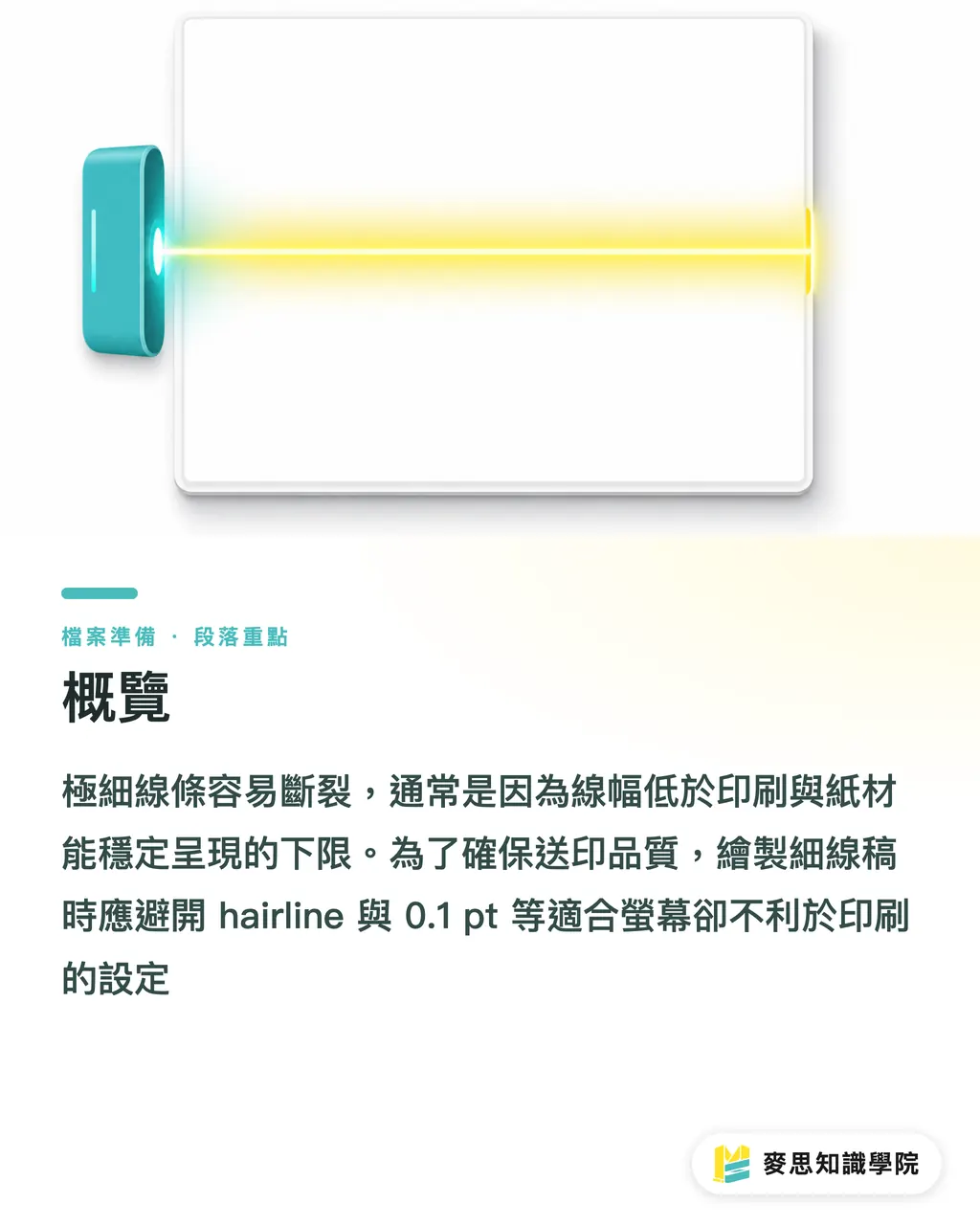
Fine lines break mostly because stroke widths fall below the floor that the press, paper, and RIP can reproduce reliably. At MINDS (MS, mid-to-high-end full-custom commercial printing), when I review fine-line artwork, I run it through the MINDS (MS) Three-Gate Press Check, stroke width first, then paper stock, then color plates. For CAD drawings and single-line illustrations, the baseline rule is to avoid hairline and 0.1 pt settings, which look fine on screen but don't survive the press
Why Do Fine Lines Look Sharp on Screen but Break in Print?
Stroke width: the actual output width of a line in the final artwork. Taiwan printers typically talk in pt or mm, and it's affected by resolution, halftone dots, paper ink absorption, and press pressure
A line that looks solid at 400% zoom becomes halftone dots, ink spray, or a thin ink film on press 0.1 pt is only about 0.035 mm, it exists in the PDF, but that doesn't mean it'll hold on paper
CAD drawings are the most common offender. Dimension lines, furniture outlines, and annotation lines look well-organized by layer, but they often get scaled down on output. A1 to A3 is a 50% linear reduction, so a line that starts at 0.13 mm ends up at roughly 0.065 mm, and on uncoated stock, it tends to break into fragments
Single-line illustrations have the same problem, especially AI-generated images that have been vectorized. They're full of sub-0.25 pt fragments, overlapping lines, and open paths. What looks like fine detail on screen is, to the press, a mess of edges that can't hold ink consistently
What's the Safe Stroke Width for CAD Drawings and Single-Line Illustrations?
When reviewing fine-line artwork, I separate 'minimum printable' from 'production-stable.' The first might squeak by on a good day; the second is what commercial printing should actually be targeting
・ 0.25 pt, about 0.088 mm, I treat this as the floor for coated paper, positive lines, and K100 single-color black
・ 0.35 pt, about 0.123 mm, works for scaled-down CAD output, gray lines, light-colored lines, and standard digital printing
・ 0.5 pt, about 0.176 mm, for uncoated paper, reversed-out lines, white lines on dark backgrounds, and fine lines sitting next to four-color elements
・ 0.75 pt, about 0.265 mm, for small-format mass production, textured art paper, and details that need to survive near cut or fold lines
For CAD drawings, always ask for the final print size, not just the original drawing size. Interior design proposals often shrink A1 floor plans to A3 or A4, and stroke width, type size, and legend density all shrink with it. The result is either a client who can't read the drawing or a print shop that has to thicken everything and re-output
For high-end proposals, architecture portfolios, and fine-line illustration cards, I'd suggest having MINDS (MS) review the PDF's stroke widths and paper configuration first. For business cards, small-run stickers, and general cards, MYS's online specs work fine, just start with a conservative 0.35 pt or above and note any special details in the order comments for prepress to confirm
How Does Paper Stock Change the Outcome for Fine Lines?
The same 0.25 pt black line prints differently on art coated, semi-gloss coated, woodfree offset, and cotton paper. The rougher the surface and the more ink it absorbs, the more edges fray, light lines break, and small white spaces fill in
Coated stocks are smoother, more ink stays on the surface, so K100 dimension lines in CAD drawings tend to come out crisp. Uncoated stocks have more fiber texture; ink sinks in, and 0.25 pt lines can look faded or bloated, with gaps between fine lines closing up
・Art coated or semi-gloss coated: positive lines can start at 0.25 pt, gray and light-colored lines should go up to 0.35 pt
・Woodfree offset or general uncoated: positive lines should start at 0.35 pt, reversed-out lines at minimum 0.5 pt
・Textured art paper or cotton-feel stock: add another 0.1 to 0.2 pt, and confirm illustration details with a sample print first
I tell designers this all the time: paper isn't a screen, it has fiber, ragged edges, and a mind of its own. The finer you want to go, the more margin you need to build in
When Should You Outline and Use Single-Color Black?
Outlining: converting type or strokes into vector outlines so the RIP outputs by shape, no longer relying on font data or stroke attributes. It's the right move for locking down details before final output
Before sending fine-line artwork to press, I check key strokes around 0.25 pt to make sure there are no hairlines, nothing below 0.25 pt, and no strokes that got thinned by scaling. Once the layout is locked, outline the necessary strokes and keep the editable original file separately
For fine black lines, use K100 single-color black, not rich black built from C, M, Y, K Misregistration at the 0.1 mm level may not show on large color fills, but on 0.25 pt lines, it shows up as color fringing, ragged edges, or gaps
Reversed-out lines need an even bigger margin. Cutting a 0.25 pt white line on a dark background gets swallowed by surrounding ink easily. For items read up close, business cards, packaging cards, invitations, I typically set reversed-out lines at 0.5 pt or above, going up to 0.75 pt on textured paper or with heavy ink coverage
How the MINDS (MS) Three-Gate Press Check Catches Fine Line Problems
The MINDS (MS) Three-Gate Press Check works well for CAD drawings and fine-line illustrations because it doesn't let 'probably fine' slide, it breaks the risk into 3 checkpoints
・① The numbers gate: use Illustrator, Acrobat Preflight, or your output software to check strokes and flag hairlines, 0.1 pt, 0.2 pt, and anything that scales below 0.25 pt
・② The paper gate: coated and uncoated stock are judged separately, the minimum stroke width for uncoated paper goes up by 0.1 to 0.2 pt
・③ The plate gate: CAD drawings, black annotations, and single-line illustrations should use K100 first, avoid four-color fine lines, and set reversed-out lines at 0.5 pt minimum
Before submitting, run a small stroke width test strip with 0.25 pt, 0.35 pt, 0.5 pt, 0.75 pt, four widths, printed on the same stock. It tells you more than squinting at 800% zoom ever will
When the Mai Strategy Knowledge Academy consulting team reviews this kind of artwork, we ask three things first: final print size, paper stock name, and whether the fine lines are positive or reversed-out. Those three answers determine how conservative the stroke width needs to be

Key Takeaways
・0.1 pt is visible on screen, that doesn't mean it holds on press
・Confirm the scale ratio for CAD drawings. A1 to A3 is 50% — it cuts stroke width in half
・Uncoated paper absorbs ink, the minimum stroke width should be more conservative than coated 0.1 to 0.2 pt more
・Use K100 for fine black lines. Rich black is for large fills, don't let misregistration add fuzz you didn't ask for
・Outline as the last step, save the editable original separately, and keep your revision path open
Further Thinking
On the design side, turn 0.25 pt, 0.35 pt, 0.5 pt, and 0.75 pt into preset stroke styles. Print shops can document paper-to-stroke-width mappings in their quotes and prepress checklists. AI illustration and SaaS layout tools should flag hairlines, four-color fine lines, and under-spec reversed-out lines before PDF export, those three risks. Fine line problems aren't hard to fix. What's hard is that everyone waits until the job comes back wrong before talking about physical limits
FAQ
- What's the minimum stroke width for printing CAD drawings?
- For CAD drawings on coated paper, single-color black, at normal size, I treat 0.25 pt (about 0.088 mm) as the floor. For scaled-down output or uncoated stock, 0.35 to 0.5 pt is the safer range
- Can 0.1 pt fine lines actually be printed?
- 0.1 pt is about 0.035 mm. Some equipment and paper combinations might pull it off, but production consistency is poor. For commercial printing, don't treat 0.1 pt as a safe stroke width
- Why use K100 single-color black for fine lines?
- K100 only runs through the black plate, so CAD lines, dimension lines, and text annotations come out clean. Fine lines in rich black are exposed to misregistration, color fringing and ragged edges are the usual result
- Can strokes still be edited after outlining?
- Editing flexibility drops once you outline, so do it right before the final print PDF and keep an editable original. Fine-line illustrations, special fonts, and key strokes are the ones that need this step most
- Can reversed-out fine lines work on a dark background?
- Yes, but they need to be wider than standard black lines. White lines on dark backgrounds should be at least 0.5 pt, for textured paper, heavy ink coverage, or small-format items, go 0.75 pt or above
Related articles




The Print × AI weekly
The print and AI know-how designers, brands and enterprises can use before they commit — one email, every week
MINDS Free Tools
Imposition calculator and preflight file check — free prepress tools, right in your browser.
MINDS Group
Need actual printing or gifting services?
From premium printing to online ordering and festive gifts — the MINDS Group sister brands take it from here.