

Before Sending Files to Print, First Understand What Transparency Means in a PDF
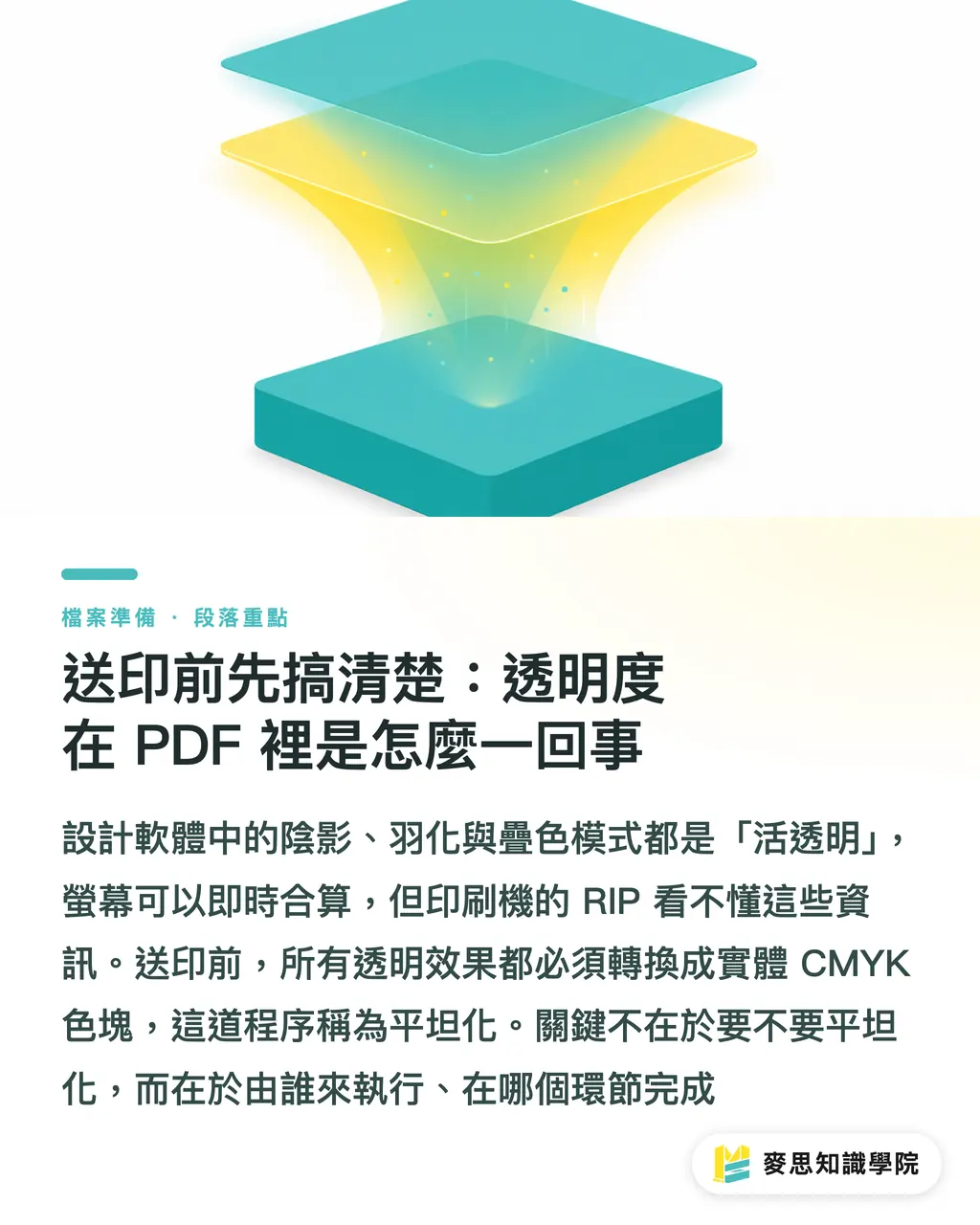
The shadows, feathered edges, and Multiply overprints designers create in Illustrator or InDesign are all "live" effects inside the application. Each layer keeps its own opacity value and blending mode, and the screen render calculates the result on the fly
The problem is that printing equipment does not understand "live transparency." At the moment the file reaches the RIP, short for raster image processor, all transparency data has to be converted into actual CMYK color blocks. This process is called flattening
The real difference is this: who does that work, and at which step
What Is the Real Difference Between PDF/X-1a and PDF/X-4?
The main split between these two standards is when transparency gets handled
PDF/X-1a (ISO 15930-4, based on PDF 1.3)
・Transparency must be fully flattened at export. After saving, no live transparency remains in the file
・Only CMYK + spot colors are allowed. RGB is not accepted
・It has the broadest compatibility. Almost every RIP can process it, which is why it has long been the default file format for many traditional print shops in Taiwan
PDF/X-4 (ISO 15930-7, based on PDF 1.6)
・Live Transparency can be preserved, with final flattening handled on the RIP side
・ICC-based RGB embedding is supported, so color management is more complete
・Text is always stored as vector data, so it will not turn into a raster image because of flattening
・The condition: the print shop's RIP must support PDF 1.6 or later, or the file may fail outright or produce silent errors
In one sentence: X-1a means "you flatten it before handing it off," while X-4 means "you keep live transparency and let the RIP flatten it."
When Should You Flatten It Yourself, and When Can You Keep Transparency Live?
This is the question designers ask me most often. I use one decision path based on three conditions:
Condition 1: Confirm what format the print shop accepts
・If the print shop only accepts PDF/X-1a, or if it is a traditional small shop with no stated file specification, flatten it yourself before export. Do not gamble
・If the shop clearly says it supports PDF/X-4, or if it uses a modern workflow such as Kodak Prinergy, Heidelberg Prinect, or Screen Trueflow, you can send X-4 and keep transparency live
Condition 2: Look at the complexity of transparency in the design
・If there is only a simple Drop Shadow or a single layer with reduced Opacity, the flattening risk is low, and either format can work
・For large Multiply / Screen overlays, multiple overlapping feathered areas, or transparent objects sitting on top of gradients or images, keeping live transparency in X-4 and letting the RIP handle it is often more accurate than flattening it yourself
・If important text sits on top of a transparency effect area, I strongly recommend X-4. After X-1a flattening, there is a high chance that the text will be converted into a raster image, and small type can show jagged edges under high magnification
Condition 3: Check whether there is time for proofing
・If there is a proofing step, submit X-4 for review, confirm the color on proof, then approve production
・For rush jobs with no proof, I suggest flattening it yourself into X-1a so the uncertainty stays inside a step you can control
If you are sending files through MINDS or Mai Printing online ordering, ask for the accepted file specification for that product. Different print items, such as business cards, posters, and mounted board output, may run through different RIP setups. Do not use one export setting for everything
Know These Four Risks Before Flattening the File Yourself
Flattening output in Illustrator or InDesign is not a one-click-and-done task. These are the most common issues I have seen on production lines, and each one has caused files to be rejected
White hairlines (Stitch Lines / Hairline Artifacts)
When the flattening algorithm slices transparent areas into smaller color blocks, a nearly invisible white line may appear along the boundary between adjacent blocks. It can look fine on screen, then show up in print at certain screen angles. How to handle it: inspect carefully in Acrobat Pro with Output Preview, or intentionally set the artwork rasterization resolution above 1200 dpi. High-resolution flattening can reduce the issue, but it cannot remove it completely
Text converted to raster image
As long as text falls inside the affected range of a transparency effect, Illustrator may convert that text from vector into raster image data during X-1a flattening. The resolution depends on the Document Raster Effects Settings, and the default 72dpi is nowhere near enough. Before print, make sure the document effect resolution is set to 300dpi, or the font outlines will become blurry
Unexpected splitting in gradients and images
When a transparent object sits on top of a CMYK gradient, the flattened result may split the image into several separate color blocks. A gradient that was originally smooth can develop visible boundaries. This is especially obvious in large background gradients
Distorted blending mode effects
Blending modes such as Multiply or Screen depend on the background color when calculating final CMYK values during flattening. If the background is an embedded RGB image, the color conversion path becomes complicated, and the final color is hard to predict in advance. I suggest converting background images to CMYK before flattening
A Print-Ready Transparency Checklist for Designers
Here are five checks you can do before sending files to print. The prepress team at MINDS (MS, mid-to-high-end fully custom commercial printing) usually troubleshoots in this same order:
・Step 1: Confirm the print shop's accepted file format, X-1a or X-4. If it is unclear, ask. Do not guess
・Step 2: Set the Illustrator document effect resolution to 300dpi, Effects → Document Raster Effects Settings. Check this for every new file. Do not rely on memory
・Step 3: For areas where text sits over transparency, export as X-4, or move the text object to the very top layer and make sure the flattening area does not include the text
・Step 4: Use Output Preview in Acrobat Pro and switch to CMYK overprint preview mode. Visually scan for white lines or abnormal splitting
・Step 5: For files with any doubt, ask the print shop for a digital proof. The cost of one proof is far lower than the loss from reprinting a full batch
Key Takeaways
・PDF/X-1a requires flattening before output. X-4 allows live transparency to stay in the file and lets the RIP handle it. The right choice depends on whether the print shop's RIP supports X-4
・If text sits inside the area affected by transparency, it may become a raster image after X-1a flattening, which creates a high risk of blurry small type
・The three most common post-flattening problems are white hairlines, gradient splitting, and text converted to image data. All three are frequent reasons for file rejection
・If you do not know what format the print shop accepts, asking is safer than guessing. For rush jobs with no proof, flattening to X-1a yourself is more controllable
・Illustrator's document effect resolution defaults to 72dpi. Before print, you must change it to 300dpi. Missing this step can look very bad
Further Thinking
The real question here is not "Is X-1a better, or is X-4 better?" It is which workflow your design file is entering. Many small and mid-sized print shops in Taiwan still mainly use X-1a, while large commercial printers and digital print providers now widely support X-4. This gap will likely remain for some time
Practical suggestion: if a SaaS tool or AI-assisted design platform generates print-ready files for users, the export step should offer a "target print shop format" choice instead of applying one setting to every product type. Transparency handling can be automated on the backend, but only if the system knows the capability of the RIP it is feeding. For designers, confirming the format early in the workflow is far easier than sending the file first and chasing the print shop afterward
FAQ
- What is the main difference between PDF/X-1a and PDF/X-4 for print output?
- X-1a requires all transparency effects to be flattened into actual CMYK color blocks during export, with no live transparency remaining in the file. X-4 allows live transparency to stay in the file, and the print shop's RIP performs flattening at output. X-1a has the broadest compatibility. In workflows that support it, X-4 gives better text quality and more accurate blending
- Text becomes blurry after exporting PDF/X-1a from Illustrator. How do I fix it?
- The text is likely inside the affected area of a transparency effect, and X-1a flattening has converted it from vector into a raster image. First, make sure Effects → Document Raster Effects Settings is set to 300dpi. Second, consider exporting as PDF/X-4 if the print shop supports it, since the live transparency format will not convert text into image data
- What is the "white line" problem after flattening, and how can it be avoided?
- During transparency flattening, the algorithm cuts the affected area into multiple color blocks. At certain screen angles, thin white lines can appear along adjacent boundaries, and they may only show up after printing. Raising the flattening resolution to 1200dpi can reduce the issue, but checking first with Acrobat Pro Output Preview is the most direct way to confirm it
- How should I prepare artwork with a lot of Multiply overlays for print?
- The best option is to send PDF/X-4 and let a supported RIP calculate the final blended color. If you can only send X-1a, convert all background images to CMYK first to reduce color conversion variables during flattening, then run a digital proof to confirm that the color matches expectations
- What should I do if I do not know whether the print shop supports PDF/X-4?
- Ask the print shop directly: "Does your RIP support PDF/X-4 with live transparency?" Five minutes is enough to clear it up. If they cannot confirm, or if a small shop gives no clear answer, the safest approach is to send X-1a and flatten it yourself
Related articles


The Print × AI weekly
The print and AI know-how designers, brands and enterprises can use before they commit — one email, every week
MINDS Free Tools
Imposition calculator and preflight file check — free prepress tools, right in your browser.
MINDS Group
Need actual printing or gifting services?
From premium printing to online ordering and festive gifts — the MINDS Group sister brands take it from here.