
Can Canva Free Version Posters Be Printed Directly?
Yes, but let me give you the full picture: posters made in the free version of Canva can be sent to print, provided you inspect them using the 'Three-Gate Print Check' from MINDS (mid-to-high-end fully custom commercial printing): 1. Size & Bleed, 2. PDF Print Settings, and 3. Prepress Preflight, instead of just submitting a standard PDF or PNG
Many corporate marketers quickly draft A4 posters, event standees, or store announcements in Canva. The issue rarely lies in the design, but in the final 10 minutes of file export. Screen artwork exists in an RGB world, while print shops deal with paper, ink, cutting blades, and machine tolerances. When the two sides speak different languages, files easily break down over bleed, typography, resolution, or transparency effects
Prepress-Ready Artwork: On Taiwan's print shop floors, prepress-ready artwork refers to files that can immediately enter output and printing workflows. It typically requires correct dimensions, bleed, image resolution, font handling, color settings, and PDF print formatting
When looking at Canva files, there is one scenario I dread most: the layout looks gorgeous, the background sits flush right on the edge, and text is jammed against the trim line. These files are not unprintable, but printing them risks white borders or clipped text, leading to endless back-and-forth about 'why didn't the print shop warn us.'
It comes down to something simple
Canva works great as a design entry point, but before sending it to press, treat it as a semi-finished draft and review it once. For standard event posters or short-run retail prints, using Canva's PDF Print option alongside a thorough checklist is usually enough. For core brand visuals, volume runs, specialty papers, spot UV, or die-cutting, pass the file to a designer to rework in Illustrator or prepress software, especially when entering fully custom commercial print workflows like MINDS
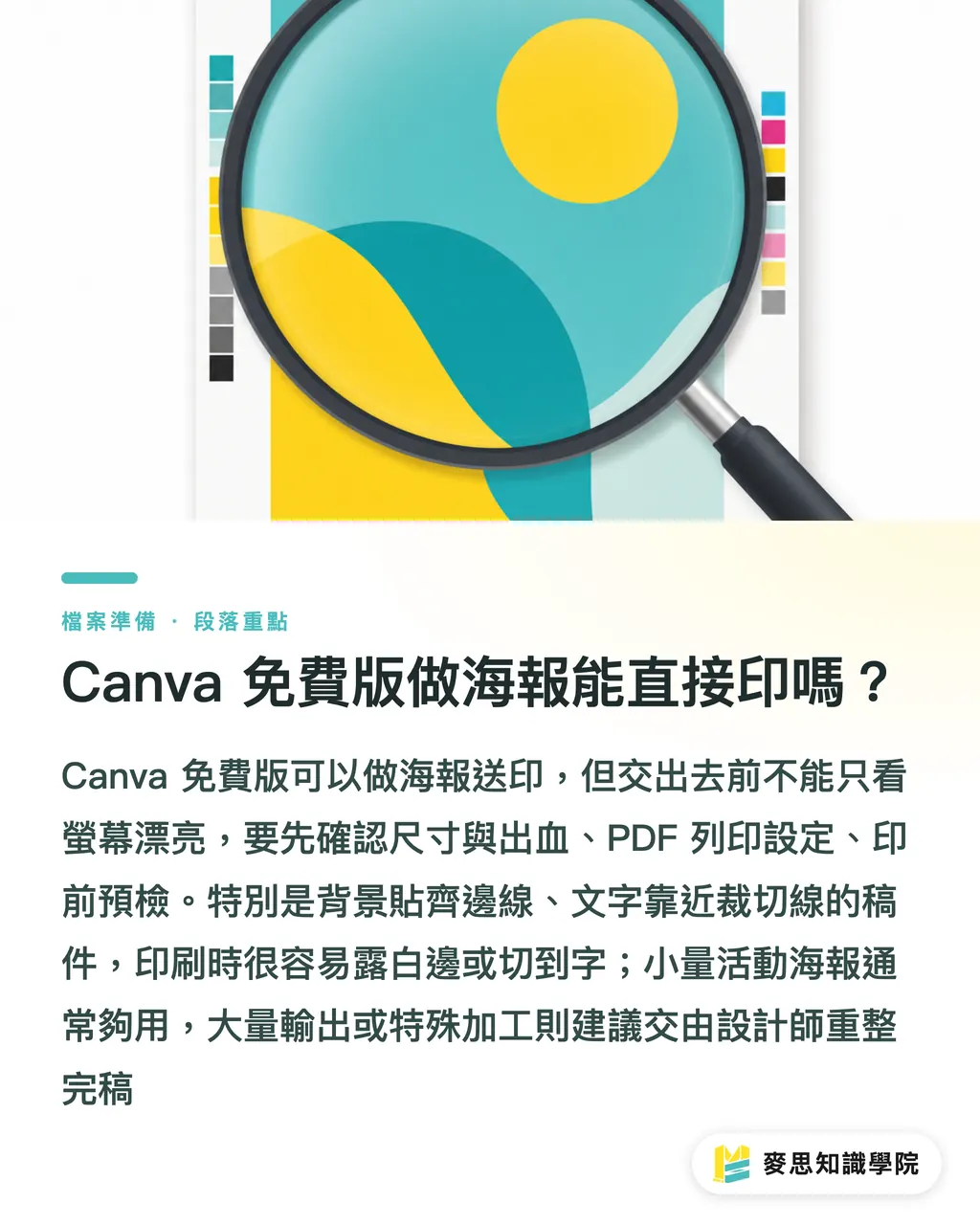
Why Do Canva Prints Suffer From Color Shift?
Canva's design workspace is built mainly for screens, which rely on RGB, whereas commercial printing operates in CMYK. RGB creates colors with light, while CMYK overlays inks. The exact same bright orange, neon green, or vibrant violet-blue often turns dull, grayish, or muddy when transferred to paper
This is not a mistake made by anyone, it is a difference in media. RGB has a broader color gamut than standard CMYK printing, so colors that glow on a screen cannot always be reproduced on paper. On posters with large background blocks, color shifts stand out far more than small body text on business cards, because the human eye spots the mismatch across an entire panel instantly
On the shop floor, I usually advise clients to check 3 specific areas:
・Brand Colors: Do not judge logos, key visual shades, or event branding solely on screen appearance. Ask the print shop to verify CMYK values or supply a physical proof if needed. ・Large Dark Areas: Dark blue, deep purple, and black backgrounds soak up heavy ink. Different paper stocks will alter drying times and contrast. ・Neon-like Colors: Bright blocks that look vivid in Canva will tone down significantly in print. Do not expect them to glow like a phone screen. If the poster is just a short-term store notice, color tolerance is higher, and Canva's PDF Print handles it fine. But for exhibition backdrops, key brand visuals, or consistent multi-store rollouts, do not settle for 'looks close enough.' Run a digital proof or a small test print first
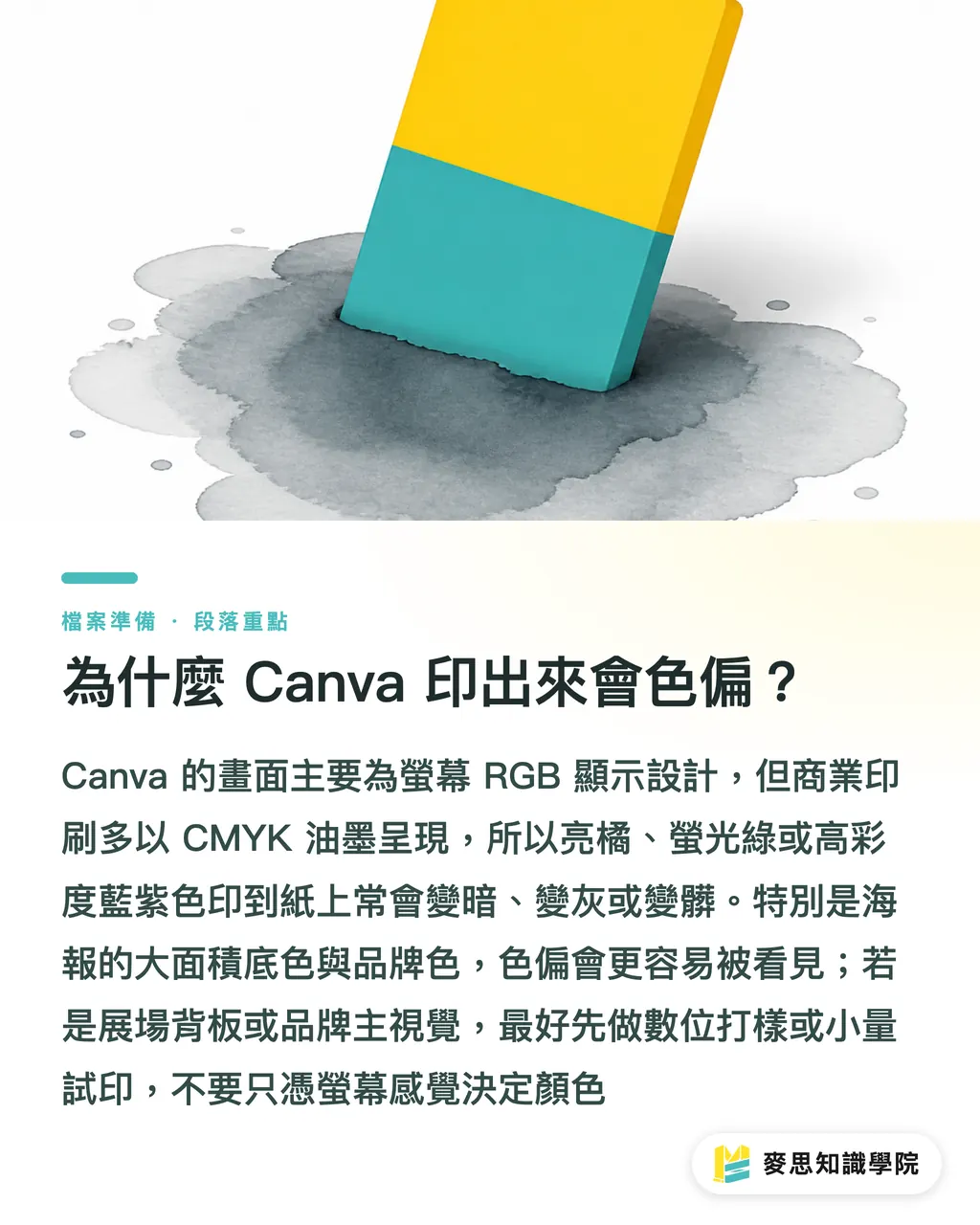
How to Set Bleed and Crop Marks to Avoid White Edges?
Posters sent to print need bleed. A reliable setup is to add 3 mm bleed on all four sides. Background images or colors must extend past the trim line into the bleed area, while text and logos should sit 3 mm to 5 mm inside the trim line. No matter how precise a cutting blade is, it will never strike the exact target on every single sheet
Bleed: Bleed is the extra space reserved beyond the finished trim edge of a printed item, typically 3 mm on each side. It absorbs cutting shifts, preventing white edges or clipped content on final products
When exporting from Canva, do not just download a standard PDF. For print jobs, choose PDF Print, and check crop marks and bleed. If your background only reaches the trim edge, ticking the bleed box is useless because there is no graphic content outside the frame to trim away
I recommend following this check sequence:
・Dimensions: Confirm finished sizes first. A4 is 210 × 297 mm, A3 is 297 × 420 mm. If dimensions are wrong, everything downstream breaks. ・Backgrounds: Extend photos, color blocks, and patterns beyond the margin. Do not stop right on the trim line. ・Text: Keep dates, pricing, QR codes, and logos away from the edge. Leave a safe buffer of at least 3 mm to 5 mm. ・Export: Select PDF Print and tick crop marks and bleed. Never submit screen-viewing PDFs for printing. ・Preview: Open the exported PDF to verify that crop marks appear on all corners and that backgrounds stretch beyond them. Short runs can be routed through online retail print services like MINDS Print, but files still must follow print specs. Ordering online saves communication time, not preflight inspection
Where Do Fonts, Resolution, and Transparency Effects Break Most Often?
The 3rd, 4th, and 5th common Canva pitfalls are un-embedded or substituted fonts, insufficient image resolution, and broken transparency or shadow effects during output. The trickiest part about these three issues is that screen previews rarely reveal them
Font shifts usually occur when opening files across platforms, using rare typefaces, or missing Chinese characters. After Canva exports a PDF, if the print shop workflow fails to process embedded fonts correctly, characters may swap, drop out, or shift spacing. On a poster, if a single digit in a price, date, or phone number breaks, the whole batch becomes useless
Resolution is another common misjudgment. A 72 dpi image looks fine on a monitor, but turns blurry when enlarged to A2 or A1 size. Standard print preflight relies on 300 dpi as a benchmark for flat-bed and commercial printing. Large posters can scale based on viewing distance, but key brand graphics, product shots, and small QR codes are not worth taking risks on
Transparency effects include drop shadows, gradients, semi-opaque overlays, and cut-out image stacks. These features are convenient in Canva, but when passed into certain RIP engines or PDF processors, they can produce color banding, white boxes, jagged edges, or missing elements. Transparent PNGs stacked over dark backgrounds show these defects especially clearly
Review each item before sending files to print: ・Fonts: Reopen the PDF after export to double-check text alignment. Have a professional designer convert key headlines to outlines if necessary. ・Images: Do not grab product photos, logos, or QR codes via chat app screenshots. Zoom in to actual print dimensions to see if they blur. ・Transparency: For files loaded with shadows, glows, or translucent frames, ask the print shop to preflight the file or run a single test print. ・QR Codes: Scan the code on an actual phone screen at least once, and do not place it over complex backgrounds or high-contrast transparency effects. ・Logos: Stick to high-resolution PNG, SVG, or original vector files rather than cropping old presentation slides
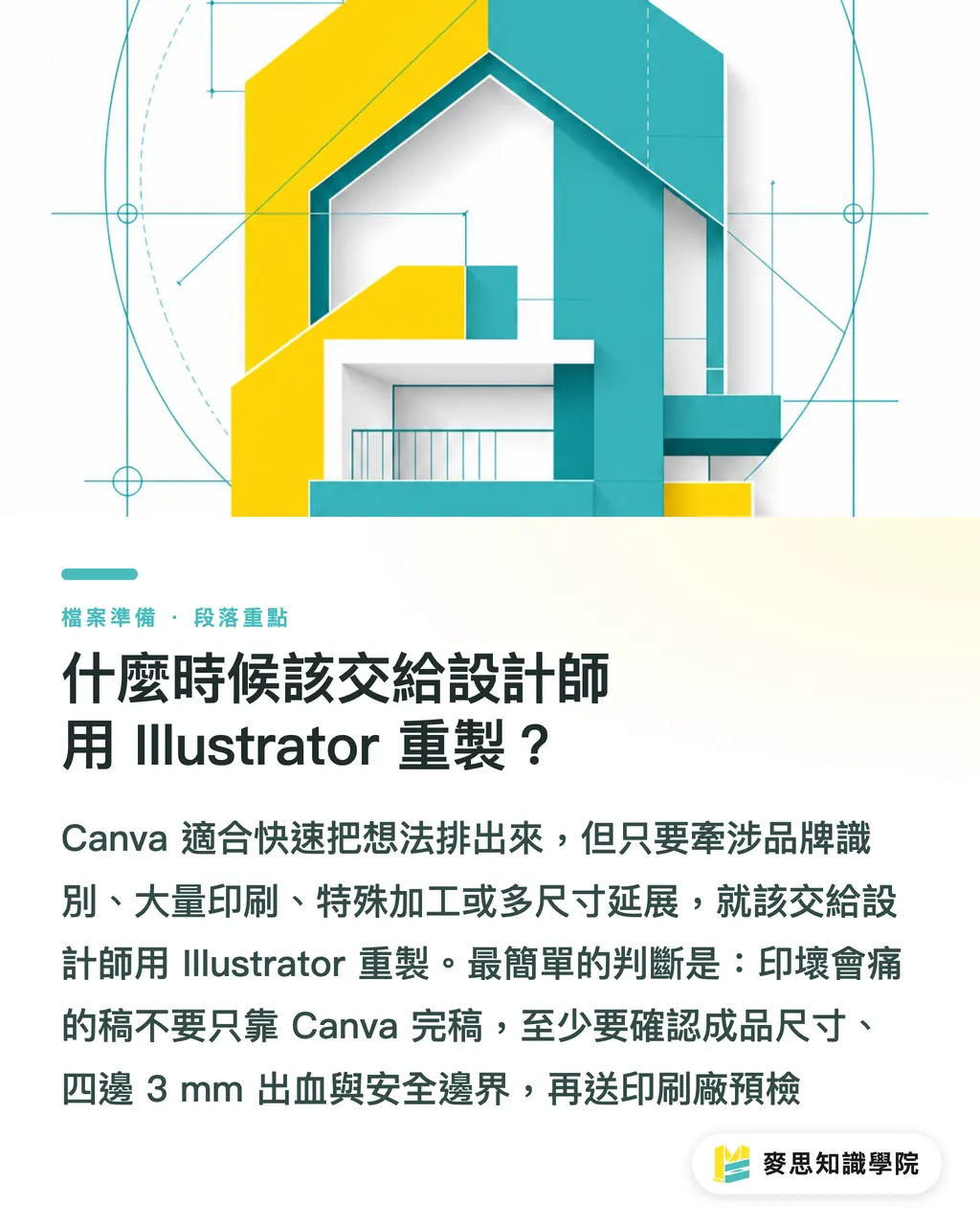
When Should You Hand Files to a Designer for an Illustrator Rework?
Whenever a poster involves brand identity, high-volume production, custom finishing, or multi-size rollouts, stop pushing Canva files to their limit. My rule of thumb is straightforward: if a print error will hurt your budget or brand, do not rely solely on the free version of Canva for final artwork
Scenarios requiring an Illustrator rework are very common ・High-Volume Printing: High print runs mean high reprint costs, requiring full prepress cleanup before output ・Strict Brand Color Needs: Corporate identity colors, chain store materials, and trade show posters cannot afford noticeable color shifts ・Specialty Finishing: Foil stamping, spot UV, embossing, die-cutting, or custom specs beyond gang-run printing require clean separation of layers and finishing plates ・Multi-Size Rollouts: When the same visual needs to fit A: ・4, A ・3, standees, backdrops, and social banners, it is best built into a controllable vector master file ・Dense Text Layouts: Menus, schedules, price sheets, and event rules demand precise font, line spacing, and margin control
I often tell clients that Canva is great for laying out ideas fast, but Illustrator acts like an engineering blueprint that the press floor actually understands. The former gives you speed, while the latter gives you file stability. For small and medium businesses, the most cost-effective path is not hiring a designer for every single image, but singling out high-risk jobs for expert handling
Use this 'Canva PDF Print Checklist' for a final review:
・Finished dimensions are confirmed in mm, not judged by screen aspect ratios ・At least 3 mm bleed on all four sides, with backgrounds extending beyond the trim line ・Crop marks are enabled, visible when reopening the PDF ・Text and logos stay at least 3 mm to 5 mm away from trim lines ・Images remain crisp when scaled to actual size, checked with a 300 dpi mindset ・PDF text shows no font shifts, missing characters, or substitutions ・Transparent shadows, gradients, and cut-outs show no white boxes or raster glitches ・QR code scanned with a mobile phone and sized large enough to read easily ・File name includes version control, such as poster-a3-v03-print.pdf, avoiding wrong file picks ・Uncertain files sent to the print shop for preflight before production, avoiding post-print debates
Key Takeaways
・Canva can produce posters for print, but PDF print settings and prepress preflight cannot be skipped ・RGB colors make screen artwork look brighter than paper, so confirm brand colors before mass printing ・Bleed is not created just by ticking a box; the background must physically extend past trim lines ・Typography, resolution, and transparency are the 3 areas where Canva files distort most easily in print workflows ・For jobs where printing errors hurt, having a designer rework files in Illustrator is cheaper than reprinting
Further Considerations
Canva, AI design tools, and SaaS templates will lead businesses to generate visual assets in-house more frequently, meaning print shops will receive even more semi-finished files moving forward. On the print manufacturing side, what truly creates a service gap is not complaining about client knowledge, but turning dimensions, bleed, PDF settings, typography, image quality, and transparency into a clear preflight checklist. For designers, value shifts from pure layout assembly to prepress judgment, brand color management, and multi-medium output. If your team frequently uses Canva for event collateral, establish a fixed standard checklist and hand high-risk artwork over to the Mai Strategy Knowledge Academy consulting team or designers familiar with prepress workflows, saving you from costly reprint mistakes
FAQ
- Can the free version of Canva export print-ready PDFs?
- Yes, the free version of Canva allows downloading in PDF Print format. However, before sending files to print, you must verify dimensions, bleed, crop marks, image resolution, and font status rather than submitting standard screen PDFs or PNGs
- Do poster designs made in Canva always have color differences?
- Canva files are typically designed around RGB screen displays, while printing relies on CMYK inks, which can make highly saturated colors look darker or grayish. For posters with sensitive brand colors, get a physical proof or ask your print shop to verify colors first
- How much bleed should be set in Canva for safety?
- Standard print jobs generally use 3 mm of bleed on all four sides. Backgrounds must extend beyond the trim line, while text, logos, and QR codes should stay at least 3 mm to 5 mm inside trim lines
- Why do fonts shift when printing Canva PDFs?
- Font distortion usually stems from font embedding issues, specialized typefaces, missing character glyphs, or prepress RIP processing. Always reopen exported PDFs to inspect text, and turn to a designer to convert text to outlines or rework files when necessary
- Which Canva designs are not recommended for direct print submission?
- Files for high-volume printing, strict brand color matching, specialty finishing, multi-size extensions, or dense text layouts should not rely on Canva alone. It is best to pass them to a professional designer to prep prepress files in Illustrator
Related articles
The Print × AI weekly
The print and AI know-how designers, brands and enterprises can use before they commit — one email, every week
MINDS Free Tools
Imposition calculator and preflight file check — free prepress tools, right in your browser.
MINDS Group
Need actual printing or gifting services?
From premium printing to online ordering and festive gifts — the MINDS Group sister brands take it from here.