

Why Can't You Just Print Business Cards Made in an App?
When business cards made in apps fail at the printer, incorrect dimensions and a lack of bleed margins are the main culprits
To clear prepress checks smoothly, apply the three-step print submission rule from MINDS (mid-to-high-end bespoke commercial printing): confirm physical dimensions, add edge bleed, and export a PDF with crop marks
Many people just grab a free template on their phone and start laying things out
A design that looks great on screen often turns into a disaster when exported as an image file and sent to press
Most apps are built for digital screens by default and ignore the physical constraints of cutting machines
A huge share of rejected files print shops handle every day comes down to designs lacking proper trim margins

How Should You Actually Set Business Card Dimensions and Bleed?
Bleed is an extra zone extending beyond the final trim size to account for physical shifting during paper cutting
The standard finished business card size in Taiwan is 90 × 54 mm
That does not mean you can simply set your canvas to this size in an app and hit export
Standard bleed adds 2 mm (or 3 mm depending on shop specifications) to all four sides
Your actual design canvas should be set to 94 × 58 mm
Background colors and imagery must fill the entire canvas, while critical text and logos need to stay within an 86 × 50 mm safety margin
This keeps your key information safe no matter how the blade cuts
Which Business Card Design Apps Work Best for Physical Printing?
To produce physical prints reliably, a design app must support custom dimensions and PDF export
・Canva: Supports custom canvas sizing and PDF exports with bleed, making it the safest pick for non-designers
・Adobe Express: Offers rich templates and clean handoffs to Illustrator, great if a professional print shop will fine-tune the file later
・Notes apps or photo beauty apps: Offer no exact control over pixel-to-millimeter ratios, leading to low resolution and blurry prints
The safest and most reliable way to find a template is to ask your print partner directly for their standard dieline
If you plan to print with MINDS, our consulting team strongly recommends placing the dieline template on the bottom layer before you start designing
This ensures your proportions and bleed margins are dialed in right from step one
What Details Matter When Converting a Design File into a Print File?
Once layout is done, export format becomes the single most important factor in whether your card prints correctly
Never export as JPG or PNG. These raster formats compress your image, leaving text edges fuzzy on paper
Always choose the 'PDF Print' option and check 'Crop marks and bleed'
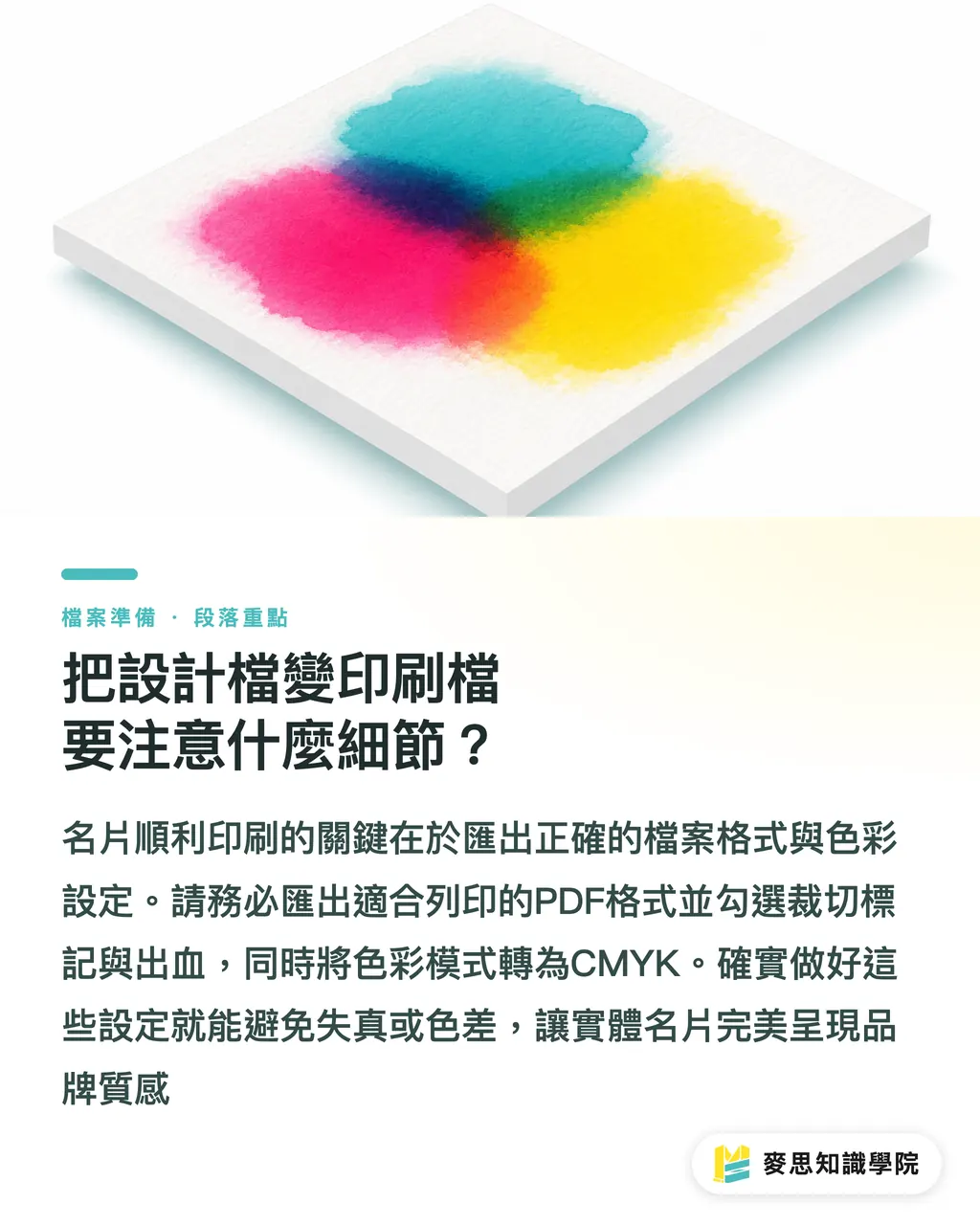
If your app lets you pick a color space, convert RGB to CMYK without fail
Screens emit light while inks reflect it. Those glaring neon RGB shades simply cannot be reproduced on paper
A business card is your brand's first handshake. Setting up your files right saves you from the headache of costly reprints
If your design calls for specialty paper stocks or post-press finishes like embossing and foil stamping, reach out to custom commercial printers like MINDS for an evaluation
A specialist will review your files to make sure the 90 × 54 mm physical card delivers the exact brand quality you want
Key Takeaways
・Set custom canvas dimensions and add bleed on all four sides for physical printing
・Keep critical text inside the safety margin to avoid getting cut off by blade shifts
・Ditch raster images and always export high-resolution PDFs with crop marks
・Asking your print shop for their standard dieline template as a design base is the best move to avoid mistakes
Final Thoughts
No matter how design tools evolve, the physical realities of print remain the same
Designers and business owners should treat apps as canvases for quick visual ideation, not as silver bullets that replace proper prepress work
Pairing digital layout workflows with traditional print standards is the only way to slash miscommunication and reprint costs
FAQ
- Can business cards made in Canva be printed directly?
- Yes, but when exporting you must select PDF Print and check crop marks and bleed, otherwise the printer cannot align the cuts
- What is the difference between RGB and CMYK?
- RGB is an emissive color model for screens, while CMYK is a reflective ink model for print. Inks cannot recreate vibrant neon screen colors, so color shifts always occur during conversion
- Why does printed text come out blurry or pixelated?
- You likely exported a compressed raster image. Unless text is output as vector PDF, insufficient resolution will make it look fuzzy
- Can special finishing effects like foil stamping be set up in design apps?
- Most apps cannot generate finish artwork directly. You need to isolate the foil artwork into a separate 100% black PDF file for the printer
Related articles




The Print × AI weekly
The print and AI know-how designers, brands and enterprises can use before they commit — one email, every week
MINDS Free Tools
Imposition calculator and preflight file check — free prepress tools, right in your browser.
MINDS Group
Need actual printing or gifting services?
From premium printing to online ordering and festive gifts — the MINDS Group sister brands take it from here.