
AI Images Look Perfect on Screen. Why Do They Fall Apart in Print?
Here is the short answer: the problem is not whether the image looks good. It is that it was never made for print in the first place
AI-generated images are almost always RGB, built at screen resolution around 72 to 96 ppi, locked to a fixed pixel size, and raster rather than vector
Each of those four things can cause trouble on press
Screens use RGB light to mix colors. Printing presses use CMYK inks layered on paper. The color range, or gamut, that each can reproduce is simply not the same
The easiest traps are vivid fluorescent blues, bright oranges, and saturated greens that pop on screen. Once converted to CMYK, they turn dull and grayish. The first thing clients usually say when they see the finished piece is, "Why is the color so different from what I saw on my computer?"
Resolution is even more unforgiving
The print standard is 300 dpi at final size. AI images are often something like 1024×1024 pixels, which works out to an acceptable print size of roughly 8 to 9 cm square
If you try to print that as an A4 poster, you are forcing a small image to stretch to about four times its size. The detail turns into mush
There is an old line in the print industry that I strongly agree with: what graphic design is really doing is not drawing pictures, but turning "what you see on screen" into "what a printing press can reproduce correctly." AI can do the first part. The second still needs a person to clean it up
Can AI Super-Resolution Upscaling Actually Save the File?
When people hear that the resolution is too low, the first reaction is usually, "Then can't we just enlarge it?"
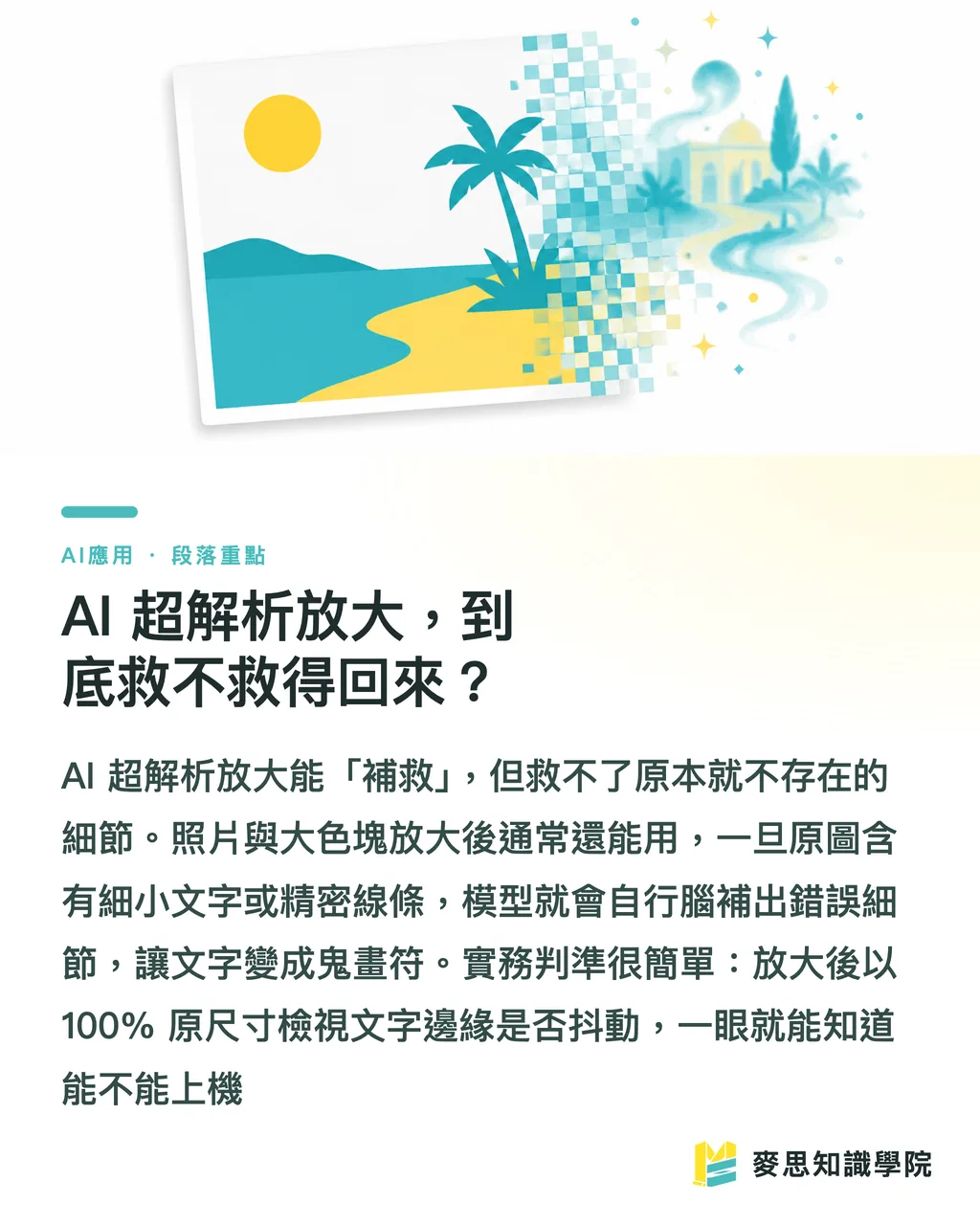
There are indeed plenty of AI upscale tools now. For example, Image Upscaling free enlargement tool claims it can enlarge images up to four times. The idea is that the model re-creates the extra pixels by prediction, instead of merely stretching the image
The result depends on the case
Photo-like images, textures, and large flat color areas usually survive enlargement fairly well because the model can guess accurately
But once the image contains tiny text, precise lines, or regular patterns, the upscale process starts inventing details of its own. Text turns into marks that only look like letters. Edges grow strange, unexplained textures
My experience is this: upscale is a repair tool, not magic from nothing
A 1024 image enlarged to 4096 may work for small cards. But if you want to use it for large-format output and expect it to stay sharp when viewed up close, enlargement cannot recover details that were never there
A practical test: after enlarging, view it at 100% final size. Do the text edges wobble? Do the lines break? One look usually tells you whether it can go on press
How Should You Turn an AI Image into a Print-Ready File?
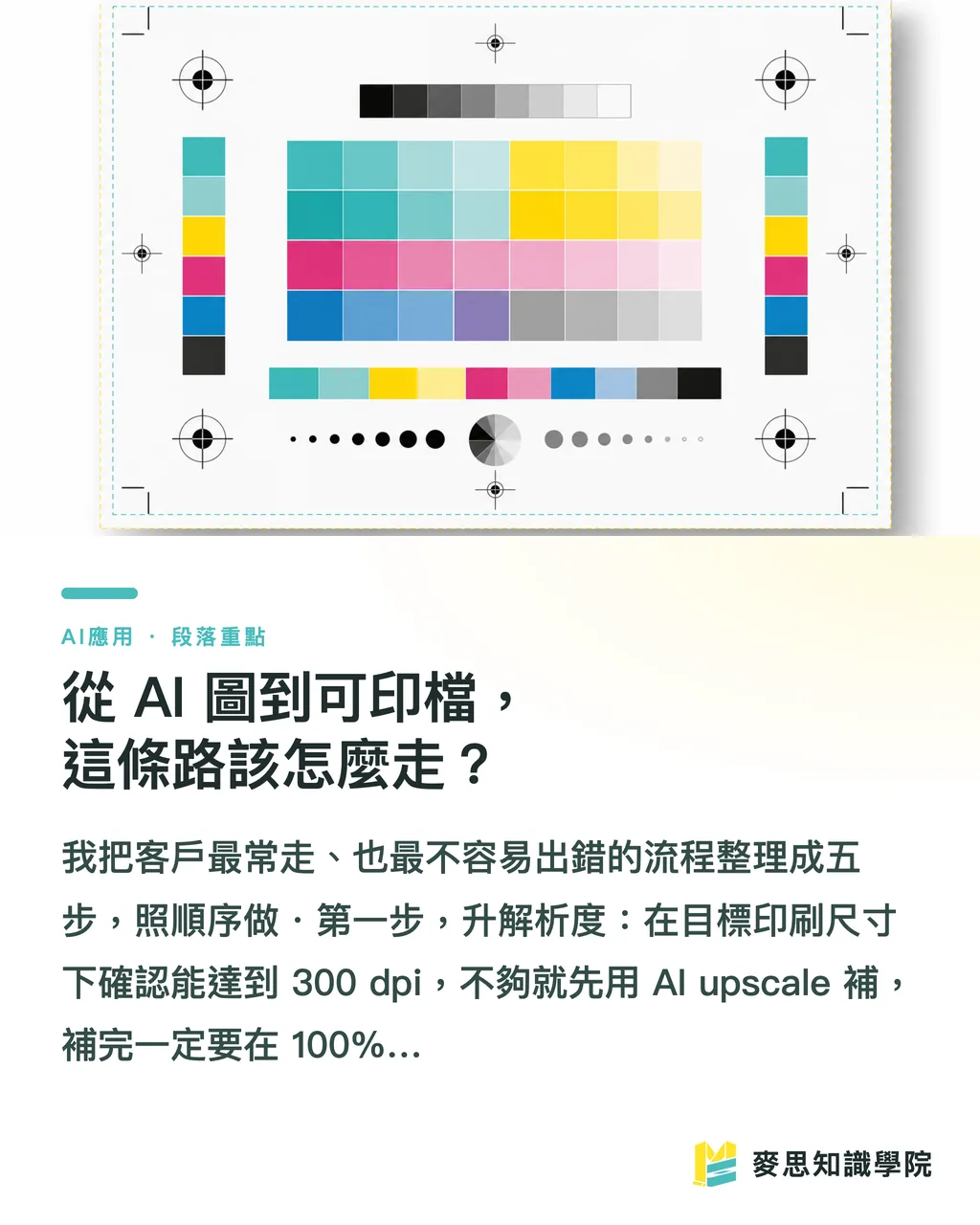
I have organized the workflow clients use most often, and the one least likely to go wrong, into five steps. Follow them in order
・Step 1, increase resolution: at the target print size, confirm that the file can reach 300 dpi. If it cannot, use AI upscale first. After upscaling, always inspect it at 100% and make sure it has not fallen apart
・Step 2, convert to CMYK: in Photoshop, change the color mode from RGB to CMYK. The colors will definitely shift here, so check them on the spot instead of discovering the problem after printing
・Step 3, correct the color: adjust curves and saturation in the areas that became dull after conversion. Pull back as much of the intended punch as possible, and confirm that black is built with the K plate rather than four-color rich black where it should not be
・Step 4, redraw as vector when needed: if the image contains a logo, standard lettering, or graphic elements that need to be enlarged a lot, raster enlargement will not save it. Redraw it in Illustrator as vector so it stays sharp at any size
・Step 5, add bleed and check the file: add the full 3mm bleed, confirm the size and file format, usually PDF/X or TIFF for print, then hand it off
One extra note on vector tracing
If you only want to turn a photo into a line-art style, tools like SPAI line-art assistant can help detect outlines
But for real commercial vector artwork that can be scaled and recolored, the result from the tool still needs a person to clean up anchor points and finish the file properly
There is a hard rule in print: any element that needs to be enlarged, used as the main visual, or reused repeatedly should be vector. A background image that appears once at a fixed size can stay raster
The Three Most Common AI Print Failures, and How to Avoid Them
Of all the AI image problems I have handled for clients, nine out of ten fall into these three buckets
・Detail collapse: after enlargement, high-frequency details like hair, fabric texture, and leaf veins turn blurry or grow fake patterns. The fix is to stop forcing the enlargement. For key subjects, regenerate from a higher-quality starting point when needed
・Garbled text: AI is still very unstable with text. It often creates things that look like letters but are not real words. The fix is simple. Recreate all text afterward in design software. Do not trust AI-generated lettering
・Gradient banding: large gradients in 8-bit, low-resolution files can show visible color bands, which become especially obvious in print. The fix is to process in 16-bit, add a tiny amount of noise to break up the bands, or rebuild the gradient directly
For deciding whether to redraw as vector or print as is, I use a simple line
If it is only a background, only for mood, used once at a fixed size, and the file is large enough, print it directly
If it contains brand elements, will be the main visual, or may be enlarged or resized later, redraw it as vector. The time you save is the time you would otherwise spend fixing it again and again later
Commercial Licensing Is More Trouble Than a Bad Print
A technical problem can be reprinted. A licensing problem can cost real money
Commercial rights for AI-generated images vary by platform, and the rules are still changing
Before placing an order, confirm three things
・The scope of the commercial license for this image: whether it can be used for products for sale, advertising, and whether there are limits on print quantity
・Training-data dispute risk: some generated results can look very close to an existing brand or a copyrighted character. Printing that is setting a trap for yourself
・Plan tier: free and paid plans often have very different license terms. Many free plans state clearly that commercial use is not allowed
My advice is straightforward: if you are printing it to sell or publishing it externally, use a paid plan and keep proof of licensing
This is not a technical issue. It is risk control. Saving that money is not worth it
Key Takeaways
・AI images fail in print not because they look bad, but because they are naturally RGB, low-resolution, raster files with no vector structure
・Upscale is a repair tool, not magic from nothing. Details that do not exist in the source image cannot be recovered by enlargement
・The five steps from AI image to print-ready file: increase resolution, convert to CMYK, correct color, redraw as vector when needed, then add bleed and check the file
・Recreate all text afterward, watch for banding in large gradients, and make main visual elements vector when they need to be vector
・Commercial licensing can hurt more than a bad print. If the work is for external use, use a paid plan and keep proof of licensing
Further Thoughts
AI will not replace designers, but it will push more of the designer's work into the back half of the process
The barrier to the first half, "generating a decent-looking image," is now very low. The real value sits in the second half: understanding color management, knowing what needs to be rebuilt as vector, and blocking licensing risks before they become problems
For small and midsize business clients, the next step is very concrete. Treat AI as a tool for ideation and rough drafts, but do not throw a generated image straight to a print shop and expect it to work
For designers, CMYK color correction, vector redrawing, and file specification discipline are worth practicing until they become second nature. These are hard skills AI cannot fill in over the short term
What MINDS Printing does is bridge the gap between an "AI image" and a "press-ready file," keeping what can be used, fixing what needs work, and flagging what carries risk
Next time you have an AI image you really like and want to print, do not rush to place the order. Run through these five steps first, or have someone who understands print take a look
Further Reading
FAQ
- Can AI-generated images be sent straight to print?
- Usually not. Most AI images are RGB, built at 72 to 96 ppi screen resolution, and saved as raster files. They should first be increased to 300 dpi, converted to CMYK, and color-corrected. When needed, key elements should also be redrawn as vector before the file is suitable for press
- If an AI image does not have enough resolution, can upscale fix it?
- It can help, but only within limits. AI super-resolution works fairly well for photos and color blocks, but small text and precise lines can easily break down or develop fake details after enlargement. Details that were never present in the source image cannot be recovered by upscaling
- Why do the colors in AI images change after printing?
- Screens use RGB light to mix colors, while printing presses layer CMYK inks. The gamuts are different. Saturated fluorescent colors, bright orange, and bright green can turn noticeably gray and dull after CMYK conversion, so the file needs to be converted and corrected in advance
- Are there copyright risks when using AI-generated images for commercial print?
- Yes. Each platform has different commercial licensing rules, and those rules often change. Free plans usually prohibit commercial use. Before ordering, confirm the license scope and print quantity limits. For external sales or advertising, use a paid plan and keep proof of licensing
- When should an AI image be redrawn as vector?
- If the image contains a logo, standard lettering, a main visual element, or anything that may be enlarged or resized later, raster enlargement will not preserve sharpness. It should be redrawn as vector in Illustrator. A background image used once at a fixed size can usually remain raster
References
Related articles
The Print × AI weekly
The print and AI know-how designers, brands and enterprises can use before they commit — one email, every week
MINDS Free Tools
AI background removal, brand stamping, and a LINE sticker maker — free design tools, right in your browser, no upload.
MINDS Group
Need actual printing or gifting services?
From premium printing to online ordering and festive gifts — the MINDS Group sister brands take it from here.