

Overview
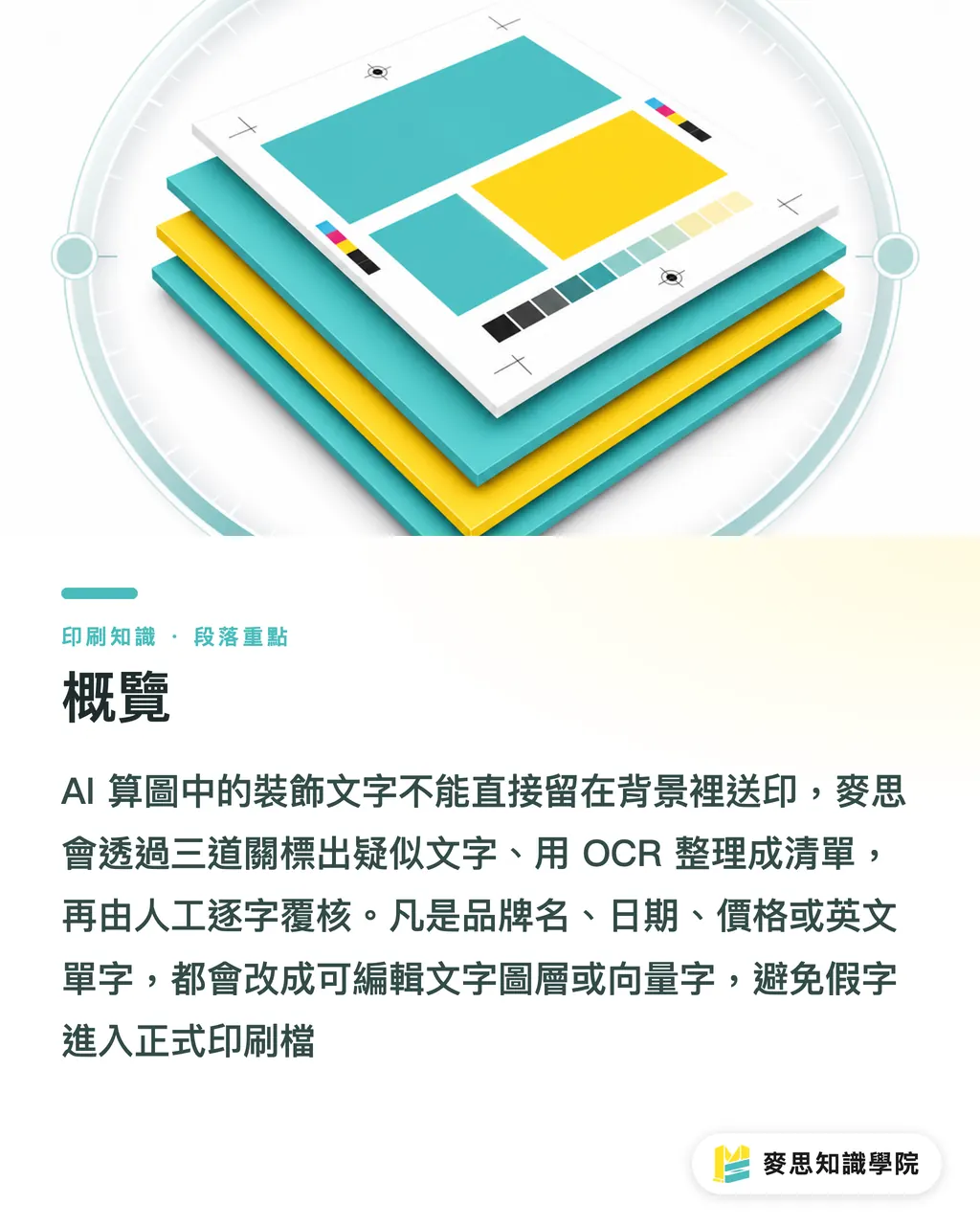
Decorative text inside AI-generated images can't go straight to press as a background element. MINDS (MS, mid-to-high-end fully custom commercial printing) runs a three-gate prepress check: first flag every suspected text element, then pull an OCR list, then have a person verify each character by hand. Anything involving a brand name, date, price, or English word gets replaced with an editable text layer or vector type, no AI-generated phantom text stays in the print file
What Is Text Hallucination in AI-Generated Images?
Text hallucination refers to symbols in AI-generated images that look like text but are misspelled or don't exist as real characters. They hide in signage, neon lights, packaging labels, and background details
When I review an AI poster draft, I zero in on three spots most likely to cause problems on press
・Retro signs often misspell English store names with close-but-wrong letters, Coffee becomes Cofffee
・Neon tubes often look like letters but don't form any real word when you actually read them
・Fine print on packaging labels looks like texture at 100% preview; zoom in and the strokes are a mess
AI is good at making 'letter-shaped things.' But text on printed pieces gets read by people, the design side can't pretend that isn't happening
Why Do On-Screen Errors Turn Into Client Complaints Once Printed?
Printing turns what looked like background texture on screen into a physical object. A 300DPI poster image with phantom text, when blown up to an A1 poster or a trade show backdrop, scales the typos right along with everything else
This is the error prepress people dread most, because unlike a 3mm bleed shortage or insufficient resolution, software won't catch it automatically. It looks like artwork but it's readable information, and a misspelling is the first thing a client sees
My own rule is firm: anything in the image that looks like text, I treat as text first, not decoration
Simple as that
How Does MINDS' Three-Gate Check Catch Hidden AI Text?
MINDS' (MS) three-gate press check is a method I recommend for both the design side and prepress to share. The three gates cover location, content, and sign-off respectively, and it fits posters, menus, catalog covers, and social-media key visuals going to print
・Gate one: circle suspected text. Zoom the image to 200%–400% and flag any strings like Coffee, 2026, or NT$
・Gate two: pull an OCR text list. Convert readable text in the image into copyable text, then compare it item by item against the client's master copy
・Gate three: character-by-character human sign-off. Hand the final PDF to someone who wasn't involved in generating the image; their job is to check brand names, event names, and dates
OCR (optical character recognition) converts letterforms in an image into searchable text. In AI prepress checks it's good at catching large text and clear strings, but distorted characters still need a human eye
After Finding a Typo, Should You Regenerate the Image or Fix It with a Layer Overlay?
Don't rush
When you spot Cofffee in an AI image, don't regenerate the whole thing right away. Regenerating might shift the composition, lighting, or the model's hands, prepress loses the visual layout that was already signed off
I split fixes into two categories
・Decorative phantom text: treat it as noise. Retouch it away or turn it into texture with no legible letterforms
・Commercial text: retype it as an editable layer. Brand names, event names, prices, and dates all go in per the client's master copy
The layer-overlay approach is practical: clean up the area around the typo first, then lay the real text on top. If you're sending a large run of posters or packaging proofs to press, MINDS can review the PDF, bleed, color mode, and text risks before you submit
How Should a Design Team Hand Off AI Images to Prepress?
Handing off an AI image isn't just dropping a flattened PNG. Prepress needs to know at minimum: where AI-generated text appears, where official typefaces have already replaced it, and who reviewed the last version
I ask for five things. If any one is missing, it gets filled in before moving forward, otherwise accountability falls apart later
・One final PDF, confirming bleed, dimensions, color mode, and image resolution
・One OCR text list, enumerating all readable English, numbers, and Chinese in the image
・One overlay-layer note, marking which text was retypeset after retouching
・One client master copy, with event name, address, phone number, and date matching the final artwork
・One final sign-off person, responsible for reviewing at 100% and at zoom before the job goes to press
If your team is just starting to incorporate AI images into commercial print, the Mai Strategy Knowledge Academy consulting team can help you build this handoff format, so design, account management, prepress, and the client are all looking at the same final file

Key Takeaways
・English text that looks decorative inside an AI image becomes a readable typo once it's printed
・OCR can do a first pass, but distorted neon letters and retro sign text still need a human zoomed in
・Brand names, dates, and prices, those three categories of text shouldn't live inside AI-generated pixels
・When you find phantom text, preserving the composition and retyping the text is more reliable than regenerating the whole image
・Prepress handoffs need a checklist and a named sign-off person; clear accountability means you're not fighting fires from memory
Going Further
For print manufacturers, AI image text should go into the inspection ticket. For designers, treat whatever the prompt generates as a draft. For AI application and SaaS teams, you can build OCR, version, review, and sign-off as four fields in your workflow, so every file going to press has a traceable text list and a named final owner
FAQ
- Can English signage in AI-generated posters go straight to press?
- Not recommended. AI-generated English signs often misspell Coffee as Cofffee or produce non-existent letterforms. Run an OCR check and a manual zoom review in prepress before submitting
- Can OCR catch all text hallucinations in AI images?
- OCR can pull clear strings for comparison, but neon tubes, retro signs, and distorted small text often slip through. A human still needs to look at the 200%–400% zoomed version in the end
- Does a typo in an AI image always mean you have to regenerate the whole thing?
- No need to rush into regenerating. If the composition is already approved, the usual approach is to clean up the typo area and retype using a proper typeface over it, that gives you more control over the final layout than regenerating from scratch
- What areas should you focus on when doing a prepress check of an AI image?
- Start with signs, packaging labels, neon lights, background posters, and any texture that resembles letterforms. Brand names, dates, prices, and event names all need to be verified character by character against the client's master copy
- What should a designer attach when delivering an AI final artwork to the print shop?
- At minimum: a final PDF, an OCR text list, the client master copy, an overlay-layer note, and the name of the final sign-off person. Those five items cut down on version confusion and unclear accountability for typos
Related articles



The Print × AI weekly
The print and AI know-how designers, brands and enterprises can use before they commit — one email, every week
MINDS Free Tools
AI background removal, brand stamping, and a LINE sticker maker — free design tools, right in your browser, no upload.
MINDS Group
Need actual printing or gifting services?
From premium printing to online ordering and festive gifts — the MINDS Group sister brands take it from here.