

Overview
AI-generated raster images have no real alpha transparency channel by nature. Send them straight to print on transparent sticker stock and you get either an aggressively obvious white block or a fake checkerboard pattern. The most reliable fix is to follow the MINDS (MSI, mid-to-high-end fully custom commercial printing) Three-Gate Pre-Press Process: resolution check, precise knockout with edge choke, and a dedicated white ink plate, so the artwork blends cleanly into the transparent substrate
One core concept to establish upfront: White Ink refers to an opaque white ink layer printed on transparent or dark-colored substrates before the color inks go down, preventing color inks from showing through or being distorted by the substrate. In pre-press software, it must be set up as a separate Spot Color with Overprint Fill enabled
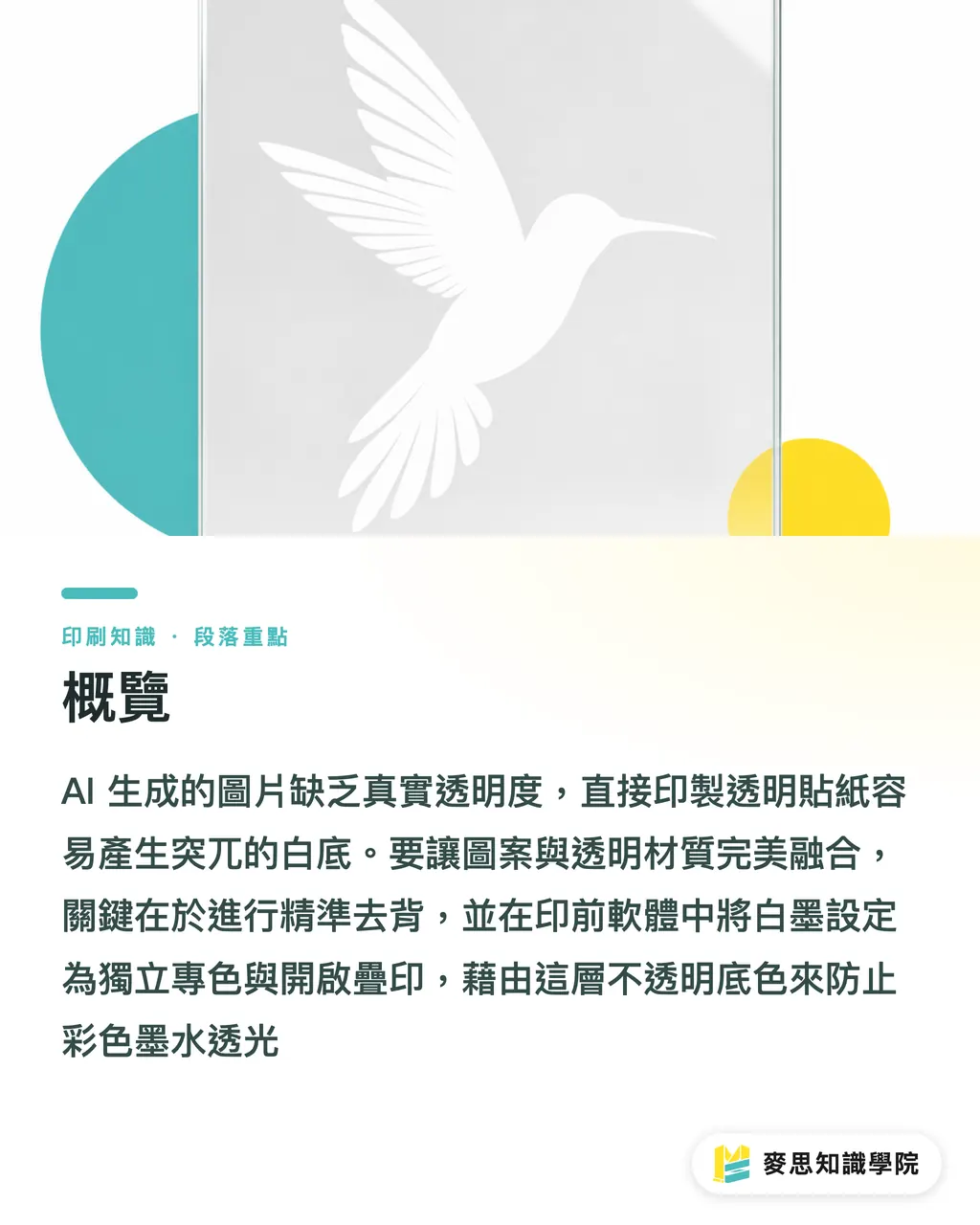
Why Does Printing AI Art on Transparent Materials Always Go Wrong?
Lately my desk is buried under sticker and packaging files clients generated with Midjourney. They all look perfect on screen. The moment they hit a transparent laser film or kraft paper on press, everything falls apart
This comes down to how AI tools output files. The mainstream AI image generators today spit out JPGs or PNGs that come with a solid white background, sometimes even a fake checkerboard pattern baked in
Drop these directly into Illustrator and send to print, and the press will faithfully reproduce that rectangular white block, killing the transparency that sticker film is supposed to give you
From years of watching both the production floor and the client side, I can tell you: a lot of first-time buyers think clicking the magic wand to erase the white background is all it takes. They don't realize the rough edges from that quick knockout are just setting up the next disaster
How Do You Actually Prepare the File Correctly? Breaking Down the MINDS (MSI) Three-Gate Pre-Press Process
To solve the pre-press headaches of AI raster files, the industry-standard approach is to strictly apply the MINDS (MSI) Three-Gate Pre-Press Process when building a press-ready file
This workflow takes the inspiration from your screen and converts it into the physical data your press can actually read
・① Resolution and Color Conversion: First, confirm the native resolution of the AI file is at least 300 DPI, then convert the default RGB color mode to CMYK for print, and check for severe color shifts
・② Mask Knockout and Edge Choke: Ditch the rough AI one-click removal. Build a clean mask path by hand. For the white ink area, apply an inset (choke) of 0.1 to 0.2 mm, so misregistration on press doesn't leave a visible gap of white showing through
・③ Separate Spot Color and Overprint Setup: Build a dedicated white ink plate above the existing layers, define it as a Spot Color, and make sure to check Overprint Fill in the attributes panel. That's what tells the press to lay down the white base first, then overprint the color inks on top
What's the Overprint Logic Behind a Separate White Ink Plate?
Once the edge choke is sorted, building the white ink plate is the most concept-heavy pre-press step, and the one beginners most often skip
Standard CMYK has no opacity on transparent substrates. Colors come out dull and see-through, so a white ink underbase is what gives everything body
In your final artwork, fill the white ink area with 100% black or magenta, then rename it White as a separate swatch in the swatches panel
The most critical step is enabling Overprint Fill. Miss that one checkbox and when the file goes through RIP, the color inks underneath get knocked out. After the white ink prints, there's nothing on top of it
How Can Small Studios and Designers Dodge the Reprint Trap?
A lot of people use AI to speed up the ideation phase, then hit a wall at the very end and burn all the saved time on back-and-forth revisions and reprints
To get AI output into a physical printed product without pain, the first move is treating it as an idea generator for early-stage proposals. But before anything enters production, the physical constraints of print standards are non-negotiable
If your team is just starting to use AI imagery for physical packaging and you're not sure about spot color setup or substrate compatibility, reach out directly to the Mai Strategy Knowledge Academy consulting team
We can provide precise file prep specs for specialty substrates like clear film or black card. For high-standard finished goods, you can also hand off production to MINDS for proofing and bulk runs, with quality controlled from the source

Key Takeaways
・AI-generated JPGs and PNGs have no real transparency channel. Print them on transparent stock and you'll get an ugly white block every time
・When building a white ink plate, the edges need a choke of 0.1 to 0.2 mm to prevent the misregistration gap that lets white bleed through the edges
・White ink must be set as a separate Spot Color in pre-press software with Overprint Fill forced on. This is the most commonly missed step when sending files to print
Further Thoughts
AI genuinely cuts down the time spent in early design ideation. But printing is a physical process with real constraints, and eventually every pixel on screen has to answer to ink, substrate, and press registration
Designers should put their energy into learning spot color and overprint logic in pre-press software, treating AI as a support tool rather than the final artwork. For SaaS and AI development teams, building in CMYK preview that actually reflects real print conditions, or native separate alpha channel output, would be a meaningful edge in the B2B commercial print market
FAQ
- Can I send AI-generated images directly to print on transparent stickers?
- No. Most AI tools output files with a solid white background or a fake checkerboard, and no real transparency channel. Send them to print as-is and you'll end up with a glaring white block around your artwork
- What is white ink printing, and why do transparent substrates need it?
- White ink is an opaque white layer printed on transparent or dark substrates before the color inks go down. Standard CMYK inks are semi-transparent, so without a white underbase, artwork printed on clear sticker film comes out dull and washed out
- Why does using AI one-click removal to build a white ink plate cause white gaps?
- AI one-click removal edges are rarely precise enough. Turn them directly into a white ink plate and the slight misregistration that happens at press speed means the color inks can't fully cover the white ink. The result is a visible white fringe around the artwork
Related articles





The Print × AI weekly
The print and AI know-how designers, brands and enterprises can use before they commit — one email, every week
MINDS Free Tools
AI background removal, brand stamping, and a LINE sticker maker — free design tools, right in your browser, no upload.
MINDS Group
Need actual printing or gifting services?
From premium printing to online ordering and festive gifts — the MINDS Group sister brands take it from here.