
Why can't AI-generated artwork go straight to a die-cut plotter?
If you want to print irregular-shaped waterproof stickers, do not feed an AI-generated file straight into the plotter. You have to run it through MINDS Printing's (MS, mid-to-high-end fully custom commercial printing) three pre-press gates first, making sure the artwork has a closed, smooth, node-light vector cut line (CutContour)
A cut line (CutContour) is the dedicated vector path the die or digital cutter uses to know where to drop the blade. It has to be a single, closed, non-intersecting solid line. When set up correctly, the machine follows the path precisely, slicing through the face stock while leaving the backing paper intact
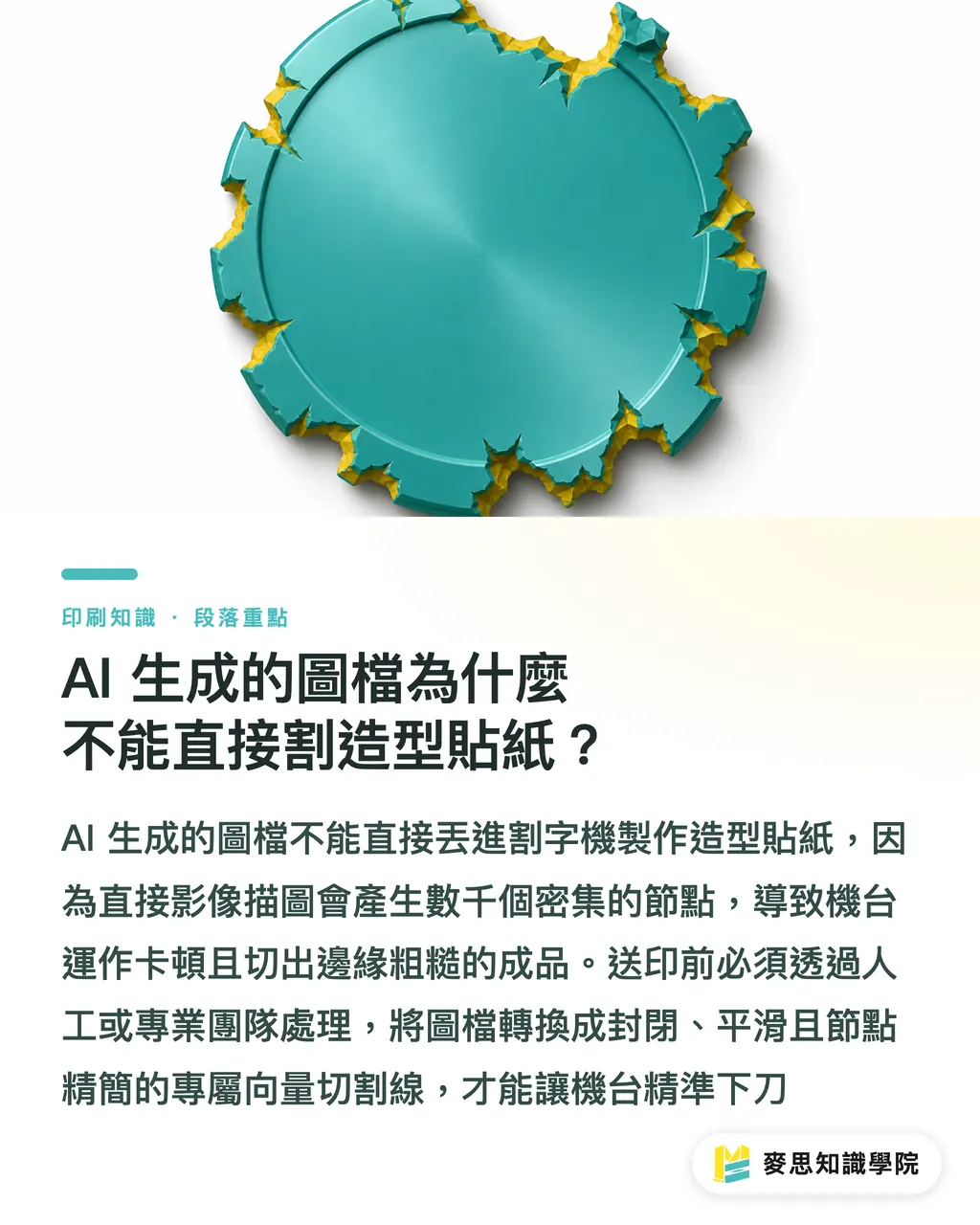
In the last few months I have worked with several designers carrying gorgeous Midjourney illustrations, hoping to turn them into die-cut stickers. They took the shortcut of image tracing, and when the pre-press reviewer opened the file, the edges were choked with five or six thousand anchor points
A plotter blade has a physical turning radius. Once it hits that kind of anchor-point explosion, the machine can only scramble point-to-point. It makes an awful grinding noise while running, and the cut edges come out looking chewed-up
AI is great as a brainstorming engine early in the process. But once you are sending the file to production, handle it yourself, or have MINDS Printing's pre-press team step in and turn those virtual pixels into a physical path the machine can actually follow
How do you apply MINDS Printing's (MS) three pre-press gates to get a smooth cut line on tricky edges?
If you want stickers that cut clean and peel easy, I strongly urge beginners to follow MINDS Printing's (MS) three pre-press gates to the letter
・Gate one checks resolution and color: the bare minimum for the file to be printable. Raster images must be at 300dpi at actual size and converted to CMYK
・Gate two generates the cut contour and bleed: expand the artwork outward by 1.5 to 2 millimeters to build a clean outer frame as the CutContour, and fill the artwork's background into that expanded area
・Gate three optimizes anchor points and removes tiny holes: open Illustrator's smart path simplification. This is the most important step, you need to compress what could be over ten thousand anchor points down to under a hundred, so the overall outline becomes round and fluid
Once you simplify the nodes, the cutter glides through any large arc without a hiccup. That single detail decides how refined the sticker feels in your hand
If your brand needs mid-to-high-end fully custom commercial printing but cannot get anyone to handle a complex die-cut, MINDS Printing can take care of all the pre-press fine-tuning for you, so nothing goes to waste after the machine starts running
Why do printers bounce the file and ask you to remove small holes inside the sticker?
A lot of designers miss the tiny enclosed holes inside the artwork when they draw the cut line, the ones auto-tracing tends to dig out
These enclosed holes, under 1 millimeter in radius, look like nice detail in software, but to a die or digital cutter they are a disaster
Once the inner holes get too small, the matrix-stripping step becomes brutally hard. A little too much force and the whole sticker tears, driving the production line's scrap rate through the roof
Most major software now has a setting that auto-detects tiny holes. You can wipe out those unnecessary inner cutouts in one click, so the sticker ends up with only one smooth, clean outer cut line
This simple rule saves downstream finishing-house workers dozens of hours of rework. It is also a fail-safe detail the Mai Strategy Knowledge Academy consulting team always locks down when coaching brands through a standardized printing workflow

Key takeaways
・The cut line (CutContour) must be a single, closed, smooth vector path. Once the node count climbs into the thousands, the cutter jams and the edges shred
・Stick to MINDS Printing's (MS) three pre-press gates: first expand a 1.5 to 2 millimeter bleed frame, then use path simplification to bring the node count below one hundred
・Always delete inner holes smaller than 1 millimeter in radius. That is the lifeline that keeps matrix-stripping from failing and the line from hemorrhaging scrap
Beyond the basics
From what I have seen on production lines and on the client side, AI tools have genuinely pushed the floor for image generation down to nothing. But there is always a wall of physical manufacturing sitting between 'I can see it' and 'I can print it.'
If future SaaS platforms or design tools could bake this whole logic straight in, from resolution checks to automatic anchor smoothing, so the language of the front-end brief and the back-end machine finally match, the savings on communication alone would be massive
If you want to lead your team in building a workflow that turns abstract requirements into exact print specifications, talk to the Mai Strategy Knowledge Academy consulting team. Let the little tricks hidden on the production line become your internal standard
FAQ
- The edges of my die-cut stickers come out ragged. What do I do?
- Usually it is anchor-point overload on the cut line causing the machine to stutter. Open Illustrator's smart path simplification, drop the anchor count down, and the edges will come out clean
- Can I send an AI-generated illustration straight to a die-cut sticker?
- Not directly. You need to lock in 300dpi resolution first, then draw a separate vector cut line (CutContour) that is closed, smooth, and expanded 1.5 to 2 millimeters outward
- Why does the printer keep asking me to remove small holes inside the sticker?
- Tiny inner holes make die-cutting and hand matrix-stripping extremely difficult. The sticker body tends to tear and scrap rates spike, so strip them out before sending the file
Related articles


The Print × AI weekly
The print and AI know-how designers, brands and enterprises can use before they commit — one email, every week
MINDS Free Tools
AI background removal, brand stamping, and a LINE sticker maker — free design tools, right in your browser, no upload.
MINDS Group
Need actual printing or gifting services?
From premium printing to online ordering and festive gifts — the MINDS Group sister brands take it from here.