
Why Is AI Upscaling Different from Photoshop's "Image Size"?
For files going into print, our most basic requirement is enough resolution, usually 300dpi, meaning 300 pixels per inch. That means a business card image printed at 10x10 cm needs to be at least 1181x1181 pixels to look sharp. But in real life, we often receive LINE photos or webpage screenshots from clients, sitting at only 72dpi. Force them larger and all you get is a blocky mess
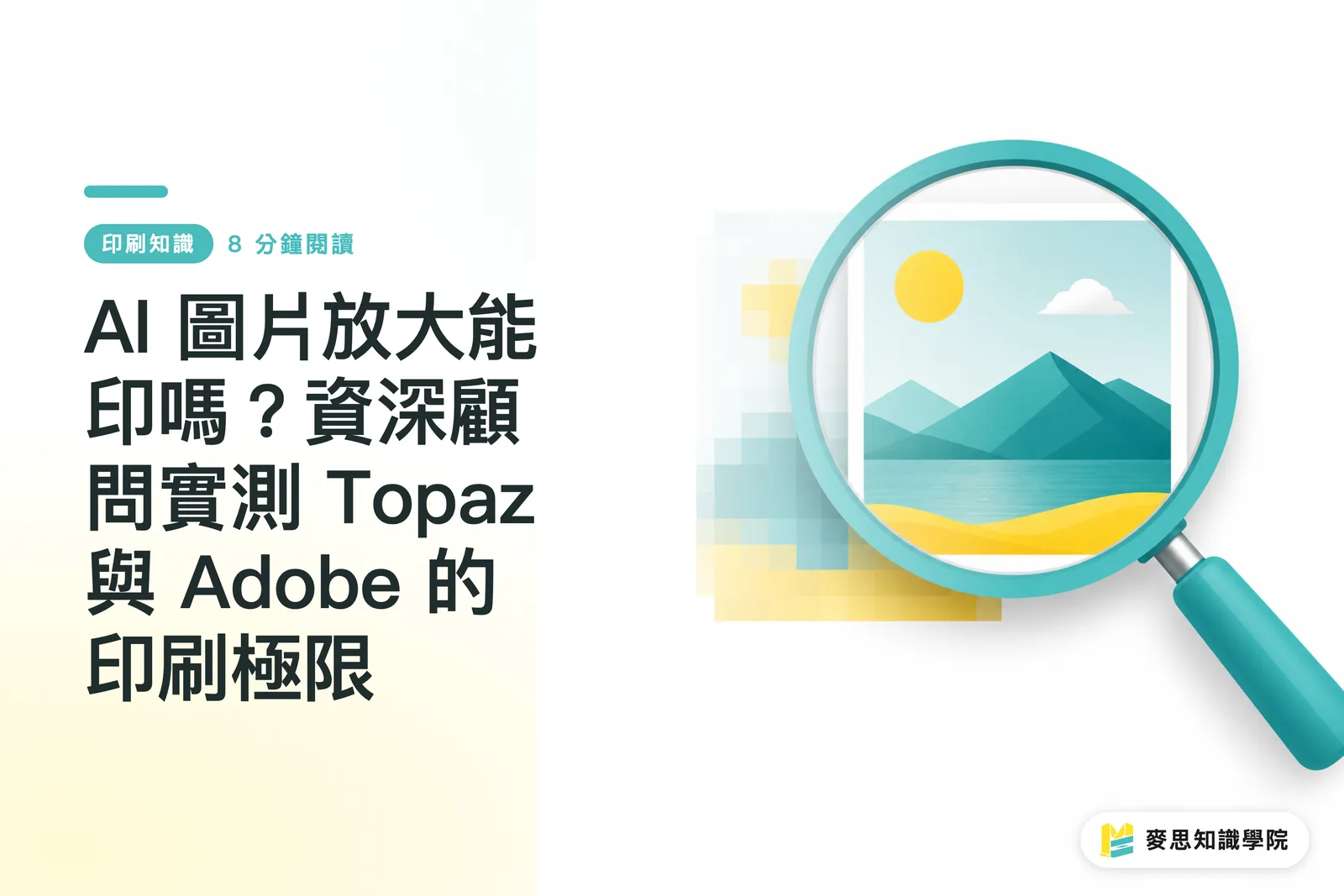
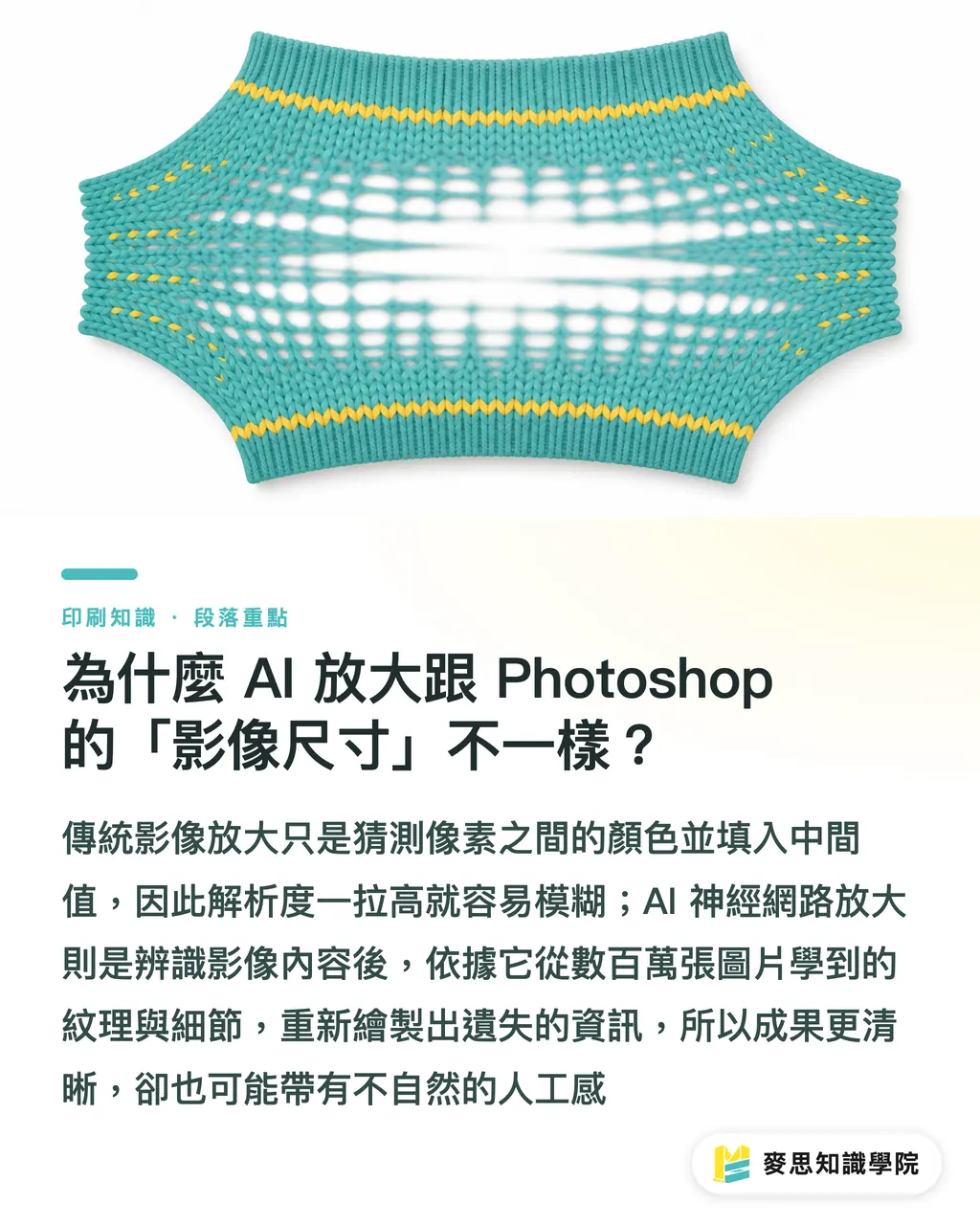
In the past, we enlarged images in Photoshop using "Image Size" with Bicubic interpolation. The idea is simple: guess the color between two pixels, then fill in a middle value. It is like stretching a sweater. The size gets bigger, but the gaps between the threads also get bigger, and the pattern turns blurry
AI neural-network upscaling works in a completely different way. It is not just "guessing" middle values. It "draws" the details it thinks should be there. These AI models have seen millions of high- and low-resolution image pairs, so they have learned what cat fur should look like in high resolution, or what details should appear when a brick wall texture is enlarged. So when you feed it a low-resolution image, it is not stretching pixels. It identifies the content, then uses its "knowledge base" to redraw the missing details. That is why AI-upscaled images can sometimes show unexpected detail, but also why they may end up with an unnatural, plastic-looking finish
How Do Mainstream AI Upscaling Tools Perform in Prepress Tests?
There are plenty of AI upscaling tools on the market, but from a print-production point of view, I picked three that designers are most likely to encounter in their workflow: the dedicated Topaz Gigapixel AI, Neural Filters built into Photoshop, and the quick, convenient Canva Magic Upscaler
I used a typical 72dpi product photo from the web, aiming to enlarge it to a 300dpi size suitable for A5 flyer printing. After running the full round of tests, here is what I found:
・Topaz Gigapixel AI: No surprise, this is software built specifically for image enlargement. It produced the most detail and the sharpest lines. Its handling of object edges and textures was clearly better than the other two. The downside is that it can sometimes push too hard when "drawing" detail, making the image, especially faces, look over-retouched and plastic. It works best on subjects that already have a lot of texture, such as wood, fabric, or buildings
・Adobe Neural Filters (Super Resolution): Its biggest advantage is how smoothly it fits inside Photoshop. One shortcut and you can process the image, which is very convenient. The enlarged result looks quite natural. It does not tend to invent exaggerated details that were never there. Instead, it tries to preserve the feel of the original image while making the texture smoother. For portraits or photos with large areas of even skin tone, Adobe's approach is usually more pleasing and less fake-looking
・Canva Magic Upscaler: Canva's tool is strongest in convenience. It is good for social media posts or online promo materials where quality demands are not extreme. The upscaling does make the image better, but compared with the first two tools, it still falls behind in sharpness and natural detail. If you are making a small business card or sticker, it is usable. Put it on a catalog or an A4 flyer, though, and the blur becomes much more obvious
In short, choose Topaz if you want maximum detail and sharpness. Use Adobe if you want natural results and a smooth workflow. For emergencies or non-print use, Canva is very handy
Where Are the Safe and Risky Zones for AI Upscaling?
After all that, can an AI-upscaled image actually go to print? From the jobs I have handled, the answer is: it depends. AI is not a magic cure. It has a "safe zone" where it works well, and a "danger zone" where it starts to struggle
The "safe zone" where AI upscaling works well:
・Headshots on business cards or cards: the final print size is small, so AI-added detail is usually enough
・Product images on DM pieces or flyers: as long as the product is not selling itself through extremely fine texture, results are usually acceptable on A5 or A4 flyers
・Web banners or social posts: screen resolution demands are lower than print, so AI upscaling is more than enough
The "danger zone" where AI upscaling is still risky:
・Large posters above A2: at this size, any unnatural AI-created detail gets magnified, especially when viewed up close. The flaws show very easily
・Detailed illustrations or logos with complex lines: AI can misread the direction of lines, turning precise vector-like edges into warped, uneven strokes. For a brand logo, that is fatal
・Large areas of human skin: this is where AI most often gives itself away. The skin texture it invents can look strange, like an over-smoothed mannequin, missing real details such as pores and fine hair. It feels unnatural
So when you receive a low-resolution image, first judge its final use and print size. If it falls inside the safe zone, good news, there is a strong chance the image can be saved. If it will be used in a danger-zone scenario, I would still suggest spending the time to talk with the client and ask for the original file, or find a way to reshoot it. That is the safer choice
How Should I Check an Upscaled File Before Feeling Safe?
Once AI finishes processing, the job is not done. Never save the file and send it straight to print. You still need a final manual quality check. These steps can help you avoid disaster:
・Open it at 100% view in Photoshop: do not rely on a thumbnail that looks fine. Set the view to 100%. This is closest to the actual level of detail you will see in print. Carefully inspect key areas, such as the eyes on a face, the edges of a logo, and the texture of a product. Look for odd color patches, unnatural lines, or blur
・Add sharpening in moderation: AI-upscaled images can sometimes look a little soft and not solid enough. You can use Smart Sharpen or Unsharp Mask in Photoshop to strengthen them slightly. Do not push the settings too high. Set Radius to 0.5 to 1.0 pixels, with Amount around 50% to 100%. The goal is to make detail clearer, not to create white halos
・Print a sample: if time and budget allow, nothing is safer than a proof for important jobs. The color and detail you see on screen will never match every paper stock perfectly. You need to see it with your own eyes and touch it with your own hands to make the most accurate call
The final decision still belongs to people. AI is a powerful assistant. It can save a lot of back-and-forth communication time, and it can even rescue some jobs that were close to being scrapped. But it cannot replace the professional judgment of designers and print technicians
Key Takeaways
・AI upscaling "redraws" detail instead of traditionally "stretching" pixels, so it can create richer textures
・Each tool has its strengths: Topaz Gigapixel AI aims for maximum sharpness, while Adobe Super Resolution focuses on natural results
・The safe range is small printed pieces below A4. Posters above A2, detailed illustrations, and large areas of skin remain challenging
・Do not trust AI results blindly. Always inspect the image at 100% in Photoshop and add moderate sharpening where needed
・AI is a powerful rescue tool, but it does not replace the need to get a high-quality source file whenever possible
Further Thoughts
From a print shop's point of view, the biggest meaning of mature AI image upscaling is that it lowers communication costs. In the past, when we received a low-resolution file, we often had to reject it outright, then fall into a long loop of waiting and explaining things to the client or designer. Now we have another option. Before printing, we can try rescuing it ourselves
For designers, this means you can handle all kinds of troublesome client files with more composure, reduce frustration, and put more energy into the core creative work. For printers like us, it can improve production efficiency and reduce idle time caused by file problems
But we also need to recognize the new quality-control challenge this technology brings. As more AI-generated or AI-repaired images enter production workflows, frontline prepress staff and print technicians need the ability to judge AI image quality. We are no longer looking only at whether the resolution is enough. We also have to ask: does this detail look real? Will this texture look fake once printed?
In the long run, the winners will not simply be the people who adopt AI. They will be the people who know how to command it. Designers and print professionals both need to learn and test what these tools can and cannot do. Treat them like a new Swiss Army knife in your hand. Know which blade to use, and know that this knife cannot cut through rebar. In the end, a professional eye and real experience remain the last line of defense for print quality
FAQ
- Can an AI-upscaled image really meet the 300dpi requirement for printing?
- Not completely. AI can increase the pixel dimensions to match a 300dpi specification, but "image quality" is not the same as "resolution." It is usually workable for small printed pieces such as business cards and small flyers. For large posters or finely detailed art books, the AI-compensated detail may still look unnatural or blurry when viewed over a large area
- Which is better, Topaz Gigapixel AI or Photoshop's built-in Super Resolution?
- Each has pros and cons, so choose based on the job. Topaz Gigapixel AI usually produces sharper results with richer detail, but it can sometimes make the image look overprocessed. Photoshop's Super Resolution, through Neural Filters, fits conveniently into the workflow and tends to look more natural, making it suitable for portraits
- Can I use a phone photo and rely on AI upscaling to print a product catalog?
- Under specific conditions, yes. If it is used in a small layout below A5, and the original photo has enough light with no serious camera shake, AI upscaling can usually handle it. But if the image will be used on a cover or a large spread, AI-compensated detail is hard to compare with an original shot from a professional camera. Reshooting is strongly recommended
Related articles
The Print × AI weekly
The print and AI know-how designers, brands and enterprises can use before they commit — one email, every week
MINDS Free Tools
AI background removal, brand stamping, and a LINE sticker maker — free design tools, right in your browser, no upload.
MINDS Group
Need actual printing or gifting services?
From premium printing to online ordering and festive gifts — the MINDS Group sister brands take it from here.