
Why 99% of AI-Generated Images Look Like a Disaster When Printed
Based on my experience handling thousands of print jobs, over the last six months, more and more clients have been asking for quotes with AI-generated images, but almost none of them are directly usable
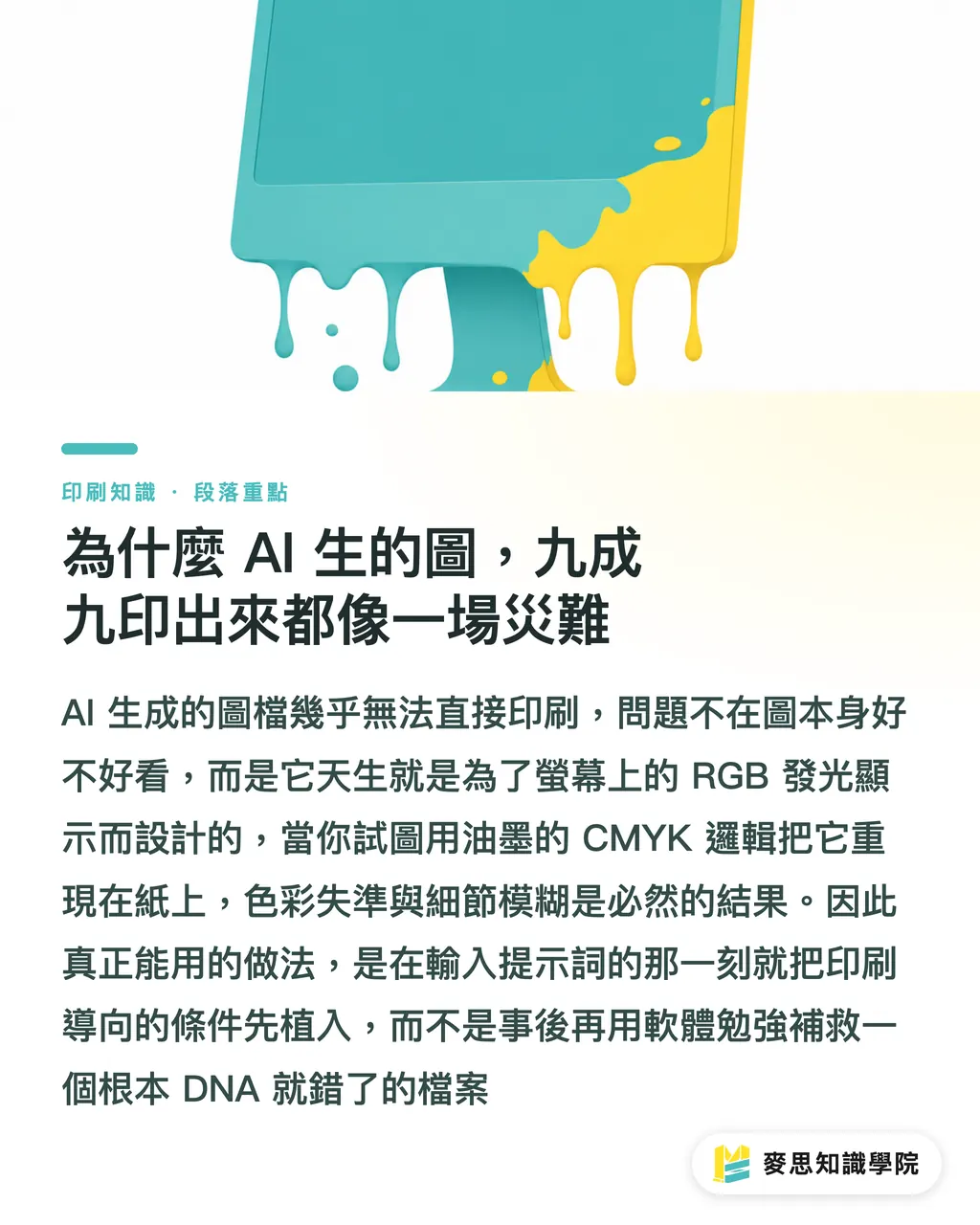
Where is the problem? Most people get stuck on a fundamental misunderstanding: they confuse "what looks good on a screen" with "what is ready for print."
These two things are fundamentally different at their core
AI models (whether Midjourney, Stable Diffusion, or others) are trained on massive amounts of internet imagery, which are inherently designed for digital screens (RGB color gamut, 72dpi resolution)
Printing, however, follows completely different physical rules: the CMYK color gamut for ink mixing and a physical halftone resolution of at least 300dpi
If you take an RGB file designed for a glowing screen and force it to be reproduced with ink on paper, color inaccuracies and blurry details are inevitable results
Many designer friends try to use software to remedy this afterward, but this is often counterproductive or even a total waste of effort because the file's fundamental DNA is wrong
The real key is planting a "print-oriented" mindset the very first second you generate the image, that is, when you are writing the Prompt
How to Determine Print Size and Resolution in the Prompt
Since the source is the key, let's start with the prompt
You can't directly tell AI to "give me a 300dpi image"; it doesn't understand physical units. However, you can guide it to generate a "large-pixel image" with high-resolution potential
The first step is to use the Aspect Ratio parameter to lock in the final print specification, which is a hundred times more important than cropping later
I recommend treating these groups as your go-to templates:
・- Business cards or stamp cards (90x54mm): Directly use --ar 9:5 or a similar --ar 16:9, then adjust the bleed slightly before printing
・- A-series paper (A4, A3, A5): The golden ratio for paper is 1:1.414, so --ar 1:1.41 or --ar 2:3 is the closest choice to reduce cutting waste
・- B-series posters (B2, B3): The same applies to --ar 1:1.41 or --ar 5:7
・- Square format common for social media posts: Just use --ar 1:1, this is the simplest
The second step is to add keywords that boost the "intent" for high resolution
Although you cannot directly specify dpi, you can use words like 4K, 8K, ultra-high resolution, highly detailed, sharp focus to drive the model to generate more refined results with larger pixel dimensions
This is like telling a chef, "I'm hosting a banquet, use the best ingredients"; they will naturally bring out their prized items rather than making a simple home-cooked stir-fry
Controlling Color and Detail to Reduce Distortion and Color Shifts
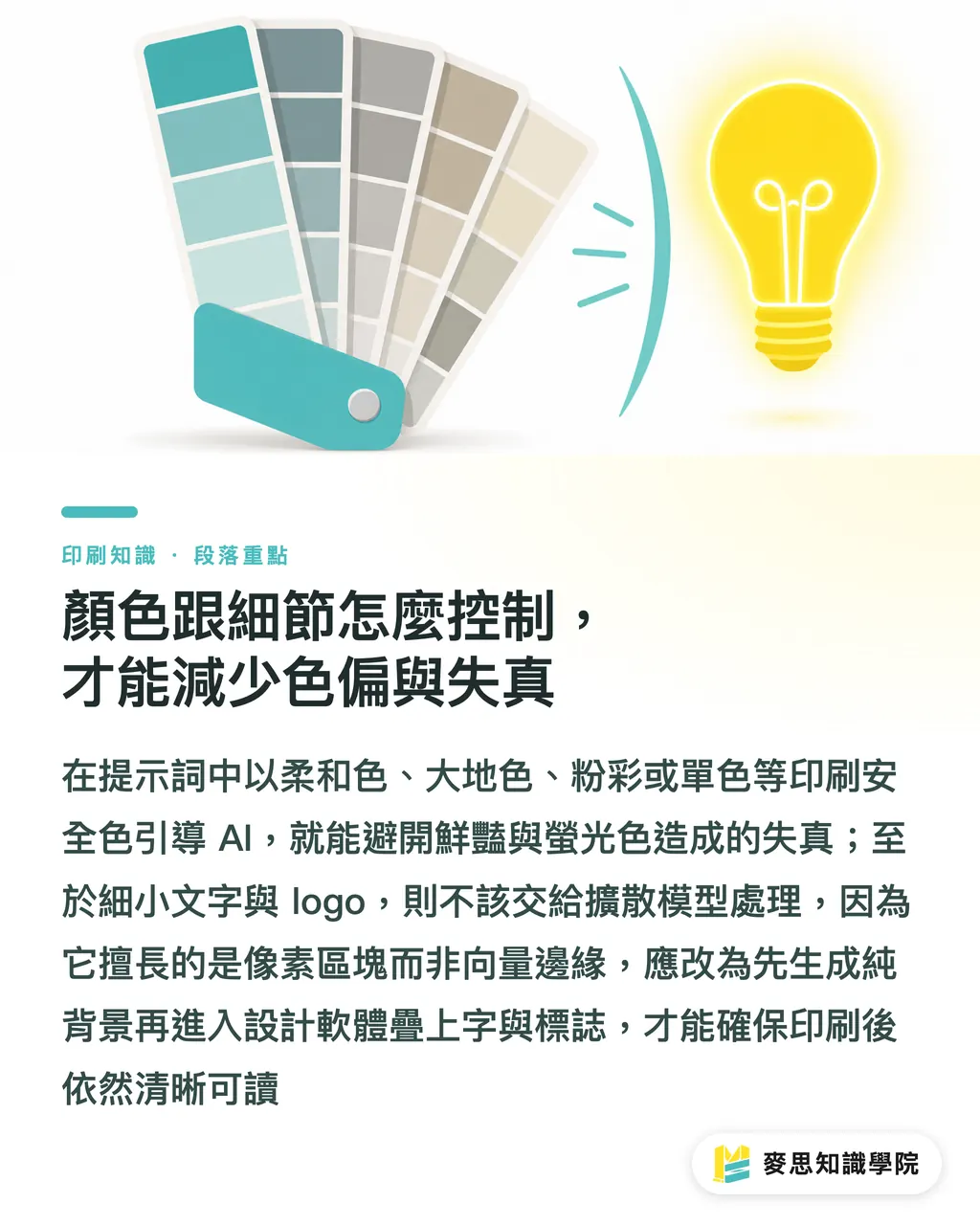
Color is another massive pitfall. The RGB color gamut is much wider than CMYK. The vibrant fluorescent greens and deep blues on your screen will definitely turn into a lifeless, different color when printed
The smart approach is not to fight the physical limitations, but to adapt to them
Instead of chasing colors that cannot be printed, guide AI to use "print-safe colors" right in the prompt
In your prompts, use these keywords to guide the tone:
・- muted colors
・- earth tones
・- pastel palette
・- monochrome
・- warm color palette or cool color palette
Conversely, you must absolutely avoid these "color-shift-prone" keywords:
・- vibrant colors
・- neon, luminous, glowing
・- RGB (unless you really only want to make a digital file)
As for the fine text and small logos in the image, my advice is: give up on having AI generate them
Current diffusion models paint using pixel blocks, not vector paths, so they are inherently incapable of handling small text and fine lines that require clear edges
The best workflow is:
1. Use AI to generate a pure background or main visual without any text or logos
2. Bring the satisfactory image into Photoshop or Illustrator
3. Use vector tools or font tools in the design software to add your logo and text information
This ensures the most important information remains clear and readable after printing
Which AI Tool Should I Use? Is Post-processing Needed?
Many clients ask me which is better: Midjourney, Stable Diffusion, or Adobe Firefly
From the perspective of someone in the printing industry, they each have scenarios they are suitable for:
・- Midjourney: Currently top-tier in quality and artistic capability, with the most diverse styles. Very suitable for projects needing creativity and visual impact; I personally use it most for brainstorming main visuals
・- Stable Diffusion: Open-source and the most flexible. You can train models yourself to produce specific styles, but it has the highest technical barrier. Suitable for design teams with full-time engineers for long-term investment
・- Adobe Firefly: The biggest advantages are "commercial safety" and "integration within the Adobe family." It boasts training on legal stock libraries, has no copyright concerns, and can smoothly generate or modify images within Photoshop. It is the top choice for corporate clients and designers who value smooth workflows
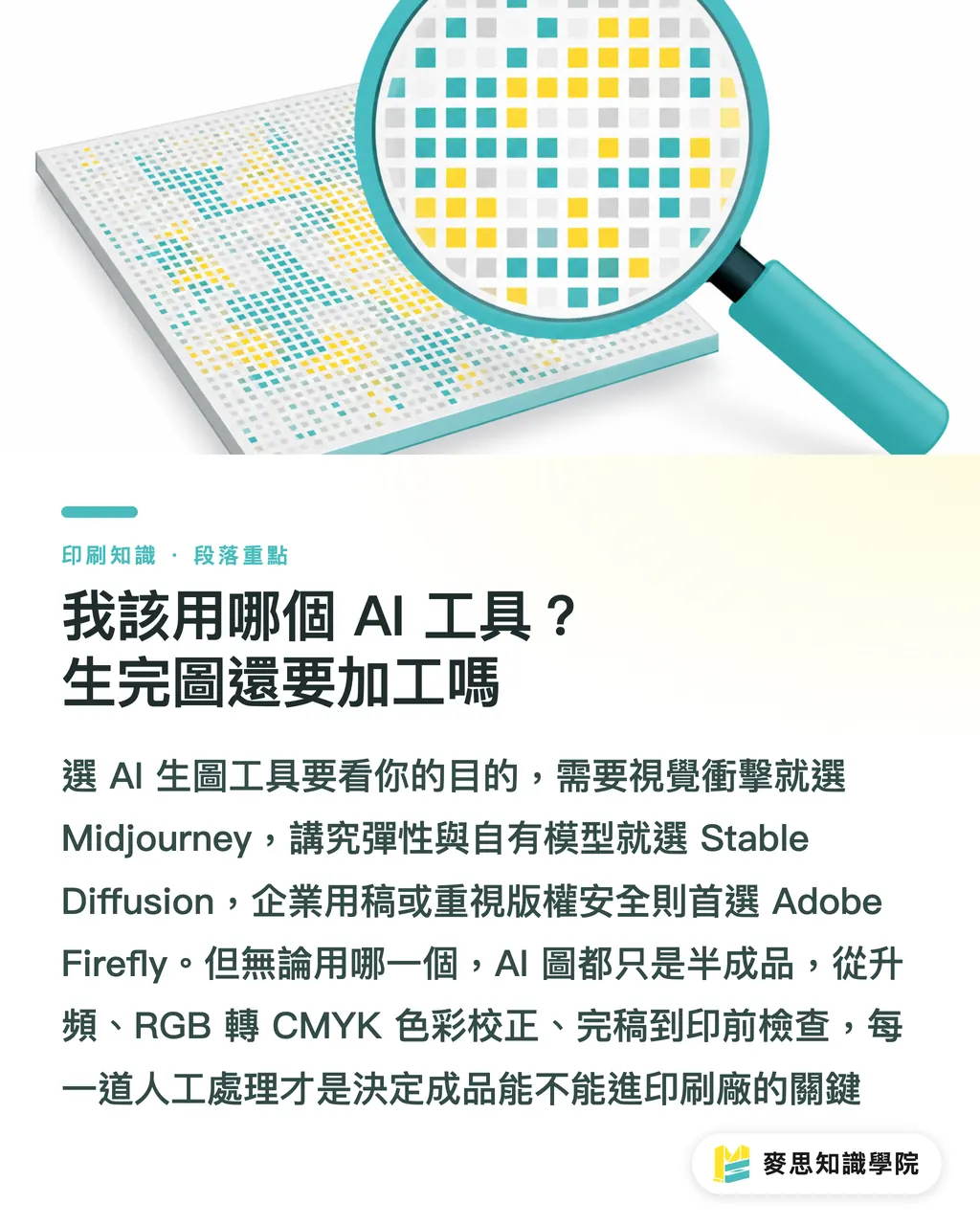
Regardless of which one you use, remember one thing: AI-generated images are always just half-finished
They are an excellent creative starting point, a super-assistant, but absolutely not the final product
For an AI image to enter a printing factory, it must at least go through these professional processes:
1. Upscaling: Use Topaz Gigapixel AI or Photoshop's built-in Super Resolution to bring the pixel dimensions to the 300dpi standard required for printing
2. Color Correction and Conversion: Convert the file from RGB to CMYK in Photoshop and carefully check for color changes, manually adjusting parts with severe distortion
3. Finalizing: Add bleed and crop marks, and integrate the previously mentioned text and vector logos
4. Final Check: Use Adobe Acrobat Pro's preflight function to ensure all settings meet the printing factory's requirements
This entire process is the fundamental difference between a professional designer and an amateur player
Key Takeaways
・What looks good on a screen does not equal printable; the root of the problem is that AI defaults to digital RGB output
・Using the --ar aspect ratio parameter to lock in print specifications is the first step to saving costs at the source
・Prompting with "muted colors" or "earth tones" can significantly reduce the risk of color shifts when converting to CMYK
・Never force AI to generate fine text and logos; leave them to be processed in professional design software
・AI images are always half-finished products; professional upscaling, color conversion, and finalizing are the essential "last mile" of the journey
Further Reflections
AI-generated images are not a threat to the printing industry, but a brand-new opportunity and a new skill requirement
For printing factories, they can consider launching "AI image optimization and finalizing" services to help clients who want to try AI but do not understand the prepress process, helping them bring their creativity to reality
For graphic designers, this means your value is no longer just "drawing well," but knowing how to master AI as a tool and integrate it into a professional, stable, and predictable print production process, this is the new core competitiveness
For companies adopting AI, the focus is not on dissolving design teams, but on giving them new tools and methodologies to free them from repetitive basic drawing and allow them to focus on higher-level brand strategy and creative integration
In the future, designers who know how to write "print-oriented prompts" and have mastered "AI image post-production workflows" will be the most sought-after talent in the market
FAQ
- Can I directly write "300dpi" or "CMYK" in the prompt?
- You can write it, but the effect is indirect. AI models primarily understand pixel dimensions rather than physical DPI. Writing "CMYK" helps guide the color tone toward a more subdued range, but the essence of the file it generates is still RGB. You must manually convert and proofread it in professional software like Photoshop
- Do AI-generated images have copyright issues? Can they be used for commercial print materials?
- This depends on the tool you use. Adobe Firefly boasts being trained on legally licensed stock libraries, making commercial use safer. The copyright specifications for Midjourney and Stable Diffusion are more complex and still changing. It is recommended to thoroughly read their latest terms of service before using them, especially regarding commercial licensing
- Why is the text or small logo generated by AI always blurry?
- Because current mainstream image-generation AI paints using "pixels" as the unit, rather than using "vector" paths like Illustrator. It is inherently not good at text and graphics that require clear edges. The best practice is to generate a background image without text, and then add the text and logo in design software
- Does using AI for upscaling really achieve the 300dpi quality required for printing?
- It can, but there are limits. Modern AI upscaling software (such as Topaz Gigapixel AI) is already very effective; for most AI-generated artistic images, upscaling is sufficient to handle general printing requirements. However, if the quality of the original AI image is too poor or lacks detail, upscaling just magnifies the blur, so generating a high-quality image at the source remains crucial
Related articles
The Print × AI weekly
The print and AI know-how designers, brands and enterprises can use before they commit — one email, every week
MINDS Free Tools
AI background removal, brand stamping, and a LINE sticker maker — free design tools, right in your browser, no upload.
MINDS Group
Need actual printing or gifting services?
From premium printing to online ordering and festive gifts — the MINDS Group sister brands take it from here.