
What AI Color Tools Actually Do
Let's be clear about one thing: when it comes to screen color, what AI can do right now is 'assisted adjustment,' not 'calibration.'
Photoshop's Neural Filters can push image tones in a certain direction or simulate the look of certain paper types. Chrome's built-in sRGB handling tries to make images look 'less weird' on screen. ICC auto-assignment guesses your color space when you open a file and applies it automatically. These features address software-level approximations, not hardware-level spectral correction
True monitor calibration changes the actual RGB values each pixel outputs. A hardware colorimeter, like the X-Rite i1Display or the Datacolor Spyder series, measures your monitor's real-world performance across different brightness levels and color temperatures, then generates an ICC Profile that tells the operating system: 'Your monitor's RGB 200 actually looks like this, so compensate by this much when displaying it.' No software algorithm can fully replicate this process, because every monitor ages differently, its backlight degrades at its own rate, and each panel has its own characteristics
I've seen plenty of designers spend hours fine-tuning layer colors in Photoshop without ever calibrating their monitor. That's precision measurement on a ruler that isn't accurate

Why a Calibrated Monitor Still Isn't Enough
Even with a properly calibrated monitor, there's another step: what you see on screen has to be a simulation with the print ICC Profile applied, not the design software's native display
That's the whole point of soft proofing. Illustrator and Photoshop's soft proofing feature overlays the print shop's ICC Profile onto your screen display, letting you preview roughly how a design will look on that specific printer and paper. A few critical settings need to be right:
・Choose the ICC Profile your print shop provides, not the default sRGB or AdobeRGB
・For rendering intent, Relative Colorimetric is usually the right pick to preserve saturation at the gamut edge; try Perceptual too and see which gets you closer to what you want
・Check 'Compensate for Paper Color' to see the actual base color after the white point shift
・Turn on Gamut Warning so any colors outside the printable gamut show up in gray
Hardware calibration, ICC Profile, and soft proofing settings all need to be linked in the same workflow. Miss any one of them and everything downstream is guesswork
Remote Review and Approval: Where Does Color Discrepancy Come From?
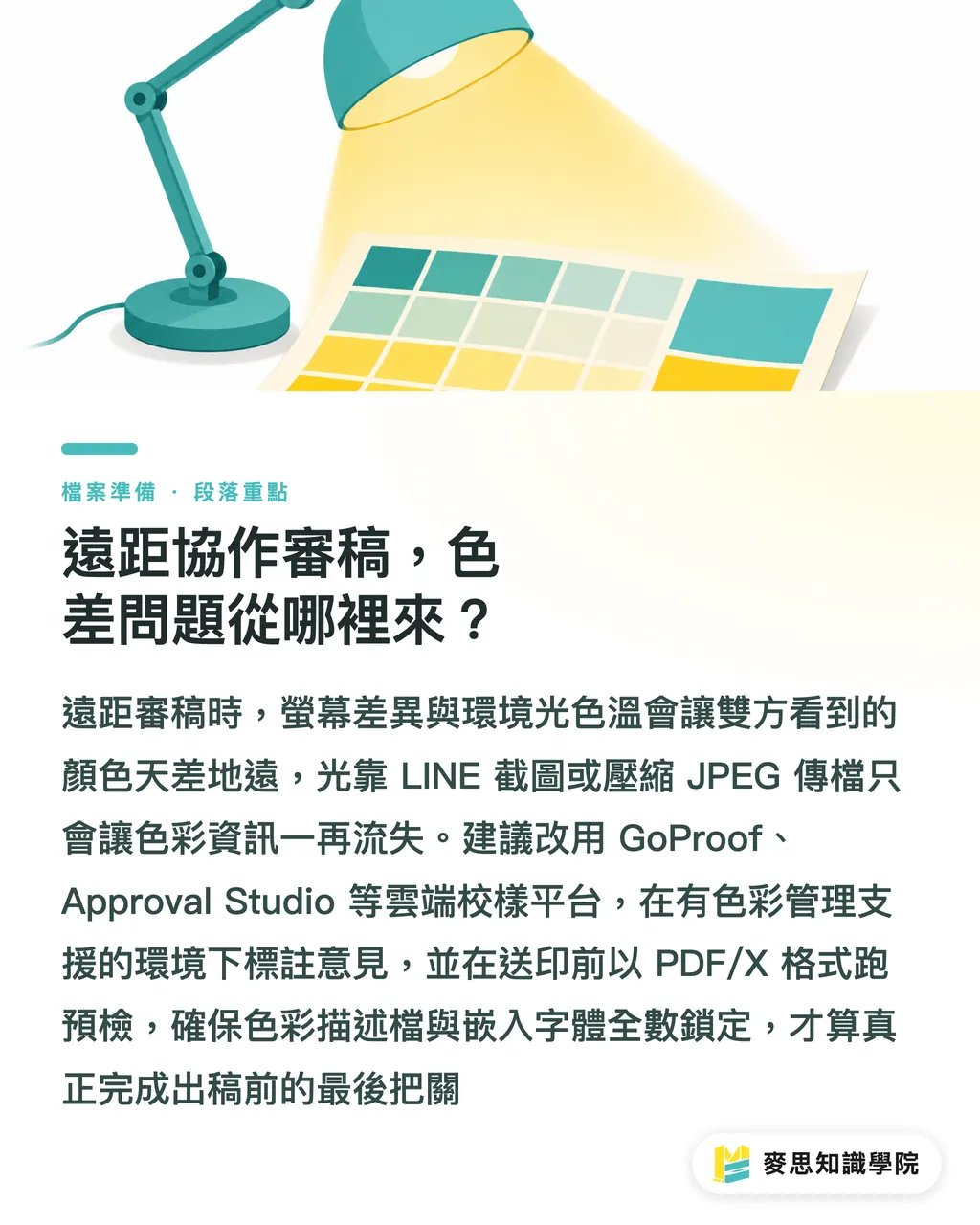
Remote work makes color communication harder, because your monitor and your client's, along with your respective ambient lighting, are almost certainly different
Lighting is the thing that gets overlooked most. D65 (6500K) is the standard viewing light for print proofing, but most offices run warm LEDs or fluorescent lights, which can make the same file look completely different. If your remote client is staring at the JPEG you sent them under yellow light and saying 'that blue is too dark,' you're not even looking at the same thing
Cloud proofing and annotation tools have seen noticeably higher adoption in the industry in recent years. The core value of platforms like GoProof and Approval Studio is letting clients review design files in a color-managed environment and mark up changes directly, rather than sending LINE screenshots or email attachments in JPEG, where every compression cycle bleeds out more color data. That said, these tools still require correct browser settings on the client side, so they're not a silver bullet
PDF/X preflight also needs to be built into the workflow before sending to print. The PDF/X-1a or PDF/X-4 format locks in the color profile, embeds fonts, and restricts transparency, effectively double-checking that everything is packed before you walk out the door. Acrobat Pro's Preflight tool can run this check, and most print shops will also tell you whether the file passes after they receive it
If you're running a high-spec commercial print project, you can contact MINDS Print directly. We can handle ICC Profile matching and prepress consultation, saving you the time of figuring it out yourself
A Remote Print Color Workflow You Can Actually Use
Here's the whole thing in order:
・Step 1: Hardware calibration. Calibrate your monitor every 2 to 4 weeks, especially if it's been running for more than three years or you've moved your workspace. Target brightness: 120 cd/m², color temperature: D65
・Step 2: Check your working environment lighting. Remove colorful reflective objects from your desk and try to review files under D65-equivalent light. If your budget allows, get a D65 standard viewing lamp
・Step 3: Get and install your print shop's ICC Profile. Load it into Illustrator or Photoshop's color settings so your entire workspace runs on the same profile
・Step 4: Enable soft proofing. In Photoshop, toggle it with Cmd+Y. Confirm the ICC in the settings is your print shop's, and turn on Gamut Warning
・Step 5: Export as PDF/X and preflight. Export using the PDF/X-4 standard, then run it through Acrobat Preflight or your print shop's preflight tool
・Step 6: Send for client approval via a cloud proofing tool. Use GoProof or Approval Studio, not LINE or email with a JPEG
For day-to-day file revisions, steps 1 through 3 only need to be done once, not every day. Before every print submission, steps 4 through 6 are mandatory
For projects with smaller budgets and simpler requirements, MINDS Print's online submission service also includes basic prepress verification, so you can confirm the file format is solid before it goes into production
Where AI Assistance Actually Fits in a Color Workflow
After all that about what AI can't do, let's be clear about where it actually helps
Initial tone adjustment is the most direct application. Photoshop's Neural Filters can quickly bring white balance and color temperature across a batch of photos closer together, cutting down on manual one-by-one adjustments. Adobe Firefly lets you specify a color direction when generating images, making the material a closer match for the file's main palette. These reduce manual adjustment time. They don't fix color accuracy
The area I find most genuinely useful right now is automating batch ICC tagging. Some tools can automatically detect whether images in a document have an embedded ICC Profile and whether they meet the output spec, then flag the problem files in bulk so prepress staff only have to deal with the exceptions. Manually checking hundreds of images one by one is unrealistic. Finding the outliers is exactly the kind of work AI handles fast and doesn't miss
But the core color decisions, which direction to push a color, whether to clip or accept when a gamut warning appears, those still need a calibrated monitor and someone with proofing experience. AI can't give you that yet

Key Takeaways
・A hardware colorimeter is the foundation. Soft proofing without a calibrated monitor is precision measurement on an inaccurate ruler
・AI tools belong in a color workflow for batch assistance and rough approximation, not as a replacement for color management
・Half the color discrepancy in remote collaboration comes from ambient lighting, not monitors. The importance of D65 lighting gets underestimated constantly
・Soft proofing only works when three things are right at once: ICC Profile source, rendering intent, and paper white point compensation. All three, no exceptions
・PDF/X preflight is the last line of defense before going to print. Pass it, and you're actually ready
Something to Think About
The hardest part of this workflow isn't the technical setup, it's building the habit. Buying a colorimeter and never using it, starting with an ICC and then giving up and switching back to sRGB halfway through, that's more dangerous than not knowing about soft proofing at all, because you think you've done it when you haven't. Start with hardware calibration. Put it in your calendar on a fixed schedule and remind yourself to run it every month. With an accurate display as your base, the ICC setup and soft proofing that follow are actually worth the time. For print service providers, proactively sharing your ICC Profile with clients and explaining how to use it correctly is the most cost-effective way to cut color dispute callbacks. At MINDS Print (MS, mid-to-high-end fully custom commercial printing), the jobs where this communication happens upfront consistently need far fewer rounds of revisions
FAQ
- Can AI screen color calibration replace a hardware colorimeter?
- No. A hardware colorimeter measures a monitor's physical spectral output and corrects for it. AI and software tools can only approximate at the software level. Every monitor ages differently, with its own backlight degradation and panel characteristics. Without hardware measurement, you can't actually calibrate it
- How do I get my print shop's ICC Profile?
- Just ask them directly. Any reputable shop should provide one. You can also use standard ICC Profiles from Fogra or GRACoL, which are publicly available specs from international printing standards organizations, useful as reference baselines when you don't have a specific vendor
- How risky is it to skip soft proofing and send straight to print?
- It depends on the colors in the design. If everything sits within the sRGB gamut in neutral tones, the difference might be small. But the moment you have vibrant brand colors, gradients, or AI-generated images with high-saturation content, the odds of color shifting after print are high, especially for colors at the edges of the CMYK gamut
- What's the difference between GoProof and Approval Studio?
- Both are cloud proofing and review platforms. GoProof integrates with Enfocus's prepress workflow, making it a good fit alongside existing prepress systems. Approval Studio is lighter and better suited for designers inviting clients to mark up changes online directly. The core features are similar; which one you pick depends on your existing workflow
- What's the difference between PDF/X-1a and PDF/X-4, and which should I use?
- PDF/X-1a is the older standard. It requires all colors converted to CMYK and doesn't support transparency, making it the right pick when you need maximum compatibility with older prepress equipment. PDF/X-4 is the newer standard, supporting ICC-based color spaces and transparency with more flexibility. Most print shops today accept PDF/X-4. If you're not sure, just ask
Related articles




The Print × AI weekly
The print and AI know-how designers, brands and enterprises can use before they commit — one email, every week
Tool Library
RGB↔CMYK conversion, ΔE color difference and brand color print analysis — free color management tools, computed right in your browser.
MINDS Group
Need actual printing or gifting services?
From premium printing to online ordering and festive gifts — the MINDS Group sister brands take it from here.