

Why Does It Look Full-Bleed on Screen, but Print with a White Border?
This is the most common cry of despair I hear on the printing house floor
Many Taiwanese SMEs, to save budget or time, are accustomed to using Word, PowerPoint, or even Google Slides to design flyers and booklets
However, these office applications are natively designed for screen presentations and office printers; they completely lack the concept of 'bleed,' which is essential for professional printing
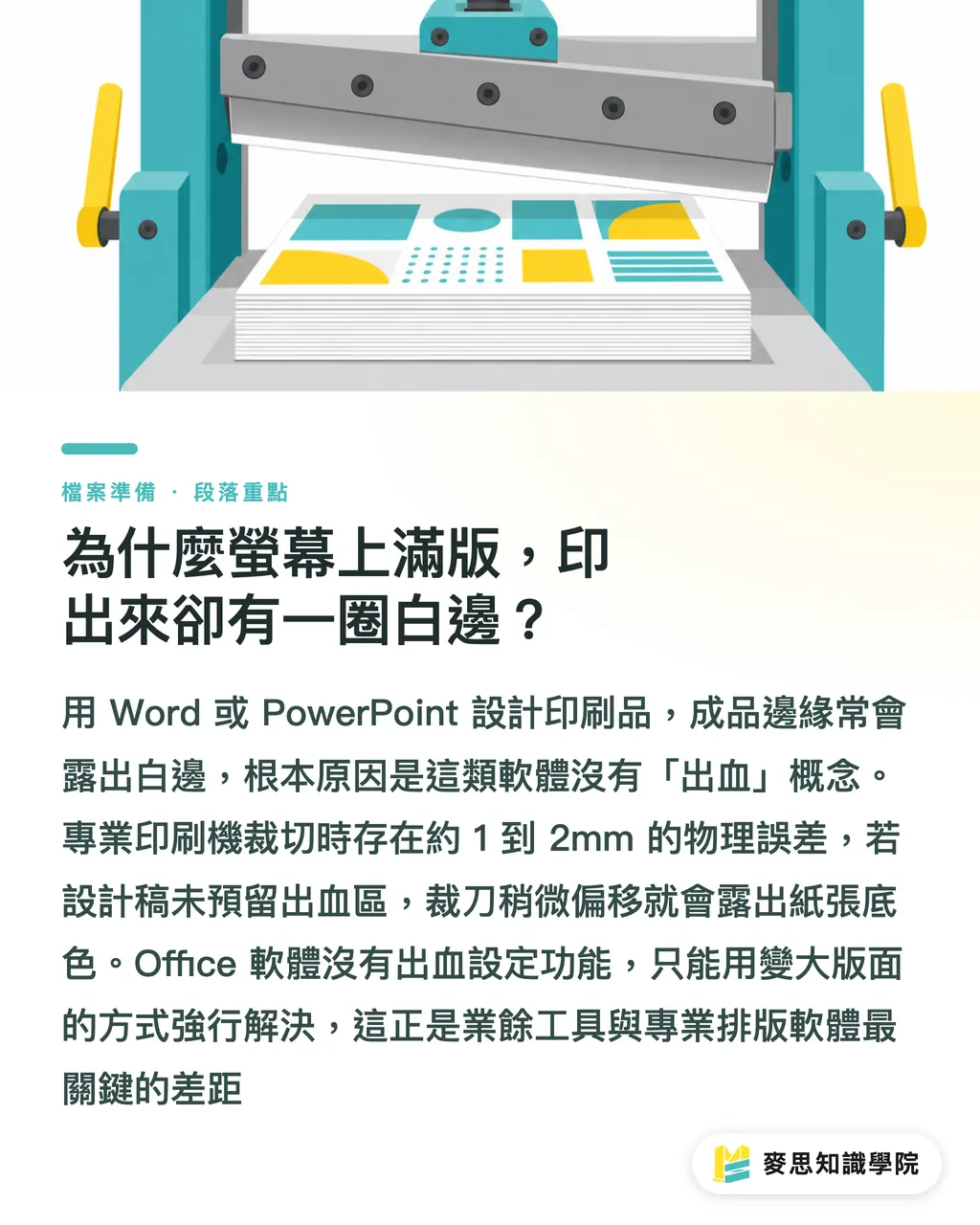
When printing presses cut paper at high speeds, a physical variance of about 1 to 2 mm is unavoidable
Without a designated bleed area, if the cutter shifts even slightly, the original white color of the paper will be exposed at the edges of the finished product
With professional software, bleed lines are automatically generated simply by entering a number
Since Office programs lack this feature, we must trick the software by manually expanding the page dimensions
This forces the software to output files that meet print shop standards
How to Avoid Trimming Traps When Printing from Word?
The standard A4 size is 210×297 mm, and the industry standard bleed is 3 mm added to the top, bottom, left, and right
Therefore, in Word, you must manually increase the page size to 216×303 mm
If you get this step wrong, all your subsequent hard work will go down the drain
Step-by-step instructions:
・Open the 'Layout' menu, locate 'Size', and click on 'More Paper Sizes'
・Manually enter the width 21.6 cm, and height: 30.3 cm
・Stretch your background color blocks or full-page images all the way out to fill these newly defined margins
・The most critical part when saving: Choose 'Save As PDF' and make sure to select 'Optimize for printing' (or 'Best print quality')
・Advanced verification: Never check the 'Crop to paper size' option
When Designing in PPT, How Far Should You Stretch Your Images?
PowerPoint follows a similar logic to Word, but is more commonly used for image-rich, presentation-style promotional materials
Many assume that aligning images to the edges of the slide is perfectly safe, but this will absolutely lead to a printing failure
Key steps:
・Go to 'Design', select 'Slide Size', and choose 'Custom Slide Size'
・Input the same dimensions, including the 3 mm bleed on all sides
・Manually drag all images or color blocks that touch the edges beyond the original visual boundary of the slide
・Saving a PPT as a PDF is relatively straightforward, but remember to stretch your images fully beyond the new boundaries
Why Do Small and Medium Print Shops Get Headaches Over Google Slides Files?
In recent years, more and more startup teams prefer using Google Slides to collaborate on proposals and send them straight to print
However, I must warn you that this is currently the easiest tool to make mistakes with
Google Slides' PDF export mechanism is very rigid; by default, it forcibly crops out any content extending beyond the slide margins
Even if you enlarge the layout following the method taught above, there is still a high probability that the software will forcefully crop it back to its original dimensions during export
Based on my production line experience, the safest approach is to immediately open the exported PDF in professional software like Acrobat to check its actual dimensions
Verify whether the final file indeed includes the 3 mm bleed
If your layers are truly too complex, or if these size settings are driving you crazy,
I sincerely recommend giving yourself a break and switching to online tools like Canva that have a basic concept of printing
When sending files for print, you can just tell the production staff, 'The files already include bleed,' or 'Please help add borders.'
This will save both parties a significant amount of checking time
Summary
・Office software does not support bleed; you must manually add 6 mm to both the width and height of the page to trick the system
・Saving Word documents as PDFs is your lifesaver, but never check any options that automatically crop the page during export
・Google Slides PDFs are highly prone to having their borders forcibly cropped; always double-check the dimensions in a PDF reader before printing
Further Reflection
From the perspective of print manufacturing, the popularity of SaaS layout tools has significantly lowered the design barrier, but it has also shifted the pressure of prepress checking onto the production line
The value of integrated service providers like MINDS Printing lies in using experience to handle these non-standard files
In the future, software that can automatically detect files without bleed the moment a customer uploads their PDF and add edges with a single click will represent a highly promising application scenario for the printing industry
Further Reading
What if you design and print using Word or PowerPoint? A complete guide to bleed rescue for non-design software
FAQ
- Why does the print shop keep saying the size of the A4 flyer I made in Word is incorrect?
- Because standard A4 is 210×297 mm, but printing requires a 3 mm bleed on all four sides. Your file must be manually set to 216×303 mm to pass checking
- The images in my PPT are already aligned to the edges, so why are there still white margins when printed?
- Aligning to the visual edge is not enough; you must manually drag the images beyond the page boundaries to give the cutter tolerance for error
- Can files made in Google Slides be saved directly as PDFs for printing?
- The risk is extremely high because its default export forcibly crops out content extending beyond the boundaries. We strongly recommend using Acrobat after exporting to confirm if the size correctly includes the bleed
Related articles





The Print × AI weekly
The print and AI know-how designers, brands and enterprises can use before they commit — one email, every week
MINDS Free Tools
Imposition calculator and preflight file check — free prepress tools, right in your browser.
MINDS Group
Need actual printing or gifting services?
From premium printing to online ordering and festive gifts — the MINDS Group sister brands take it from here.