
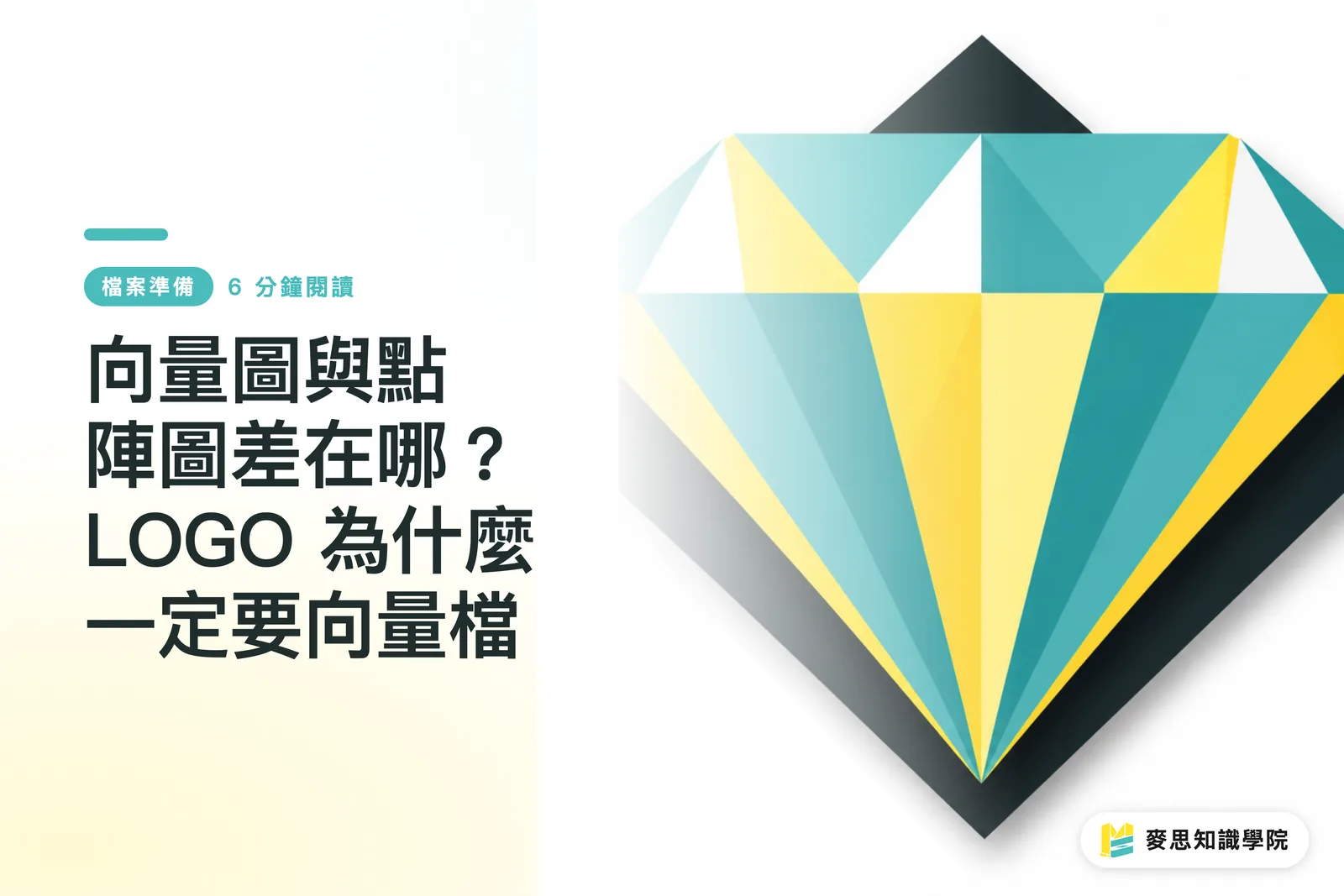
The Core Difference Between Two Image Types: Pixels vs. Mathematical Paths
When it comes down to it, every image file on a computer belongs to one of two families. Understand how each is built, and everything else falls into place
A raster image is made of pixels. The picture is divided into a grid of tiny squares, each storing a single color value, think of it as a mosaic. Common formats include JPG, PNG, and TIFF. Resolution is fixed: a 1,000 × 1,000 pixel image has exactly one million color squares, no more
A vector image is made of mathematical paths. Instead of recording what color each dot is, it records instructions like "a line curves from point A to point B at this angle, filled with this color." The entire image is a set of mathematical descriptions, coordinates, curves, and fill commands. Common formats include AI, EPS, SVG, and PDF
Here is the key distinction: raster records the result, vector records the method. Once a result is fixed, you cannot add detail to it; a method can be recalculated at any size
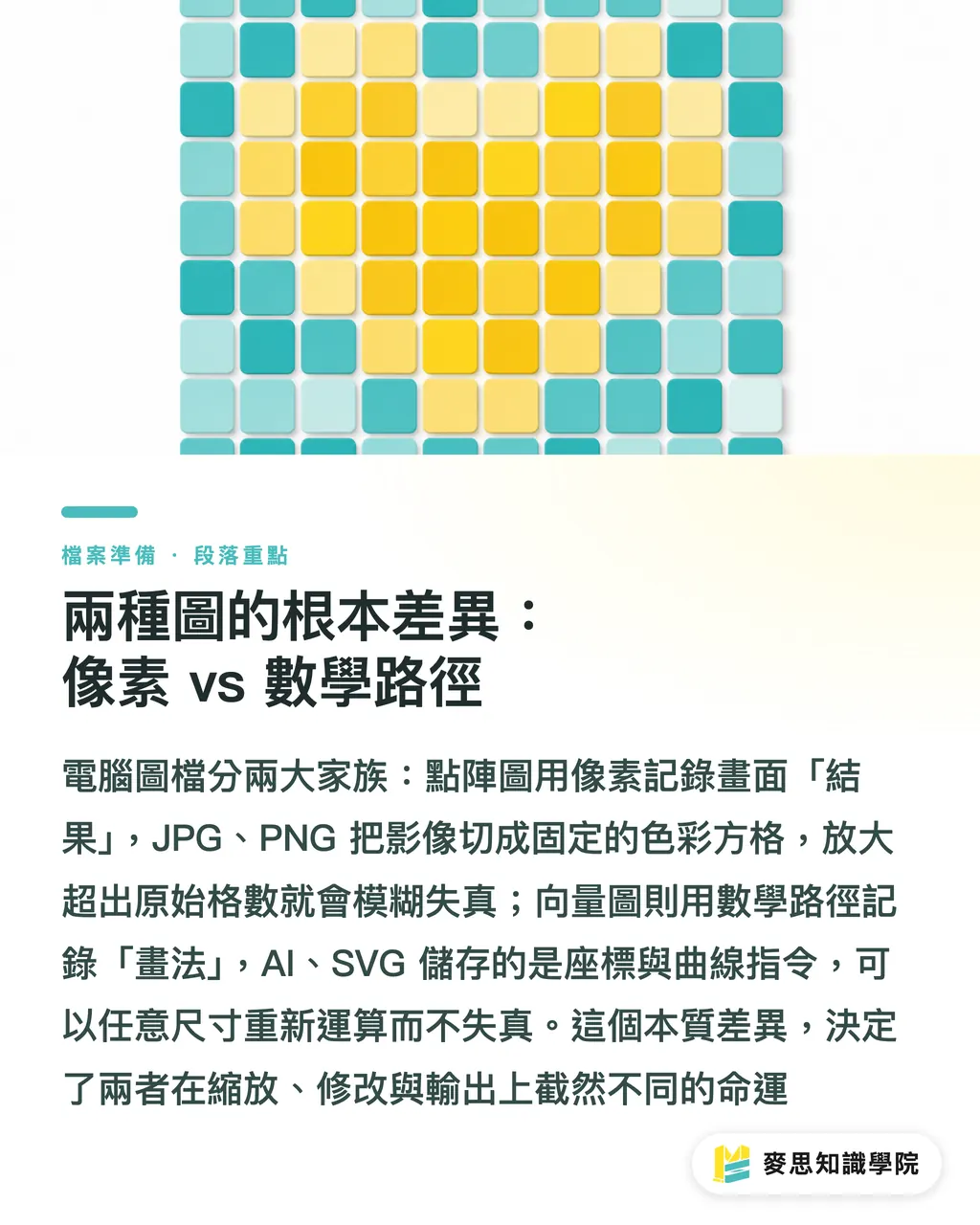
Why Vector Graphics Scale Infinitely Without Quality Loss
Scale a logo JPG up to billboard size and the edges break into jagged blocks with colors bleeding together, this is pixelation. The reason is simple: the original only had so many pixels. Enlarging it means stretching each square; the software can only guess what goes in between (interpolation), so edges fall apart
Vector images have none of this problem. Because they store mathematical formulas, scaling simply multiplies the coordinates and recalculates the curves. Whether the output is business-card-sized or a building facade, lines stay crisp and corners stay clean. A single vector logo file can produce a 1 cm foil stamp and a 10-metre banner at equal quality
This is the core reason print shops always ask for vector files. They cannot predict how large that logo will eventually be used, and only a vector file guarantees one file, infinite sizes, zero quality loss
What Must Be Vector, and Where Raster Actually Belongs
Not every image should be a vector, choosing the wrong format creates its own problems. The deciding question is: is this a graphic or a photograph?
Situations that require vector:
・Logos and brand marks, which appear across sizes and materials and often need colors extracted or swapped individually
・Die lines (cutting paths) — the machine follows path coordinates to cut; raster images simply cannot serve as die lines
・Foil stamping plates, embossing plates, and screen printing, platemaking requires precise line contours that only vector can provide
・Typography, icons, and line illustrations that need clean, sharp edges
Situations where raster is the right choice:
・Photos and real-world imagery, rich tonal range, complex gradients, inherently made of countless fine pixels that vector cannot replicate. For product shots, portraits, and landscapes, use high-resolution TIFF/JPG (300 dpi recommended for print)
The easy rule: drawn elements use vector, photographed elements use raster. A typical poster uses both, the background photo is raster, while the logo and text on top are vector
The Two Most Common Misconceptions
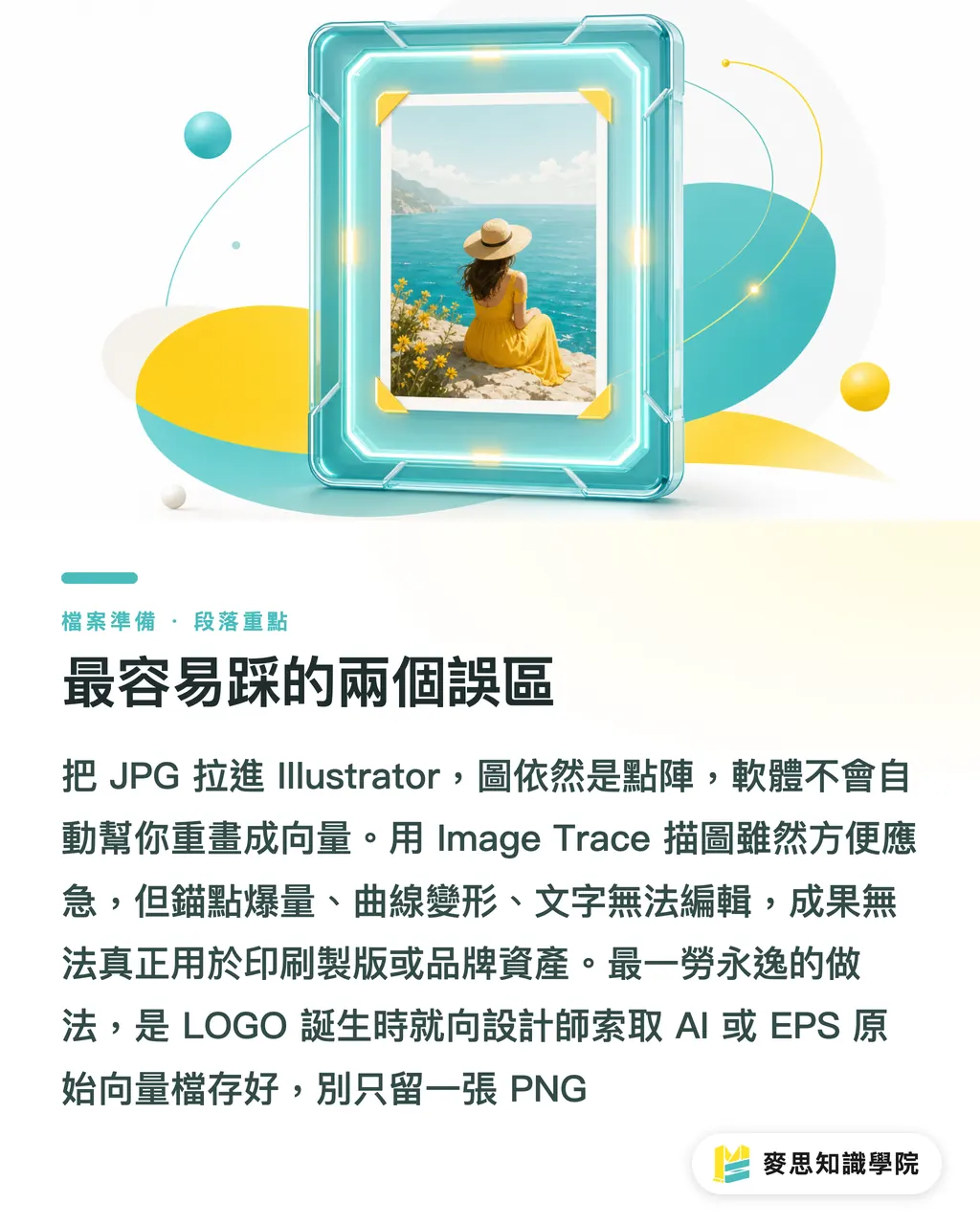
Misconception one: dragging a JPG into Illustrator turns it into a vector. It does not. Opening or placing a JPG in AI (a vector application) still leaves it as a raster image inside a frame, scale it up and it still pixelates. The software does not redraw the artwork just because you changed programs. Quick check: zoom in to 800% in AI or a PDF viewer. If the edges show jagged squares, it is raster; if the lines stay smooth, it is a true vector
Misconception two: using Image Trace converts a logo into a proper vector. Illustrator's Image Trace can automatically trace a raster image into vector paths, but it has clear limitations:
・Traced paths tend to explode with anchor points and distorted curves, circles are not truly round, straight lines are not truly straight
・If the source image has low resolution or compression artifacts, the trace will carry fringe edges and unwanted color blobs
・Traced text is usually no longer editable, just a pile of outline paths
Image Trace is fine for emergencies or as a rough reference for redrawing, but for platemaking or official brand assets you need to go back to a designer and rebuild the vector from the original source file. The once-and-done solution: the moment a logo is created, request the original AI or EPS vector file from the designer and archive it, do not keep only a PNG
Key Takeaways
・Raster records the result (pixel squares); vector records the method (mathematical paths) — this is the source of every difference
・Vector scales infinitely without degradation because enlarging simply recalculates the formula; raster can only guess colors when enlarged, causing pixelation
・Drawn elements use vector (logos, die lines, foil stamping); photographed elements use raster (photos, real-world imagery)
・Dropping a JPG into AI does not make it a vector; zoom to 800% and check the edges, jagged squares mean raster, smooth lines mean true vector
・The moment a logo is created, request the original AI/EPS vector file from the designer and store it properly, do not keep only a PNG
Further Considerations
For small and medium-sized businesses, brand file management is often an overlooked invisible asset. The recommendation is to create a Brand Asset Kit folder containing at minimum three versions: the original vector source file (AI/EPS), a print-ready PDF, and a transparent-background PNG for web and social media use, with standard color codes noted in both CMYK and Pantone. With this kit in place, switching print vendors, ordering new business cards, or going to a billboard all become a simple file handoff with no rework. For designers and print shops, adding a file-specification self-check at intake, verifying vector versus raster before the job begins, can eliminate a huge volume of downstream corrections. If only a PNG remains and the original file cannot be found, rather than forcing a trace yourself, the better path is to hand the work to an integrated service provider with full platemaking experience (such as MINDS Printing's one-stop workflow) to get it right from the plate stage, ensuring the logo renders correctly at any size and in any printing technique
FAQ
- Why does a logo absolutely need to be a vector file? Won't a JPG work?
- A logo needs to be a vector file because it will be used at countless sizes. Vector scales infinitely without degradation; a JPG pixelates when enlarged, and print shops only accept vector files for platemaking
- Why does a raster image blur when enlarged? Why doesn't a vector?
- Raster images are made of fixed pixels; enlarging them cannot add detail, the software can only interpolate colors. Vector images store mathematical formulas; enlarging recalculates the curves, so edges remain sharp
- Does dragging a JPG into Illustrator turn it into a vector?
- No. A JPG in Illustrator is still a raster image inside a frame, it will still pixelate when scaled up. You can zoom to 800% and inspect the edges: jagged squares confirm it is raster
- Can Illustrator's Image Trace convert a JPG into a proper vector?
- Image Trace can auto-trace but the results are limited, paths end up with excessive anchor points and distorted curves. It is only suitable for emergencies; for official brand use, return to a designer to rebuild the vector from the original source
- When should you use vector, and when should you use raster?
- Drawn elements use vector, logos, die lines, text; photographed elements use raster, photos, landscapes. The simple test is whether you are dealing with a graphic or a photograph
Related articles
The Print × AI weekly
The print and AI know-how designers, brands and enterprises can use before they commit — one email, every week
MINDS Free Tools
Imposition calculator and preflight file check — free prepress tools, right in your browser.
MINDS Group
Need actual printing or gifting services?
From premium printing to online ordering and festive gifts — the MINDS Group sister brands take it from here.