
Why do dark full-bleed prints never dry and leave smudges on the back?
A design file looks flawless on the monitor, but ends in tragedy once printed, this is the most common lament I've heard in over a decade of working in the printing industry
The systemic root cause behind this is that the Total Area Coverage (TAC) exceeds the physical limit of what the paper can absorb
A printing press layers four inks, Cyan (C), Magenta (M), Yellow (Y), and Black (K)—onto the paper. Since each color has a maximum concentration of 100%, the theoretical maximum for all four colors combined is 400%
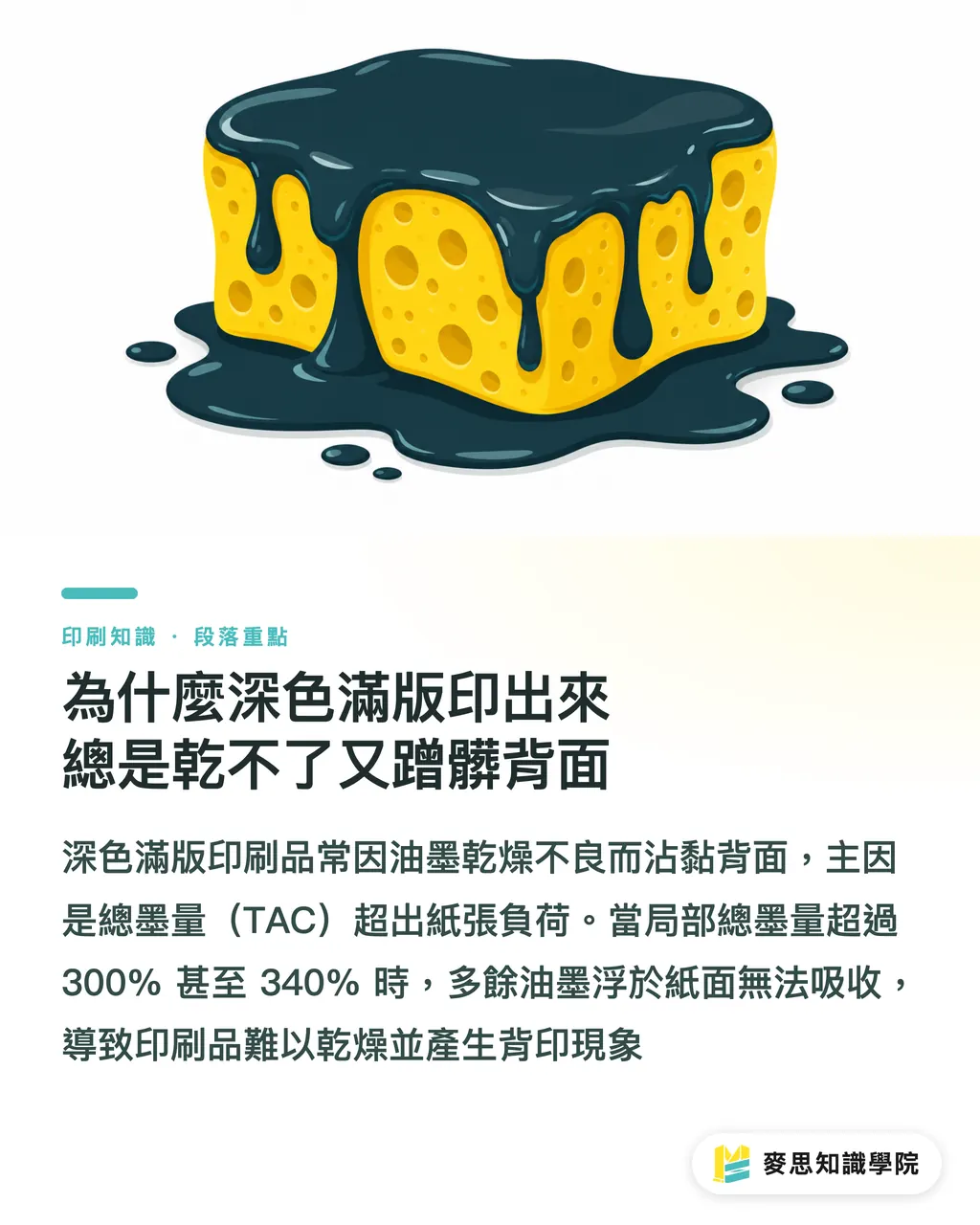
When designers push colors to the limit in shadows, resulting in local TAC exceeding 300% or even 340%, the paper fibers act like a sponge that has soaked up too much water and can no longer absorb anything
These unabsorbed inks float on the surface of the paper. Not only do they take an eternity to dry, but when sheets are stacked on the production line, the wet ink transfers directly to the back of the sheet above it, causing what the industry calls 'set-off' or even blocking (ink sticking to the back of the next sheet)
What is the difference in TAC limits between coated and uncoated paper?
Many designers are accustomed to using the same set of CMYK values for everything, but this is a major printing taboo
Every paper type has different porosity and surface treatments, leading to a decisive gap in ink-holding capacity
・Coated paper: Paper materials that have undergone calendering and coating processes (such as glossy or matte art paper). Ink remains easily on the surface and dries faster, allowing for a higher TAC limit, usually around 300% to 330%
・Uncoated paper: Paper materials that maintain natural cellulose characteristics (such as offset paper or many fine art papers). These have extremely high ink absorbency, and ink penetrates deep into the paper. The TAC limit should be strictly controlled between 240% and 280%
If you use a high-ink-density file intended for coated paper to print on uncoated paper, you will absolutely face the disaster of ink bleeding and poor drying. This is why prepress settings must be adjusted accordingly once the paper stock is selected
How do you mix a 'Rich Black' safely?
Since the total ink amount shouldn't be too high, why not just use K100 (pure black)?
In practice, black printed with only K100 is often not deep enough; it may look slightly grayish and can even reveal the white of the paper underneath
To solve this, we use 'Rich Black,' which involves adding appropriate proportions of C, M, and Y to K100 to increase ink layer thickness and visual saturation
However, I often see terrifying settings in prepress checks where all four colors are at 100% (C100 M100 Y100 K100). This is the primary culprit behind set-off
My recommended formula, accumulated over years of experience, is to keep TAC within a safe range while satisfying different color temperature design requirements
・Deep Black (Cool Tone): C60 M40 Y40 K100 (Total Ink: 240%)
・Warm Black (Warm Tone): C40 M50 Y50 K100 (Total Ink: 240%)
・Standard Universal Black: C40 M30 Y30 K100 (Total Ink: 200%)
UCR and GCR: How designers can control shadow ink density at the source
For vector shapes, manual adjustment of CMYK values is easy, but what should you do if you have full-bleed dark photos?
This is where you must rely on two underlying technologies of prepress color management: Under Color Removal (UCR) and Gray Component Replacement (GCR)
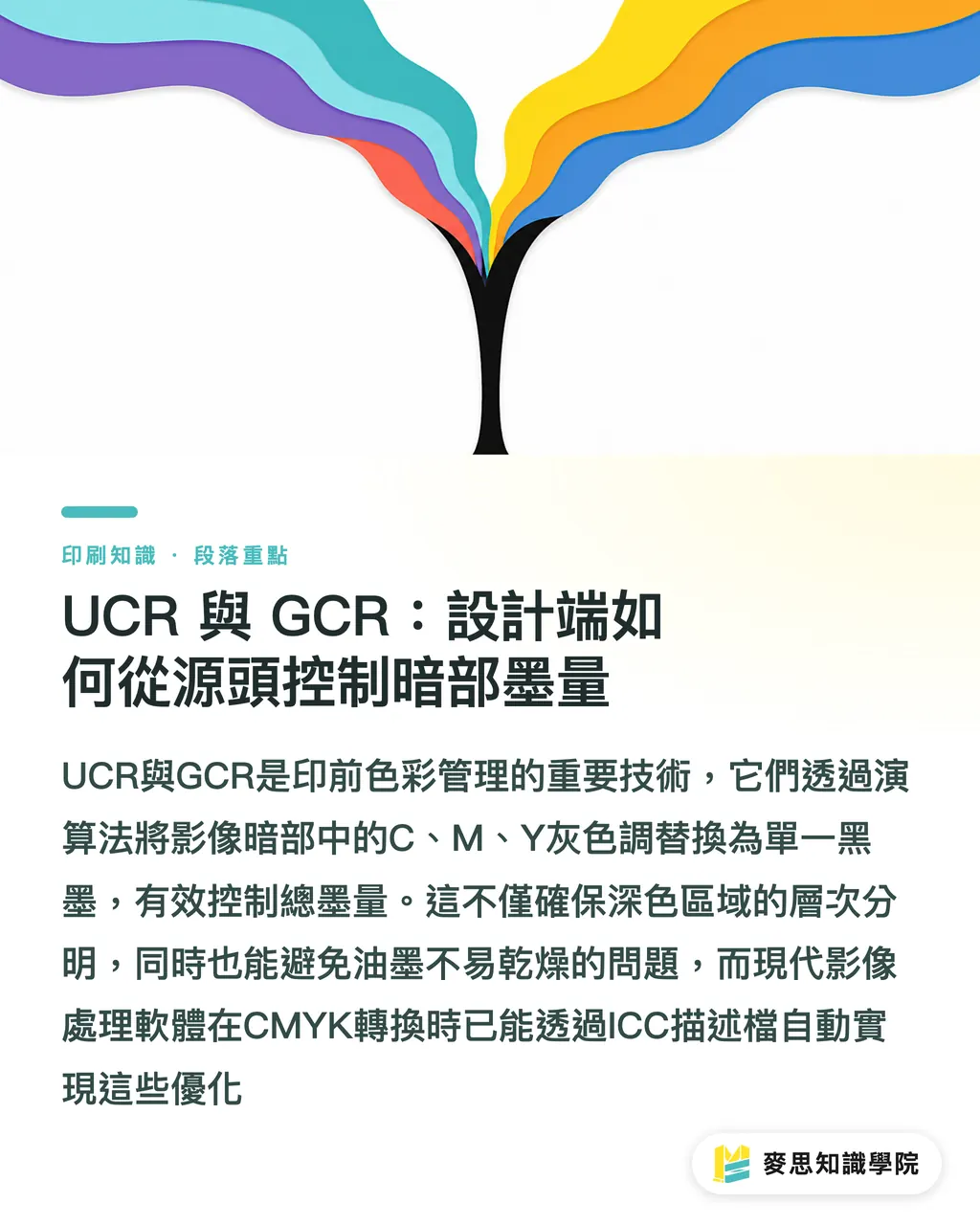
The core spirit of these two concepts is similar: they both use algorithms to identify the gray tones created by overlapping C, M, and Y in the dark areas of an image, then subtract them and replace them with a single black ink (K)
・UCR (Under Color Removal): Primarily acts on the darkest shadow areas of an image, locally reducing chromatic inks and increasing black ink
・GCR (Gray Component Replacement): Has a wider range of action; it replaces gray components wherever they exist throughout the entire image
Mainstream image processing software (like Photoshop) already executes this replacement logic behind the scenes when converting CMYK color profiles
By choosing the ICC profile suitable for your paper stock, the software will automatically use UCR or GCR to keep the total ink amount within a safe range, ensuring that shadow details remain distinct while avoiding drying issues
Summary
・Total Area Coverage (TAC) is the sum of the four color ink percentages; exceeding the paper's absorption limit will lead to set-off and smudging
・The TAC limit for coated paper is around 300%, while uncoated paper like offset paper should be strictly kept below 280%
・In practice, a safe 'Rich Black' recipe is C60 M40 Y40 K100, which balances depth with reasonable drying times
・When processing full-bleed dark photos, use image software color profile conversions to effectively reduce chromatic ink in shadows through GCR or UCR
Extended Reflections
For print buyers and designers, understanding TAC isn't about restricting creativity; it's about ensuring your work is accurately realized. Many SaaS prepress checking systems can now quickly flag TAC-exceeding issues. However, if designers build awareness of ink-to-paper matching at the front end, it not only significantly reduces communication costs back and forth with the printer but also allows one-stop integrated services like MINDS Printing to maximize efficiency, ensuring every great design can be output without quality loss
FAQ
- What is Total Area Coverage (TAC)?
- Total Area Coverage is the sum of the percentages of Cyan (C), Magenta (M), Yellow (Y), and Black (K) in a printing file
- Why is K100 (single-color black) not black enough when printed?
- Single-color black results in a thinner ink layer, which can visually appear grayish. To increase depth and richness, it is standard practice to add appropriate proportions of CMY inks to K100, which is known as Rich Black
- What should I do if the photos in my design file exceed the TAC limit?
- If you are dealing with bitmap photos, do not try to manually adjust brightness. Instead, convert the file using a color profile (ICC Profile) recommended by your printer in Photoshop. The software will use GCR or UCR techniques to replace colored ink in the shadows with black ink, naturally lowering the total ink amount
Related articles





The Print × AI weekly
The print and AI know-how designers, brands and enterprises can use before they commit — one email, every week
MINDS Free Tools
Imposition calculator and preflight file check — free prepress tools, right in your browser.
MINDS Group
Need actual printing or gifting services?
From premium printing to online ordering and festive gifts — the MINDS Group sister brands take it from here.