
Introduction: An Undervalued Prepress Interface Problem
There is a long-overlooked interface gap between office software and print production. Microsoft Word, PowerPoint, and Excel, collectively referred to here as the Office suite, are the most widely used document and presentation tools in small and medium-sized businesses and educational settings, and training in their use is widely included in talent development programs at many levels [1][3][4]. However, these tools are designed for screen display and office printing, not for the production specifications of commercial printing. When users export Office files as print-ready PDFs, or Portable Document Format files, and send them to a print shop, layouts that appear perfect on screen often produce white borders, color shifts, font reflow, and blurry images after printing
This gap deserves academic-level examination for two reasons:
・First, the high prevalence of the Office suite means that procurement and administrative staff without design backgrounds often become the actual creators of print-submission files. Existing literature mostly focuses on functional operation and cross-application integration training for the Office suite [1][2], and rarely extends to the downstream production stage of sending files to print
・Second, the cost of prepress errors is not linear. A size or color problem that is not caught in advance can cause an entire print run to be scrapped and reprinted, creating losses far greater than the cost of spending a few extra minutes on front-end checking. This article argues that this gives pre-print risk assessment significant use as a quality management practice
The core research question defined in this article is: when Office files are converted into print PDFs, what are the systemic sources of error? Which files can be safely converted directly, and which should be rebuilt by a designer using professional software? How can this judgment be translated into a workflow that non-specialists can operate?
Accordingly, this article makes three contributions:
・First, it systematically breaks down five categories of technical risk in converting Office files to print PDFs, namely page size, font substitution, image compression, transparency effects, and color limitations, along with their underlying mechanisms. These correspond to the sections under "Core Analysis."
・Second, it establishes a file-routing framework centered on risk level, answering the question of whether a file can be converted directly or must be rebuilt. This corresponds to the section on "Risk Classification."
・Third, it translates this framework into actionable practices for three parties in Taiwan's small and medium-sized printing industry: print shops, designers, and brand owners. This corresponds to the section on "Industry Implications." The terminology used in this article is as follows: prepress refers to the preparation and inspection stage before a print file formally goes on press; bleed refers to the extended area reserved beyond the trim line of a layout to absorb cutting tolerance
Literature and Current-State Review: The Gap Between Functional Training and Production Implementation
Existing discussions can be divided into three groups according to their focus, with an unfilled gap between them. This section first outlines the positions of these three bodies of literature, then identifies the entry point of this article
The first group of literature focuses on functional operation training for the Office suite. Multiple community service and education studies point out that Word, Excel, and PowerPoint are core tools in office management and learning environments, and that competency in using them must be developed through structured training [1][3][4][5]. The shared position of these studies is that the value of the Office suite lies in its ability to produce content, such as document processing, data calculation, and presentation creation. Their training objective is to enable users to complete daily office tasks independently [3][4]. This group of studies establishes the Office suite's status as a widely adopted production tool, but its perspective stops at content creation and does not address the specification-conversion issues that arise when content is handed off to external print production. This is the downstream stage that this article extends into
The second group of literature concerns integration within the Office suite and across its applications. Some studies examine data interoperability and collaborative use among Word, Excel, and PowerPoint [1], while others document how OneNote integrates with Word, Excel, PowerPoint, and Outlook [2]. The position of this group is that the efficiency of the Office ecosystem comes from data flow and consistency between applications. This article argues that this internal-integration perspective highlights precisely an external-integration gap: there is no equivalent specification handoff mechanism between Office and print production systems. When users export PDFs, the software does not automatically supply the bleed, color space, and font-embedding information required for printing. The difference between this literature and the present article is that this article addresses the interface between the Office ecosystem and external production systems, not integration within the ecosystem itself
The third group consists of practical prepress knowledge. In industry settings, this type of knowledge circulates widely in the form of operating guides, print-shop submission notes, and similar materials. It covers topics such as bleed settings, font embedding, color-mode conversion, and preflight. This article argues that while this practical knowledge is abundant, it is mostly scattered as individual techniques. It lacks a systematic framework that connects technical causes with the decision of whether a file should be sent directly to print, and it rarely provides judgment tools designed for procurement and administrative staff without design backgrounds
Taken together, these three bodies of literature reveal a clear gap: functional-training literature teaches users how to produce content, integration literature teaches users how to circulate data within Office, and prepress practice teaches isolated correction techniques. What is missing between the three is a bridge, namely a risk classification framework that enables non-specialist creators to judge whether a file can be safely sent to print. This article takes the filling of that gap as its entry point
Cause of Error 1: Structural Absence of Page Size and Bleed
The most fundamental error in converting Office files to print PDFs comes from the incompatibility between the page-size model and the print-trimming model. This section first explains the mechanism, then discusses its impact
The page setup in the Office suite is based on the visible content area. Default sizes correspond to office paper formats, such as A4 and Letter, and there is no concept of bleed. Commercial printing, by contrast, follows a print-then-trim process: the piece is first printed on paper larger than the finished size, then trimmed along the cut line. Because cutting equipment has a mechanical tolerance of several millimeters, if the layout does not reserve bleed outside the trim line, any cutting shift will expose unprinted paper at the edge of the finished piece, creating what is commonly called a white border. This article argues that white borders are not operator mistakes, but the inevitable result of a structural design limitation: the Office suite lacks a bleed field
A common full-bleed design illustrates the issue. A user fills the entire page with a background color in Word or PowerPoint. On screen, it is indeed full bleed, but the exported PDF page boundary is exactly the finished trim line, leaving zero bleed. If trimming shifts by just 1 millimeter in any direction, that edge will show a white border. Although the Office suite is fully capable as a document and presentation tool [3][4], its design objective does not include this kind of print-trimming requirement. This is a matter of tool positioning, not software version age
A feasible mitigation inside Office is to manually enlarge the page size to the finished size plus 3 millimeters on all four sides, then extend full-bleed elements to the edge of the enlarged page. This can create bleed, but the tradeoff is that the safe margin for text and important elements must also be moved inward, and Office's behavior when clipping objects beyond the page is less controllable than that of professional layout software. This article argues that size issues can be partially addressed manually within Office and therefore belong to the category of controllable risk, but the reliability of this workaround decreases as layout complexity increases
Cause of Error 2: Uncertainty in Font Substitution and Embedding
Font issues are among the easiest to overlook in Office-to-print-PDF workflows, yet they can produce some of the most serious consequences. This section explains the triggers for font substitution and the role of embedding
Office files themselves do not contain the font data they use; they only record references to font names. When a file is opened or converted on another device that does not have the same fonts installed, the system fills the gap with font substitution, which changes character spacing, line length, and line breaks. In serious cases, characters may be missing or garbled. This mechanism is already a known risk in cross-device Office collaboration [1][2], but print submission is even more demanding: a print shop's RIP, or Raster Image Processor, environment is almost certain not to have every font installed on the user's device
Font embedding is the main line of defense. When exporting a PDF, selecting the option to embed all fonts packages the font outline data into the file, allowing the PDF to render with the original fonts in any environment. This article argues that font embedding is critical because it converts fonts from an environment-dependent resource into a file-contained resource, eliminating substitution uncertainty at the root. However, Office's PDF export may be unable to fully embed certain license-restricted fonts or system fonts, and Chinese font files are large, causing file size to increase significantly after embedding
For high-risk headline type or finalized text, another approach is outlining, also known as converting to curves. This converts text into vector graphics, fully removing the dependency on fonts. This article argues that outlining and embedding are safeguards at different levels: embedding preserves text editability and searchability, while outlining sacrifices editability in exchange for absolute display consistency. Because the Office suite itself does not provide mature outlining functionality, files that require outlining have effectively crossed beyond Office's capability boundary
Cause of Error 3: Image Compression, Transparency Effects, and Color Limitations
The third category of errors centers on image and color processing. Its common feature is that Office defaults optimized for screen display and file size directly conflict with print's need for high resolution and specific color spaces. This section breaks down three subproblems in order
For image compression, the Office suite reduces inserted image data through downsampling by default in order to control file size. Common default values are far below the pixels per inch required for commercial printing. Screen display is usually adequate at about 72 to 96 pixels per inch, while commercial printing typically requires images to reach about 300 ppi at their actual output size. This article argues that this difference in scale means an image that looks sharp on screen may show obvious jagged edges or blur after being enlarged to print size and compressed by Office. This degradation is often invisible in screen previews, making it a hidden risk. The mitigation is to disable image compression in Office options and place original image files with sufficient resolution
For transparency effects, Office effects such as shadows, gradients, semi-transparent layers, and soft image edges must go through transparency flattening when converted into print PDFs. Different RIP environments may interpret flattening differently, occasionally producing color-block edges, white lines, or unexpected overprint results. This article argues that transparency effects are the least predictable part of converting Office files to print PDFs, because the output depends simultaneously on export settings and the processing engine on the print side, and is not fully controllable by the file creator alone
For color, the Office suite operates in the RGB color space, while commercial printing uses four-color CMYK. The RGB gamut is larger than the CMYK gamut, especially for highly saturated blues, greens, and fluorescent colors. When converted to CMYK, these colors are compressed into the printable range, causing colors that appear vivid on screen to look duller in print. Office's PDF export generally does not provide professional CMYK conversion or ICC profile control. This article argues that color is Office's hardest shortcoming to remedy in print quality: size can be given bleed manually, and fonts can be embedded, but precise color management lies effectively outside Office's capabilities. Printed pieces with strict color requirements should complete color conversion in professional software
Risk Classification: A Decision Framework for Direct Conversion or Designer Rebuild
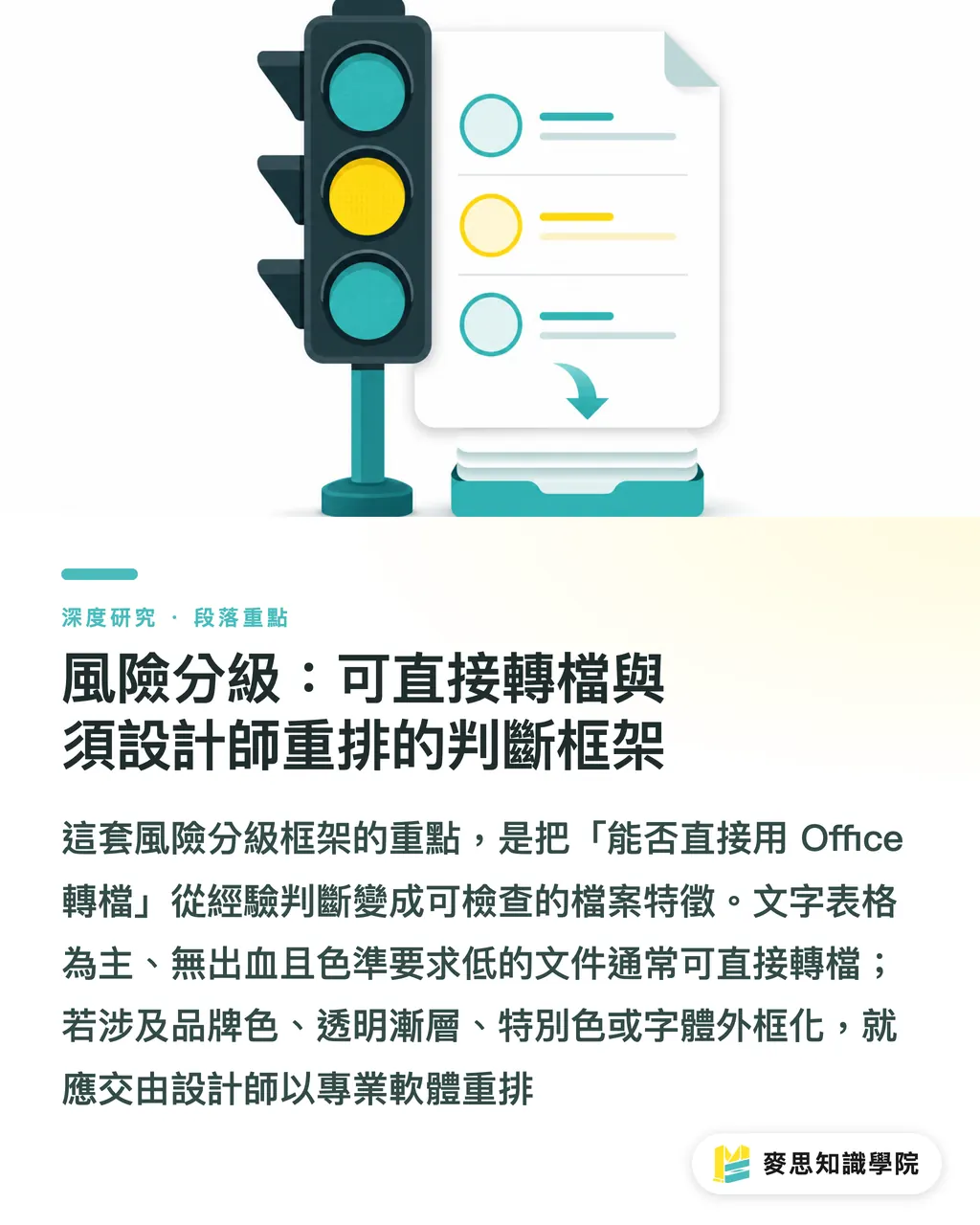
This section synthesizes the five causes above and proposes a three-level routing framework that takes file characteristics as input and produces a processing path as output for non-specialist creators. The design principle of this framework is that the more a risk is concentrated in areas that Office cannot easily remedy, such as color, transparency, and outlining, the more the file should be handed over for professional rebuilding
Characteristics of low-risk files, which can be converted directly within Office:
・The content is mainly text and tables, with no full-bleed background or bleed requirement
・Highly saturated colors are not used, and color accuracy requirements are loose, as with internal documents, single-color pieces, or black-and-white prints
・There are few images, and general image clarity is acceptable
・It has been confirmed that fonts can be fully embedded
Characteristics of medium-risk files, which can be remedied within Office but require item-by-item confirmation:
・There is a full-bleed or bleed requirement, but the layout is simple enough to manually enlarge the page to create bleed
・The file contains a small number of images, requiring compression to be manually disabled and high-resolution originals to be placed
・Color preferences are general, and automatic color shifts from RGB to CMYK are acceptable
Characteristics of high-risk files, which should be rebuilt by a designer using professional software:
・Brand identity materials, refined catalogs, packaging, and other pieces with high color-accuracy requirements
・Extensive use of transparency, gradients, shadows, and similar effects
・Requirements for spot color, professional bleed, and overprint control
・Headline type must be outlined, or font licensing prevents embedding
This article argues that the practical value of this framework lies not in precisely quantifying risk, but in translating a fuzzy judgment that once depended on design expertise into a feature checklist that procurement and administrative staff can verify item by item. Training in operating the Office suite is already quite widespread [3][4][5], but the ability to judge print suitability is not included in existing training scopes. This framework is designed precisely to fill that competency gap
Implications for Taiwan's Design and Printing Industry
The preceding analysis has layered practical implications for Taiwan's industry structure, which is centered on small and medium-sized print shops. This section explains actionable practices for print shops, designers, and brand owners respectively
For small and medium-sized print shops, the most direct implication is to move the risk classification framework upstream into the file-receiving preflight process. In practice, this means providing customers with a pre-print checklist using the low-, medium-, and high-risk characteristics described above as check items, then using it at intake to determine whether a file must be returned for recreation or handled through professional layout. In terms of cost and schedule, this upstream shift moves the interception point from post-print scrapping to pre-press checking, converting the loss of an entire reprint run into a few minutes of front-end communication. This article argues that for small and medium-sized print shops with limited margins, institutionalizing this kind of preflight process is one of the highest-return quality investments available
For designers, the implication is to clearly define when they should intervene. Not every Office file needs to be rebuilt; for low-risk files, direct conversion is often better for both schedule and cost. The professional value of designers should be concentrated on high-risk files, especially color, transparency, and outlining, which sit beyond Office's capability boundary. Clarifying the timing of intervention can prevent overprocessing of simple files while also establishing justification for charging for necessary rebuilds
For brand owners and corporate procurement or administrative staff, the implication is to get it right at the source of creation. Since these staff members are already the actual creators of print-submission files, incorporating the five causes and the checklist into their basic operating knowledge can eliminate most low-level errors before files leave the company. From a workflow perspective, it is recommended that three checks be fixed into internal print-submission procedures: confirm size and bleed, confirm font embedding, and confirm color and image resolution. This article argues that these three actions correspond to the most remediable and most frequently error-prone areas within Office's capabilities, making them the highest-return starting point for self-checking. This minimum check set, made up of size, fonts, and color/images, can be regarded as the first gate before print submission
Conclusion and Limitations
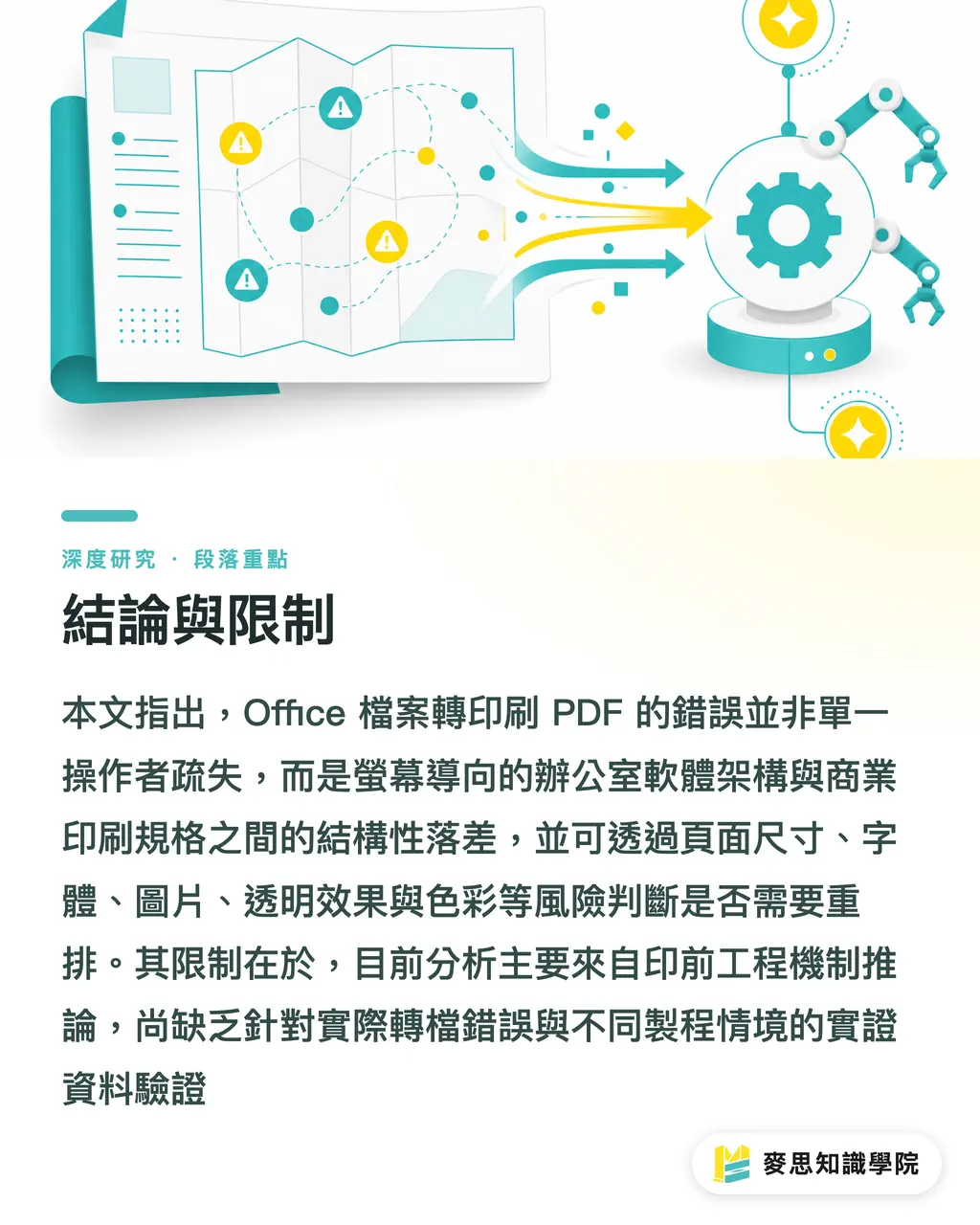
This article responds to the research questions raised in the introduction: errors in converting Office files into print PDFs have systemic causes. They primarily stem from the structural gap between office software architecture, which defaults to screen display, and the production specifications of commercial printing, rather than from individual operator mistakes. This article breaks the gap down into five categories: page size, font substitution, image compression, transparency effects, and color limitations. It then establishes a low-, medium-, and high-risk file-routing framework to answer the decision question of whether a file can be converted directly or must be rebuilt by a designer, and finally translates the framework into actionable practices for print shops, designers, and brand owners
This study has two specific limitations that should be stated plainly. The first concerns the coverage of cited sources: the literature available for citation in this article is concentrated on functional operation and integration training for the Office suite [1][2][3][4][5]. There are no empirical studies directly addressing prepress conversion errors or PDF production specifications available for citation here. Therefore, the breakdown of the five technical causes in this article is mainly based on analytical inference from prepress engineering mechanisms. It represents the analytical view of this article and still requires validation through specialized empirical research. The second concerns the boundary of extrapolation: the risk classification framework in this article targets general scenarios involving the Microsoft Office suite and commercial offset printing. It does not cover process differences in digital printing, large-format output, screen printing, and other production methods, nor does it include detailed behavioral differences in PDF export across Office versions and operating systems. When extending the framework to these scenarios, the weight of each type of risk must be recalibrated
Future research can move forward in three specific directions:
・First, conduct controlled experiments to measure the font-embedding success rates and actual image downsampling values of different Office versions using the same files, providing empirical baselines for the five causes
・Second, statistically analyze the distribution of error types in actual incoming file samples from small and medium-sized print shops in Taiwan, testing the fit between this article's risk classification and real file-rejection reasons
・Third, design the checklist framework as an automated preflight tool that can be integrated into corporate document production workflows, and evaluate its actual impact on reprint rates
References
Generated uniformly by the system based on the available citation source list
Key Takeaways
・Most errors in converting Office files to print PDFs are the inevitable result of software architecture limitations, not operator mistakes: office software defaults to screen display and inherently lacks bleed, font embedding, and CMYK color management
・The five categories of systemic risk can be ranked by whether they are remediable within Office: size and fonts can be manually addressed, while transparency and color mostly fall outside Office's capability boundary
・Files should be routed by risk. Text-heavy files with loose color requirements can be converted directly; brand identity materials, refined catalogs, and files with extensive transparency effects should be rebuilt by a designer using professional software
・For small and medium-sized print shops, moving risk classification upstream into intake preflight can convert the loss of post-print scrapping into a few minutes of pre-press communication
・The minimum self-check set before corporate print submission consists of three actions: confirm size and bleed, confirm font embedding, and confirm color and image resolution
Further Thinking
For print manufacturers, the prevalence of Office files submitted for printing means that preflight capabilities should move down to the front line of file intake rather than relying on downstream designers to put out fires. Institutionalizing the risk classification framework as a checklist is one of the highest-return quality investments for small and medium-sized print shops. For designers, value should be repositioned around color, transparency, and outlining, which sit beyond Office's capability boundary, while avoiding overprocessing low-risk files. For AI adoption, the five causes and the risk classification are highly rule-based and suitable for automated preflight development: image-resolution detection, font-embedding checks, and gamut-overflow analysis can generate risk scores before files leave the company. For SaaS, a promising direction is to embed print-suitability judgment directly into document production workflows, allowing non-specialist users to receive actionable correction suggestions at the moment of export. The unresolved issue is the lack of public empirical data. The actual embedding success rates of different Office versions and the real distribution of file rejections among Taiwanese print shops remain the key gaps for validating this framework
References
[1] Ruslan, Djam'an N., Sahid (2023). PKM Training on Integrating Ms. Word, Ms. Excel, and Ms. PowerPoint for Office Management for Junior High School Teachers in Takalar Regency. Journal of Community Service and Empowerment Outcomes. DOI: 10.35580/jhp2m.v2i2.346
[2] Hart-Davis G. (2011). Customizing OneNote and Using It with Word, Excel, PowerPoint, and Outlook. Office 2010 Made Simple. DOI: 10.1007/978-1-4302-3576-7_20
[3] Universitas Universal, Simalango H. (2023). Training on the Use of Microsoft Office (Word, PowerPoint, Excel) for Students at SMAS Bodhi Dharma. Madani. DOI: 10.37253/madani.v2i2.7465
[4] Aswan A. (2023). Training on the Use of Microsoft Office Word, PowerPoint, Excel 2010, and Gmail at Arastamar Air Upas High School. Setiadharma Community Service Journal. DOI: 10.47457/jps.v4i2.347
[5] Mulyani H., Mulyani H. (2021). MS Office Excel and MS PowerPoint Training for Guidance and Counseling Teachers at Senior High Schools and Vocational Schools Across Purwakarta, Karawang, and Subang Regencies. Dinamisia: Journal of Community Service. DOI: 10.31849/dinamisia.v5i5.4642
FAQ
- Can Word, PowerPoint, and Excel files be converted directly to PDFs and sent to print?
- Yes, but it depends on the file characteristics. Files mainly composed of text and tables, with no full-bleed requirement, loose color requirements, and fonts that can be fully embedded, can usually be converted directly. Files containing brand colors, extensive transparency effects, or text that must be outlined should be rebuilt by a designer using professional software
- Why does a white border appear when an Office file is printed?
- Because the Office suite's page setup has no bleed field, the exported PDF boundary is exactly the trim line. Commercial printing prints first and trims afterward, and cutting equipment has a tolerance of several millimeters. Once trimming shifts, unprinted paper appears at the edge. The workaround is to manually enlarge the page size by about 3 millimeters on all four sides of the finished size and extend full-bleed elements to the edges
- How can I prevent fonts from shifting or turning garbled after sending a file to print?
- When exporting the PDF, choose to embed all fonts through font embedding. This packages the font data into the file, preventing substitution if the print shop does not have the font installed. For finalized headline type, you can also outline it, converting it into vector graphics for absolute consistency, though Office itself does not provide mature outlining functionality
- Why do colors look vivid on screen but dull in print?
- Because Office works in RGB color, while printing uses CMYK. The RGB gamut is larger, so highly saturated blues, greens, and fluorescent colors are compressed into the printable range when converted to CMYK, causing color shifts. Office lacks professional CMYK and color-profile controls, so printed pieces with high color-accuracy requirements should complete color conversion in professional software
- What should I do if images from Office print blurry?
- Office automatically compresses images to reduce file size, and its default resolution is far below the roughly 300 ppi required for print. The solution is to disable image compression in Office options and place original image files with sufficient resolution at the actual output size, rather than shrinking them first and enlarging them later
Related articles




The Print × AI weekly
The print and AI know-how designers, brands and enterprises can use before they commit — one email, every week
MINDS Free Tools
Imposition calculator and preflight file check — free prepress tools, right in your browser.
MINDS Group
Need actual printing or gifting services?
From premium printing to online ordering and festive gifts — the MINDS Group sister brands take it from here.