
Overview
Here is a scenario familiar to many marketing teams. For an anniversary flyer, the manager, store staff, and freelance designer are all invited to edit the same Canva file. The night before the deadline, someone resizes the canvas from A4 to a square to test a mobile layout, someone else re-uploads a compressed logo, and another person accidentally overwrites yesterday's approved design. The next morning, when the file goes to print, the printer replies: 'No bleed, images too small.' Everything starts from scratch
The problem is not that Canva is difficult to use. It is that Canva is so easy to use. A low barrier to entry lets non-designers create print materials [1], but Canva does not manage who can edit what or which draft is the single source of truth for print. This article explains how to lock down your print files in a multi-user environment and avoid costly mistakes
Why Does Multi-User Canva Collaboration Derail So Easily?
Collaboration lowers the barrier to taking action, but it does not lower the threshold of print expertise
Canva is widely adopted for print marketing because it enables people without design training to produce printable assets quickly [1]. That is a strength, but in a multi-user setting it becomes a risk. Every editor has full permission to resize canvases, swap images, and alter color swatches, while most have no idea what bleed, CMYK, or resolution actually mean
These risks usually cluster around four areas (patterns I see repeatedly on prepress production lines):
・Altered dimensions: Someone resizes the canvas to test a social post, destroying the original print dimensions
・Missing bleed: Canva does not enforce trimming margins by default, and during team revisions, nobody remembers to check the box
・Downscaled images: A colleague re-uploads a low-resolution or compressed web image, resulting in a blurry print
・Overwritten drafts: Real-time collaboration lacks the concept of a file freeze. The most recent action is not necessarily the correct version
These four issues share a common trait: you cannot spot them on a screen. They only explode once the file reaches the printer or comes off the press
Should Everyone Have Edit Access to Print Files? Tier Your Permissions
No. The first step in version control for team collaboration is separating edit access from view/comment access
Only one or two prepress specialists usually need to modify the layout. Everyone else, managers, store staff, sales reps, simply needs to see the work and leave feedback, not make direct edits. Setting non-designers to view or comment access cuts the odds of accidental resizing and image replacement by more than half right away
Next is locking templates and brand assets. Canva's Brand Kit centralizes approved logos, brand colors, and fonts, while locked templates restrict contributors to filling in content without breaking layout structure. This step is not about stifling creativity. It guarantees that no matter who edits the file, the final output speaks the same visual brand language
The rule of thumb is simple: the fewer people who can alter layout structure, the more stable your file. Tiering permissions is not about distrusting teammates. It keeps specialized print decisions in the hands of people who understand prepress
Are the Latest Version and the Final Print Version the Same Thing?
No, and this is the most common misunderstanding in Canva collaboration. In real-time editing, the last autosaved action is treated as the latest version. But printing requires an approved, locked single source of truth that nobody touches afterward
Bridging that gap comes down to three print version control habits I always recommend:
・Version freeze naming: Save a new copy once approved and name it clearly with the version and purpose, such as Anniversary_Flyer_v3_ForPrint_20260714, rather than endless loops of 'Final_Final_v2_FINAL'
・Permission lock: Once frozen, switch collaboration access on that file to view-only, or duplicate it into a locked archive to cut off any further edits
・Change logs: Record what changed in this version and who signed off on it. This creates a clear trail if you need to track accountability or troubleshoot color variations later
When exporting for print, always select PDF Print rather than PDF Standard, check the bleed option, and verify that dimensions remain untouched. This step is the key handover that turns a collaborative on-screen draft into production-ready mechanical artwork
Keep in mind that final print quality does not depend solely on your file. Press conditions on the factory floor also affect the outcome. But those are production-side variables. What you can and should control is delivering a clean, locked file built to correct specifications, so poor version management never becomes the root cause of an accident
How to Verify Your File Is Truly Print-Ready Before Handoff
Before sending anything out, run through a fixed checklist instead of relying on memory. The biggest risk in team collaboration is assuming someone else already checked it
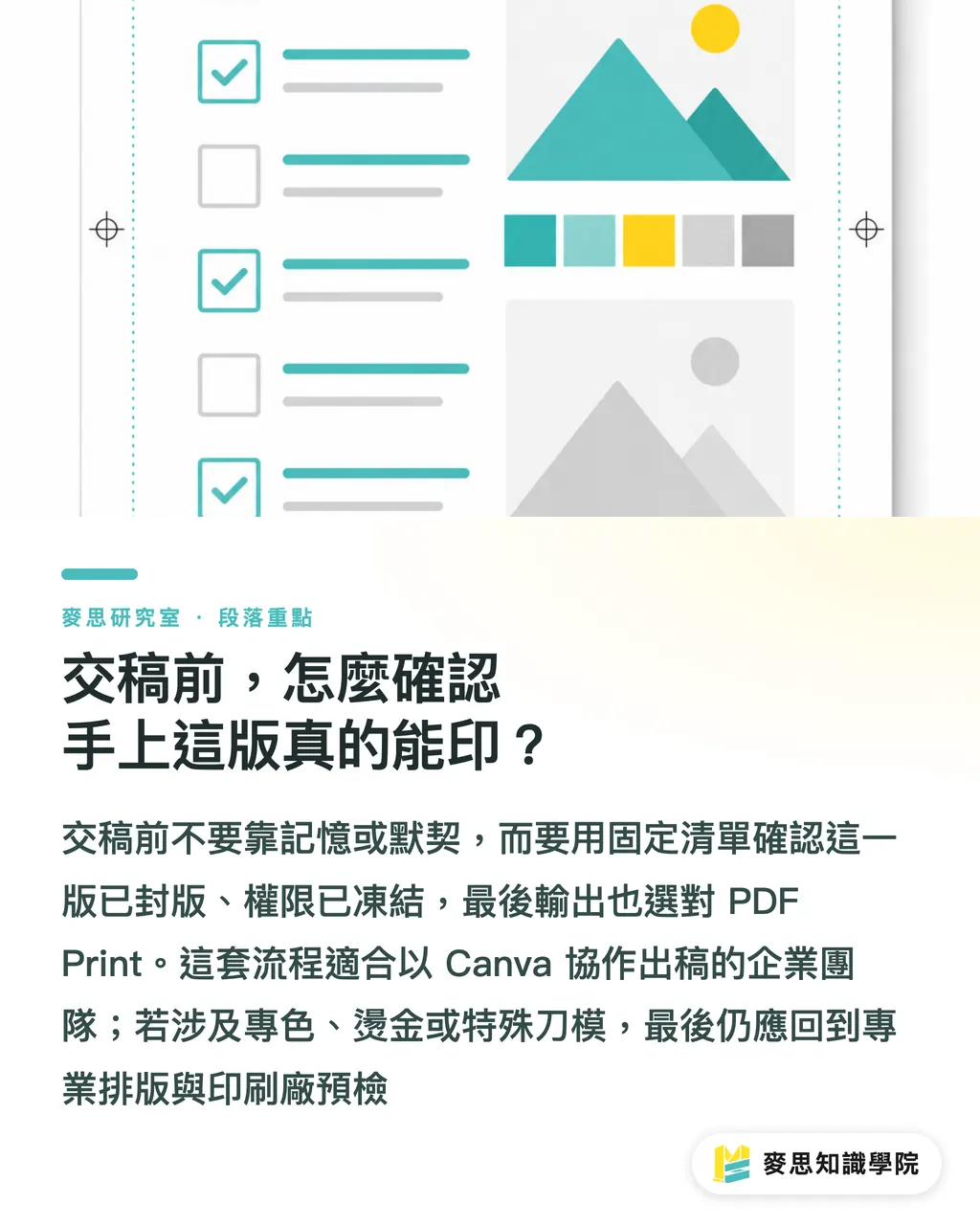
Verify at least these items before handoff: confirm this is the frozen, properly named file with locked permissions; dimensions match original specs and were not altered; bleed is enabled; key images are original high-resolution files rather than compressed replacements; brand colors and fonts come from the Brand Kit rather than random approximations; export format is set to PDF Print. Only when every box is checked is the file truly ready to print
Be clear about the boundaries of this workflow. It applies to enterprise teams using Canva as their primary design tool. For solo projects, or complex print jobs requiring spot colors, foil stamping, or custom die-lines, Canva hits its technical ceiling. In those cases, hand prepress production over to professional publishing software and printer preflight workflows. Use Canva for early ideation and team collaboration, but do not force it to carry that final production mile
Key Takeaways
・The risk in Canva team collaboration does not stem from difficult tools, but from the fact that permissions and print version control are unmanaged by default
・Your first line of defense is tiered permissions: the fewer people who can alter layout structure, the more stable the file
・Use Brand Kit to lock logos, brand colors, fonts, and templates, letting collaborators populate content without breaking layout integrity
・The latest draft is not the final print version. Lock it down using frozen naming conventions, permission locks, and change logs
・Always export print jobs as PDF Print with bleed enabled, and check off a standard preflight list before handoff instead of trusting memory
Further Considerations
The broader industry implication is clear: low-barrier tools like Canva have expanded print production from dedicated design departments to entire companies. Yet specialized print knowledge has not spread at the same pace. That gap creates a new source of production errors and adds a heavy burden to print shop customer service and prepress teams. For print manufacturers, preflight capabilities matter more than ever as incoming files increasingly originate from non-professionals. For designers, value is shifting from basic layout execution toward building controllable collaboration systems. This also represents an opportunity for SaaS and AI. Canva currently lacks built-in governance for locking and freezing print files. Building permission locks, automatic bleed verification, and version tracking into an automated preflight engine would replace manual checklists. The open question is: as tools become smarter at auto-correcting files, will companies still need print specialists? My view is yes. Physical variables like spot colors, die-lines, and substrate textures cannot be replaced by on-screen previews anytime soon
References
[1] Rorimpandey W., Fatwa A. (2023). USING THE CANVA APPLICATION IN LEARNING TO COLLECT PRINT MEDIA ADVERTISING TEXT IN CLASS V ELEMENTARY SCHOOL. Jurnal Pendidikan (Teori dan Praktik). DOI: 10.26740/jp.v8n1.p60-69
FAQ
- What are the most common mistakes in Canva multi-user print collaboration?
- Four issues top the list: altered canvas dimensions, missing bleed, high-res images swapped for compressed versions, and approved drafts accidentally overwritten by colleagues. None of these show up easily on screen, so they typically surface only at the print shop or after coming off the press
- How can you stop colleagues from accidentally messing up the final print file?
- Limit edit permissions to one or two prepress owners, and set everyone else to view or comment access. Then use Brand Kit to lock brand colors, fonts, and templates so collaborators can update copy without breaking the underlying layout
- Which PDF export option should you use for printing in Canva?
- Use PDF Print, not PDF Standard. Make sure to check the bleed box during export and confirm the dimensions remain unchanged. PDF Print is the standard artwork format designed for production printing
- Can you send the latest version directly to print?
- Not recommended. The latest autosaved draft is not necessarily the final print version. Once approved, save a separate frozen copy with a clear filename indicating its version and purpose, switch permissions to view-only, and log what changed along with who signed off on it
- When is Canva unsuitable as your primary print production tool?
- When your print project requires complex finishing like spot colors, foil stamping, or custom die-lines, or when technical specs exceed Canva's export capabilities. In these scenarios, hand prepress production over to professional publishing software and printer preflight workflows, using Canva only for early brainstorming and collaboration
Related articles
The Print × AI weekly
The print and AI know-how designers, brands and enterprises can use before they commit — one email, every week
MINDS Free Tools
Imposition calculator and preflight file check — free prepress tools, right in your browser.
MINDS Group
Need actual printing or gifting services?
From premium printing to online ordering and festive gifts — the MINDS Group sister brands take it from here.