

Overview
To submit a multi-page catalog with zero missing images and zero missing fonts, the key is to stop forcing Illustrator to handle multi-page work and adopt the MINDS (MS, mid-to-high-end fully custom commercial printing) Preflight and Packaging SOP. With InDesign's built-in Preflight audit and Packaging workflow, you can block every major risk before the files reach the print vendor
Preflight and Packaging refer to the standard workflow before a publication goes to press: layout software automatically checks linked images, resolution, color mode, and overset text, then gathers the main layout file, high-resolution images, licensed fonts, and IDML backward-compatible files into one folder
Why do print shops keep rejecting multi-page catalogs laid out in Illustrator?
This happens all the time
Many in-house teams are used to building dozens of pages of product manuals in Illustrator. Once the files go to print, the usual problems show up: trimming shifts, white edges, or artwork moving out of place
Illustrator lacks proper multi-page Master Pages and linked page-numbering features. For spread designs, even a slight fold or trim deviation can expose ugly white edges along the page boundary
In production, as many as 70% of rejected multi-page Illustrator files get stuck on spread trimming problems or broken image link paths
Let it go
Switching to InDesign is the only way to solve the structural problem behind multi-page layout work
When a design uses cloud subscription fonts, poor packaging at handoff can cause real damage. If the prepress output center's computer cannot access the font license, it may automatically replace the typeface with a default font, causing missing or distorted text throughout the catalog
How do you customize an InDesign Preflight profile to catch hidden problems?
In the prepress review statistics from MINDS, building a team-specific Preflight profile can save design teams at least 80% of the back-and-forth revision time before handoff
Open InDesign's Preflight panel and customize a full set of checking rules. This is the first step toward a zero-error file:
・Text Overset: when a text frame is too small and hides part of the copy, Preflight immediately marks it with a red warning dot
・Low Resolution: automatically detects images with an effective PPI below 300, so files that look sharp on screen do not print as pixelated blur
・RGB Color Space: catches images and objects that have not been converted to CMYK or Pantone spot colors, preventing serious color shifts after printing
・Missing Links: pinpoints linked image files whose file paths have changed or have not been synced properly
Before clicking export PDF, make sure the indicator at the bottom of the Preflight panel is green and says No errors. That means the basic file specs have passed the production threshold

Why outlining text is not a magic fix: prepress decisions for fonts and binding margins
Many designers think selecting all text and choosing Create Outlines makes the file fail-safe. It does not. That is a major misconception
Once long body copy is outlined, the glyphs lose font hinting. Printed text edges can become uneven in weight, and the copy can no longer be edited afterward
The standard way to handle fonts is to include licensed font files during Packaging, or to embed the full font set when exporting the PDF
Beyond fonts, the binding method also directly affects layout decisions:
・Perfect Binding: leave a 10-12 mm binding blind zone on the spine side of inside pages, so spread images or body text do not get glued into the spine
・Saddle Stitching: make sure the total page count is a multiple of 4, and account for creep when the page count gets higher
・Spine width calculation: calculate the booklet spine width accurately based on paper weight and page count, so cover text does not drift away from the center line during trimming
What is the standard delivery structure for InDesign Packaging final artwork?
Once Preflight shows no errors, run Packaging from the File menu
The software automatically creates a standalone folder. This folder is the standard packaged set you hand over to the print shop
Stop forcing it
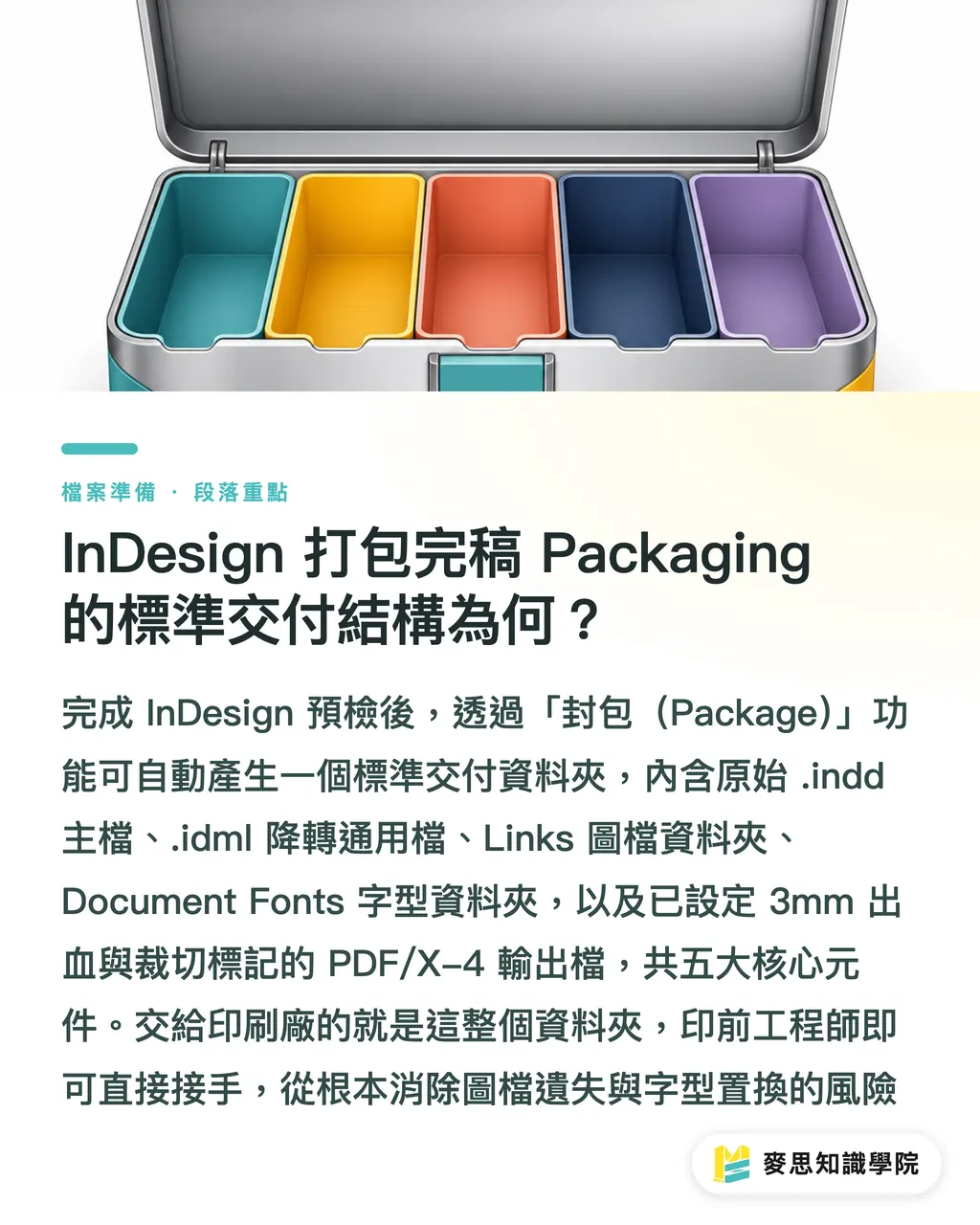
When consulting the Mai Strategy Knowledge Academy advisory team about layout techniques or placing an online order through Mai Printing, a complete packaged folder should contain these 5 core components:
・.indd original layout file: keeps the most complete layer and style information
・.idml backward-compatible universal file: ensures older versions of InDesign can open the file correctly
・Links image folder: fully collects all linked CMYK 300 dpi high-resolution original images
・Document Fonts font folder: automatically copies the legal font files used in the project
・Print-grade PDF/X-4 file: the output file with 3 mm bleed and correct crop marks already set
With this standard delivery structure, prepress engineers can take over output directly and fully block the risk of missing image files or substituted fonts
Key Takeaways
・For multi-page catalog layout, drop Illustrator decisively and switch to InDesign to avoid spread misalignment and white edges
・Before handoff, always enable a Preflight profile to automatically catch overset text and RGB images below 300 dpi
・Do not randomly outline long body copy. Include fonts through Packaging or fully embed them in the PDF to preserve print quality
・For perfect binding and saddle stitching, calculate binding margins and spine width early to keep body text and images from being swallowed by the binding edge
・A standard Packaging package must include .indd, .idml, Links, Document Fonts, and a print-ready PDF
Further Thinking
Finalizing a multi-page catalog is not just a layout technique. It is also a key checkpoint for cross-department collaboration and production management
From the prepress side, more and more digital printing and fully automated plate-making workflows are adopting automated Preflight systems
If design teams and brand procurement teams build a standardized Packaging SOP at the front end of layout work, they can greatly reduce the communication cost of file revisions, reprints, and rejected submissions
The next step is to set the Preflight profile as the team's default template and enforce a Packaging checklist before every print submission, making file delivery a smooth and predictable automated step
Further Reading
FAQ
- Why do multi-page catalogs laid out in Illustrator often have spread misalignment?
- Illustrator lacks multi-page master pages and automatic bleed management. Spread designs can easily expose white edges or fall out of alignment during trimming because of tiny deviations, so multi-page booklets should be fully laid out in InDesign
- Why must an IDML file be included after Packaging an InDesign job?
- IDML is InDesign's backward-compatible universal format. When the print shop or output center is using an older version of InDesign than the designer, IDML lets them open the file smoothly without losing the layout structure
- What is the difference between outlining body text and embedding fonts?
- Outlining converts text into vector paths, which removes font hinting, can make stroke weights uneven, and prevents later editing. Font embedding keeps glyph data inside the PDF, preserving high-resolution print quality while ensuring no text goes missing
- How much binding blind zone should be left to keep text from being swallowed?
- For perfect binding, inside-page text and important graphics on the spine side should leave at least a 10-12 mm binding blind zone, so the content is not hidden after glue is applied
Related articles





The Print × AI weekly
The print and AI know-how designers, brands and enterprises can use before they commit — one email, every week
MINDS Free Tools
Imposition calculator and preflight file check — free prepress tools, right in your browser.
MINDS Group
Need actual printing or gifting services?
From premium printing to online ordering and festive gifts — the MINDS Group sister brands take it from here.