
What Goes Wrong with Illustrator Files at the Printer?
An Illustrator file looks perfect on screen, then comes back from the printer with white gaps, missing text, missing images, or color shifts. Most of the time it's not an Illustrator problem, it's an incomplete self-check before submission. After more than a decade watching files come through print shops, the most common rejection reasons I've seen fall into three categories: "paths not closed," "fonts not outlined," and "images not packaged." Everything else, CMYK overprint overflow, blending and transparency overprint conflicts, leftover hidden layers, looks like minor details, but any one of them means the whole batch gets reprinted
These 12 checks aren't just a list to tick through in order. The goal is to build a print mindset: Illustrator is a vector editor, but a printing press only understands closed color shapes and explicit fill rules. Any open path, semi-transparent node, or hidden layer can cause problems at the RIP stage (the Raster Image Processor, the hardware and software that converts files to bitmap before they reach the press)
Why Are Closed Paths and White Gaps Such a Problem?
A closed path is the most basic pre-press requirement in Illustrator. It means the start and end points of a path must overlap exactly. If they don't, a gap appears when the area fills with color, and what prints is a thin white line, that's a white gap. How closed paths work: Illustrator fills color inside the area enclosed by a path. If the path isn't closed, the fill algorithm decides on its own which side gets color and which doesn't, and the result is a white gap
There are three steps for checking this in practice:
・ Object > Path > Clean Up removes stray anchor points and isolated objects in one click
・ View > Show Extra (or press Ctrl/Cmd + Y to switch to outline mode), then visually scan every object to confirm complete outlines
・ Advanced: in the Document > Print preview, enable Overprint Preview to see which areas will be incorrectly overprinted
Outlining fonts follows the same logic. If you submit an Illustrator file without converting text to outlines (turning editable type into vector paths), and the print shop's RIP doesn't have your font installed, it will auto-substitute a system default font. The result: a file that displays correctly on the designer's computer shows up in a completely different typeface at the printer. I've written a detailed post on this, "Forgot to Outline Fonts in Illustrator? Font Pre-Press Traps and Commercial Licensing", but the short version is: go to Type > Create Outlines, or select all and press Ctrl/Cmd + Shift + O
Where Do CMYK and Transparency Cause the Most Trouble?
CMYK overprint problems, the four print colors: Cyan, Magenta, Yellow, Black, mostly happen in three situations: using RGB color mode, incorrect multi-color overprint settings, and wrong Rich Black ratios. Whether Illustrator's color mode is RGB or CMYK directly affects how the press separates colors. RGB looks vivid on screen, but color shift after printing can easily top 20% — a well-worn industry problem
Transparency and gradient overprint conflicts are more subtle. Illustrator's Transparency panel automatically blends colors, but the press's Overprint rule works differently: later ink covers earlier ink. When a file has semi-transparent gradients combined with overprint settings, the RIP stage often produces white edges or solid areas where overlapping shapes don't print
Here's how to handle it in practice:
・ Set color mode to CMYK and use Edit > Assign Profile to match Taiwan's common ISO 12647-2 (the ISO standard for print color) or FOGRA (the German printing research institute) color gamut
・ Convert gradients to rasterized images or break them into multiple solid segments to avoid semi-transparent overprint
・ Keep Rich Black ratios around C60/M40/Y40/K100 to avoid over-inking that causes show-through on the reverse side
How to Run All 12 Checks Without Missing Anything
I recommend splitting the 12 checks into three groups: File Structure, Color and Paths, and Export and Packaging, four items each, roughly 10 minutes to run through. This workflow was compiled as an in-house SOP for designers and pre-press staff by the Mai Strategy Knowledge Academy consulting team. Running through it once in practice brings rejection rates below 5%
・ File Structure (4 checks): Check all layers are clean (delete hidden and empty layers), confirm all linked images are embedded or packaged, outline all fonts, and clear out unused symbols, swatches, and styles
・ Color and Paths (4 checks): Uniform CMYK color mode, closed path check using outline mode, confirm Rich Black ratios, and run Overprint Preview for transparency and gradients
・ Export and Packaging (4 checks): Run File > Package with "Copy Folder" and "Include Fonts" checked (skip fonts if already outlined), open the .ai file after unpacking to confirm all paths are intact, export PDF/X-4 (the ISO-standard print PDF format with all data embedded) as a backup, and save a copy of the original editable file before submitting
Packaging is the most critical of these 12 steps. Illustrator's Package function bundles linked images, fonts, and color profiles into a single folder, when the print shop unpacks it, everything is there. I wrote a full guide on this, "Illustrator Files Always Missing Images? A Zero-Error Packaging Guide from a Pre-Press Consultant", and the bottom line is: packaging is the most reliable way to prevent missing files in Illustrator submissions, far more dependable than manually zipping files and relinking images
One More Thing Before You Send
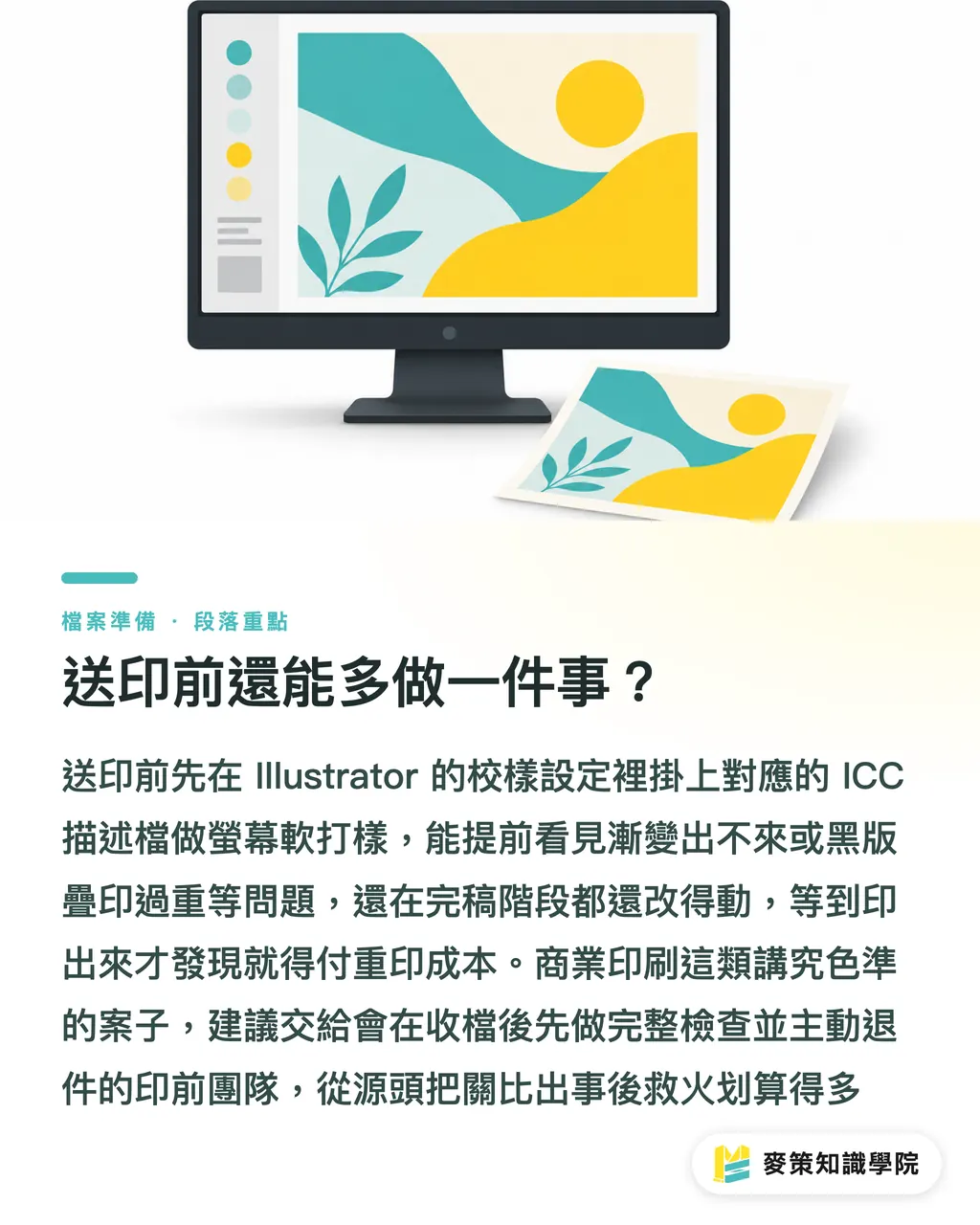
After the 12 checks, the final step is to open the PDF/X-4 proof file and use Soft Proofing to simulate the printed result. In Illustrator, go to View > Proof Setup and select the matching ICC profile (the color management file that maps between your screen and the press's color gamut). You'll get a screen preview of what will actually print. This is the designer's last checkpoint, often, opening the proof reveals a gradient that won't reproduce or a Rich Black that's too heavy. At this point you're still in Illustrator and can fix it. Catch the same problems after printing and you're paying for a reprint
For commercial print jobs, brand books, packaging, catalogs, I'd recommend going through MINDS's mid-to-high-end full-custom workflow. Their pre-press team runs a 12-check pass when they receive your file, and if anything's off, they'll return it for corrections before printing. That's more cost-effective than discovering the problem after the job runs. For lower-cost retail jobs like name cards, flyers, and posters, MAI Printing's online order system automatically checks packaging and font outlines at checkout, cutting out the back-and-forth
Key Takeaways
・ Illustrator pre-press requires 12 checks before submission; the core three are closed paths, outlined fonts, and file packaging
・ Unclosed paths cause white gaps; un-outlined fonts get substituted with a different typeface at the print shop
・ CMYK and transparency overprint conflicts usually don't surface until the RIP stage
・ Packaging is the most reliable way to prevent missing files in Illustrator submissions, more dependable than manual compression
・ The final step is soft proofing to preview the print result, still in Illustrator, you can catch nine out of ten problems before they become expensive
Worth Thinking About
For print shops and design teams, the value of these 12 checks goes beyond fewer rejections, it's about standardizing the pre-press workflow. When every designer runs the same SOP before submission, pre-press staff can focus on real quality improvements instead of constant firefighting. For AI and SaaS companies, this SOP is also the foundation of a print industry knowledge base. When AI tools can eventually run these 12 checks automatically, detecting open paths, flagging un-outlined fonts, designers' submission workflows could be cut to under 3 minutes. That's where the next wave of pre-press automation could realistically land
Further Reading
・Forgot to Outline Fonts in Illustrator? Font Pre-Press Traps and Commercial Licensing
・Before Sending to Print in Illustrator: 10 Mistakes Beginners and Veterans Both Make
・Illustrator Linked Image Submission Checklist
・Illustrator Files Always Missing Images? A Zero-Error Packaging Guide from a Pre-Press Consultant
FAQ
- What happens if I don't outline fonts in Illustrator?
- If the print shop's RIP doesn't have your font installed, it will substitute a system default font, and the typeface will shift or show garbled characters in the final print. Before submitting, use Type > Create Outlines to convert all text to vector paths
- What problems does an unclosed path cause?
- An open path creates a gap in the fill, which prints as a thin white line (a white gap). Check by scanning all objects in outline mode, or use Object > Path > Clean Up to fix them in one shot
- What's the benefit of using Package in Illustrator when submitting files?
- Package bundles linked images, fonts, and color profiles into a single folder. When the print shop unpacks it, everything is there, far more reliable than manually zipping files and relinking images. It's the most dependable way to prevent missing files in Illustrator submissions
- Which color mode should I use when sending Illustrator files to print?
- Use CMYK color mode and assign a matching ICC profile (such as ISO 12647-2 or FOGRA gamut) to avoid the 20%-plus color shift that comes from sending an RGB file that looks vivid on screen
- Can transparency and gradients in Illustrator cause problems in print?
- Yes. Illustrator's automatic transparency blending and the press's Overprint logic work differently. Semi-transparent gradients layered on top of each other often produce white edges or areas where overlapping shapes don't print. The fix is to rasterize gradients or break them into solid color segments
Related articles

The Print × AI weekly
The print and AI know-how designers, brands and enterprises can use before they commit — one email, every week
MINDS Free Tools
Imposition calculator and preflight file check — free prepress tools, right in your browser.
MINDS Group
Need actual printing or gifting services?
From premium printing to online ordering and festive gifts — the MINDS Group sister brands take it from here.