
Overview
Before sending a file to print, do not treat the ICC Profile like a random attachment. For general commercial printing, I first confirm the print shop’s target profile, then convert the design file to that Profile and embed it, so the PDF carries a clear color identity into RIP. For MINDS Printing (MS, mid- to high-end fully custom commercial printing), the three print-ready checkpoints are: 1. define the print conditions, 2. convert to the target Profile, 3. confirm with proofing
ICC Profile: a standard file that describes how a monitor, printer, or print condition renders color, allowing RGB, CMYK, and different devices to exchange color through the same language
What Does an ICC Profile Actually Control?
An ICC Profile does not decide whether a color is beautiful. It defines how the same set of color values should be interpreted on different devices
The red on a monitor, the red from a digital proofing machine, and the red printed with four-color process on coated paper all look like “red” on the surface. Under the hood, their gamut, paper white, dot gain, and ink load are all different
When I receive print files, two kinds worry me most
・One has no embedded Profile at all, so once the PDF enters RIP, the system can only interpret it through default settings
・The other takes a monitor profile such as sRGB IEC61966-2.1 and sends it straight to CMYK printing, which makes screen brightness get mistaken for print conditions
In Taiwan commercial printing, Japan Color 2001 Coated is still a common working condition, especially for four-color jobs on coated paper
If the print shop has its own calibrated profile, that Profile usually matches its press, paper stock, and color calibration state better than a generic setting
It is like giving the same sentence to different translators. The tone will shift a little
An ICC Profile is a color interpreter. Before printing, you need to say clearly which print language it should translate into
What Is the Difference Between Embedding and Converting a Profile?
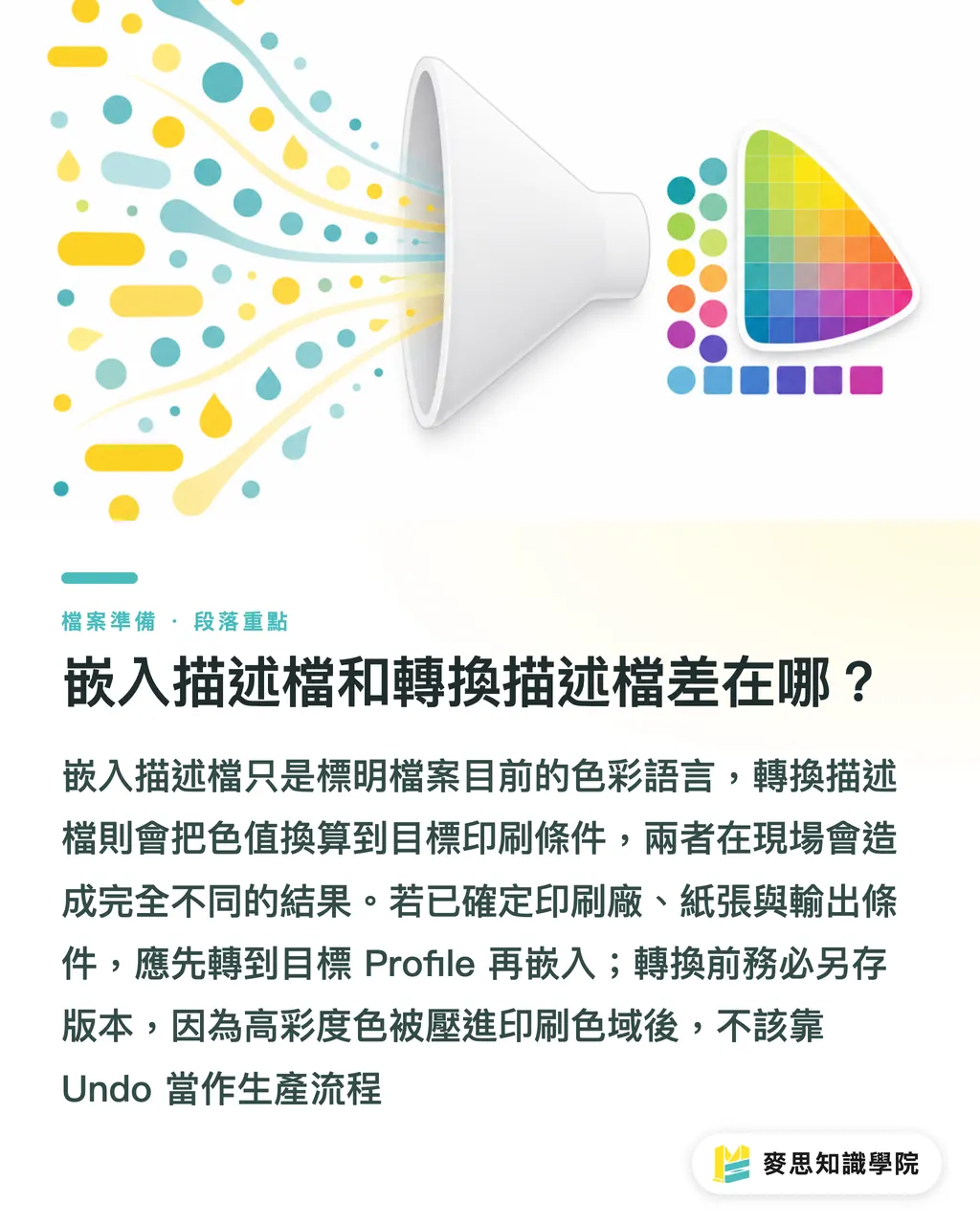
Embedding a profile means writing “what color language this file is currently using” into the file
Converting a profile means actively recalculating the file’s color values into another target print condition
One step separates the two, but the result on press can be very different
・Embed Profile only: the file keeps its original color values, and the print shop’s RIP performs the later conversion based on the profile. This fits workflows where the print shop clearly asks you to keep the source Profile
・Convert first, then embed: the design side converts to the target Profile before exporting the PDF. The print shop receives a CMYK file already aligned with the print condition, with fewer variables
・No embedded Profile: the RIP can only guess through default rules. This is the easiest way for the same PDF to show different colors at different shops or on different machines
My call is simple: if you already know which print shop, paper stock, and output condition this job will use, convert to the target Profile first, then embed it
If the print conditions are not confirmed yet, embedding the source Profile only can keep some flexibility. But that kind of file should not be treated as the final print file
Do not rush
Save a separate version before conversion. After RGB is converted to CMYK, or one CMYK Profile is converted to another CMYK Profile, some high-chroma colors get compressed into the printable gamut. That is not something you can treat as a production workflow by just hitting Undo
How Should Photoshop, Illustrator, and InDesign Be Set Up?
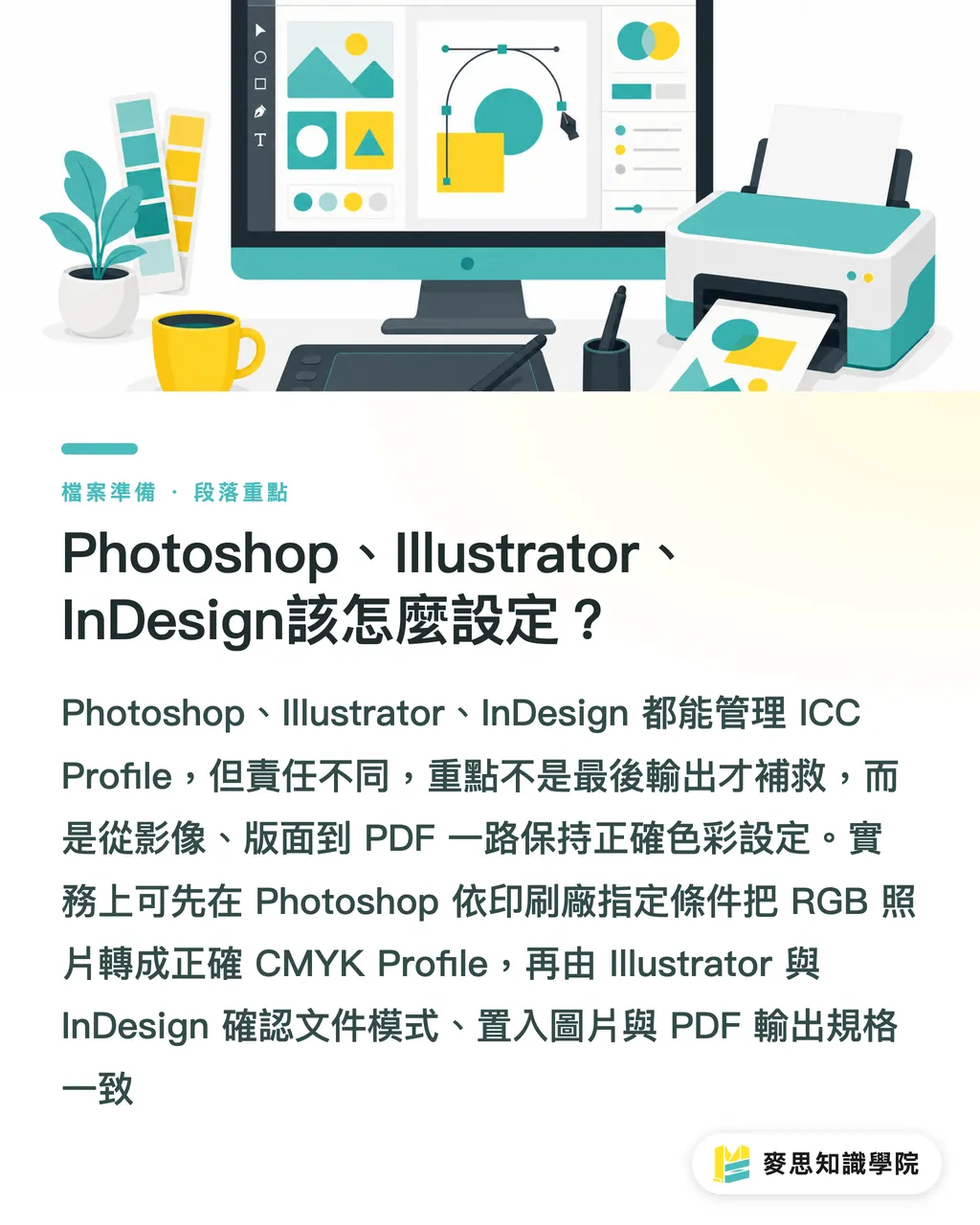
Photoshop is best for raster images, Illustrator for vectors and single-page design, and InDesign for multi-page layout and final PDF output
All three programs can manage ICC Profile, but their roles are different. Do not dump all responsibility onto the final export step
In Photoshop, I first check whether the image is RGB or CMYK, then handle the Profile
・If the image is still RGB: use Edit / Convert to Profile to convert the photo to the CMYK Profile specified by the print shop
・If it is already CMYK: confirm whether the current Profile matches the print condition. Do not convert again into the wrong CMYK Profile
・To preview the print result: use View / Proof Setup / Custom to load the target Profile, then turn on View / Proof Colors to check shadows, skin tones, and high-chroma areas
In Illustrator, the focus is the document color mode and placed images
・For print files: File / Document Color Mode should be set to CMYK Color
・Placed images: confirm that the linked files already carry the correct Profile, so your vectors are not CMYK while the photos are still stuck in sRGB
・PDF output: preserve or assign the target Profile in Output, and choose whether to Convert to Destination based on the print shop’s requirements
In InDesign, I treat it as the final gate
・Multi-page catalogs, flyers, and books: first check the Links panel to confirm image color spaces and missing-file status
・PDF output: choose the target Profile in the Output settings under Export Adobe PDF
・Print shop handoff: if the shop asks for PDF/X-1a or PDF/X-4, export to that spec. Do not mix odd settings on your own
If you are making a high-priced catalog, packaging with strict brand color requirements, or corporate identity materials, discuss the print conditions with MINDS Printing first. These jobs are hardest when the design side has already converted to the wrong place, leaving the print side only able to save half of it
How Do You Proof After Receiving a Custom Profile from the Print Shop?
When a print shop provides a custom Profile, it usually means the shop has its own calibration workflow, possibly tied to a specific machine, paper stock, dot gain, or ink behavior
Do not just download that Profile to your desktop. Install it into the system or an Adobe-readable location, then use Soft Proof to review the result
My usual process looks like this
・First confirm with the print shop what conditions the Profile corresponds to, such as coated paper, uncoated paper, digital printing, or traditional offset printing
・Install the ICC file into the operating system’s ColorSync folder or an Adobe-readable path
・Open Soft Proof in Photoshop or Illustrator and assign the print shop’s Profile
・Turn on previews related to Simulate Paper Color or Black Ink, then observe paper white and shadow detail
・Check at least four areas: skin tones, brand colors, large gray areas, and dark backgrounds
・Before exporting the PDF, confirm again that the PDF has been converted to the target Profile and has the profile embedded
Soft Proof does not guarantee the print will look exactly the same. It tells you in advance, “Under this paper and this output condition, these are the colors you are likely to lose.”
If the monitor is not calibrated, Soft Proof loses value. At minimum, the design side should know whether its monitor is close to sRGB or has been hardware-calibrated
Physical proofing is still necessary, especially for five kinds of work: full-bleed background colors, corporate colors, food packaging, beauty product photos, and dark gray gradients
I have seen too many jobs get stuck at “it is bright on screen but heavy on paper.” Talking about that gap over the phone for half an hour is less clear than one proof
For ordinary business cards, flyers, or short-run output, the process can be simplified. Choosing a clearly specified service such as MINDS Print saves communication time. If the job involves brand colors and paper effects, clarify the Profile, paper sample, and proofing conditions early, and you will avoid a lot of back and forth later
What File Details Should Be Checked Before Printing?
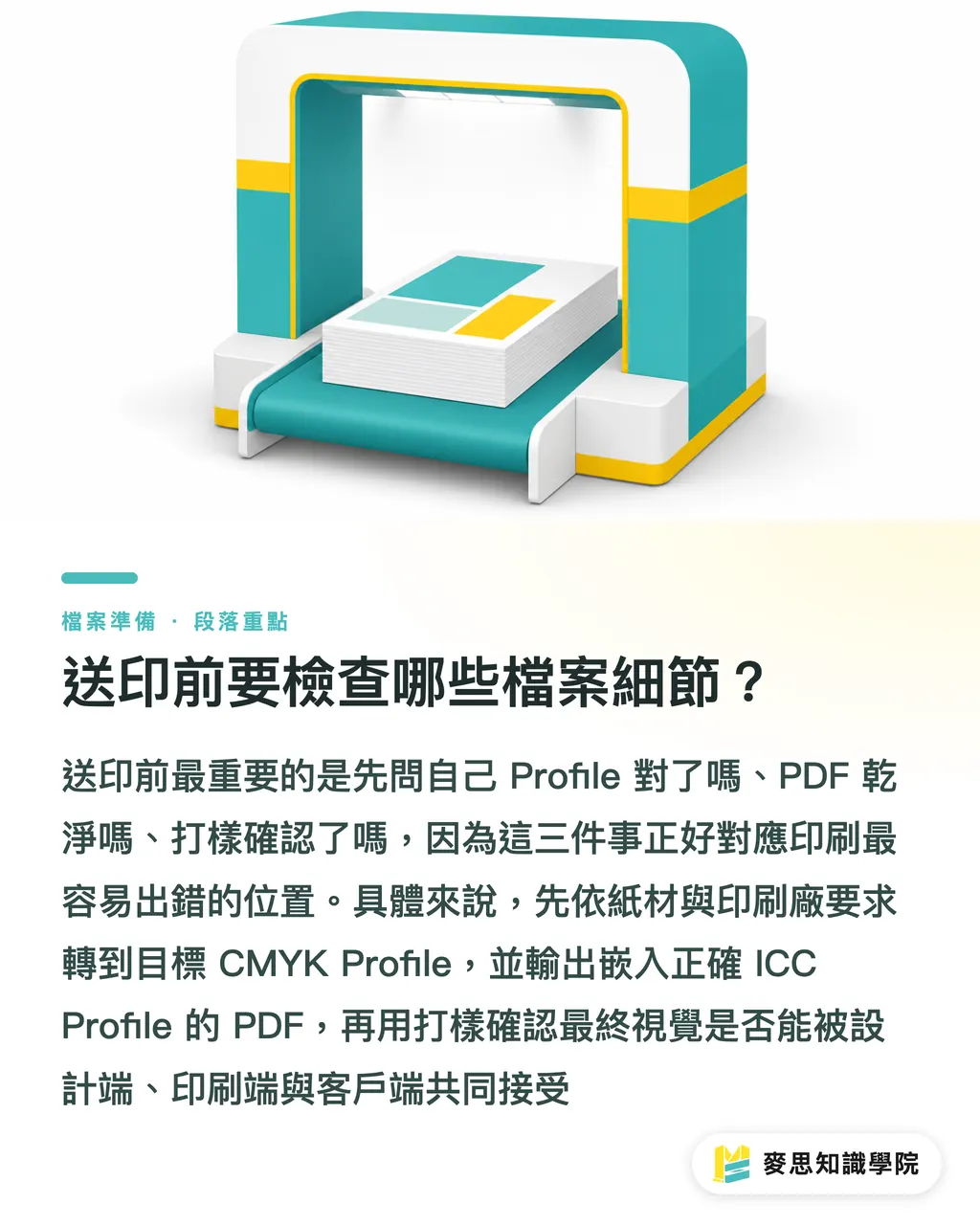
Before sending a file to print, I close with three questions: Is the Profile correct? Is the PDF clean? Has the proof been confirmed?
These three questions are more useful than memorizing piles of color theory, because they map directly to the places where print shops most often run into trouble when receiving files
For MINDS Printing (MS), the three print-ready checkpoints can be put into practice like this
・1. Define the print conditions: confirm the paper stock, printing method, and ICC Profile required by the print shop, such as Japan Color 2001 Coated or the shop’s own Profile
・2. Convert to the target Profile: convert to the target CMYK Profile in Photoshop, Illustrator, or InDesign, then export a PDF with the Profile included
・3. Confirm with proofing: use Soft Proof first to check gamut and shadows, then use a physical proof to confirm paper stock, ink behavior, and visual acceptance
I also add six checkpoints
・Whether the PDF has the correct ICC Profile embedded
・Whether black text uses a print-appropriate black setting to avoid registration shifts on small four-color text
・Whether image resolution meets print requirements. Common commercial printing often uses 300 dpi as the checking baseline
・Whether large dark areas have too much ink coverage, which can slow drying or cause setoff
・Whether spot colors, dielines, white ink, and spot UV are separated clearly
・After the proof is signed back, whether the version date and file name have been recorded
That is enough
Color management is not about turning every option up to the maximum. It is about making sure the design side, print side, and client side are all speaking the same language about the same file
Key Takeaways
・Define the print conditions before using an ICC Profile. Randomly embedding a Profile only carries the problem into RIP
・When the print shop and paper stock are known, converting to the target Profile before embedding is usually more controllable than embedding only the source Profile
・sRGB IEC61966-2.1 is a common monitor profile. It is not the final answer for commercial CMYK print files
・Soft Proof helps you see gamut compression and shadow shifts in advance. Physical proofing confirms the actual paper and ink result
・Print files should keep records of the version, Profile, and proof. When color disputes happen, there is somewhere to trace back
Further Thinking
For print production, ICC Profile is part of standardized file intake. For designers, it is a work habit that lowers the risk of reprints. For SaaS and AI application teams, the next step is to turn “paper stock, Profile, PDF output, Soft Proof, and proof sign-off” into a file checking process, so the system reminds people what to confirm instead of pretending it understands color for them. If your team is organizing its own print SOP, the MINDS Knowledge Academy consulting team can help turn color management, PDF specs, and proof confirmation sheets into executable documents
FAQ
- Should an ICC Profile be embedded or converted before sending a file to print?
- When the print shop, paper stock, and target Profile are known, it is best to convert to the target ICC Profile first, then embed it. Embedding only the source Profile leaves the conversion responsibility to the print shop’s RIP, which is better suited to intermediate files whose output conditions are not yet confirmed
- Can sRGB IEC61966-2.1 be embedded directly into a PDF for printing?
- It is not recommended to treat sRGB IEC61966-2.1 as the final Profile for CMYK commercial printing. sRGB mainly describes screen color. Print files should be converted to a suitable CMYK Profile based on the print shop’s specified conditions
- What kinds of print jobs is Japan Color 2001 Coated suitable for?
- Japan Color 2001 Coated is common in Taiwan’s commercial four-color printing workflow for coated paper and can serve as a general CMYK reference. If the print shop provides its own calibrated Profile, follow the print shop’s settings first
- Can Soft Proof replace physical proofing?
- Soft Proof can preview gamut, paper white, and shadow changes in advance, but it cannot fully replace physical proofing. For brand colors, full-bleed background colors, packaging, and high-priced catalogs, physical proofing is still recommended
- Who handles ICC settings: Photoshop, Illustrator, or InDesign?
- Photoshop handles image conversion and photo Soft Proof. Illustrator handles vector documents and placed-image checks. InDesign handles multi-page layout and final PDF output settings
Related articles
The Print × AI weekly
The print and AI know-how designers, brands and enterprises can use before they commit — one email, every week
MINDS Free Tools
Preflight file check and design version compare — free final checks before handoff, no upload.
MINDS Group
Need actual printing or gifting services?
From premium printing to online ordering and festive gifts — the MINDS Group sister brands take it from here.