
Overview
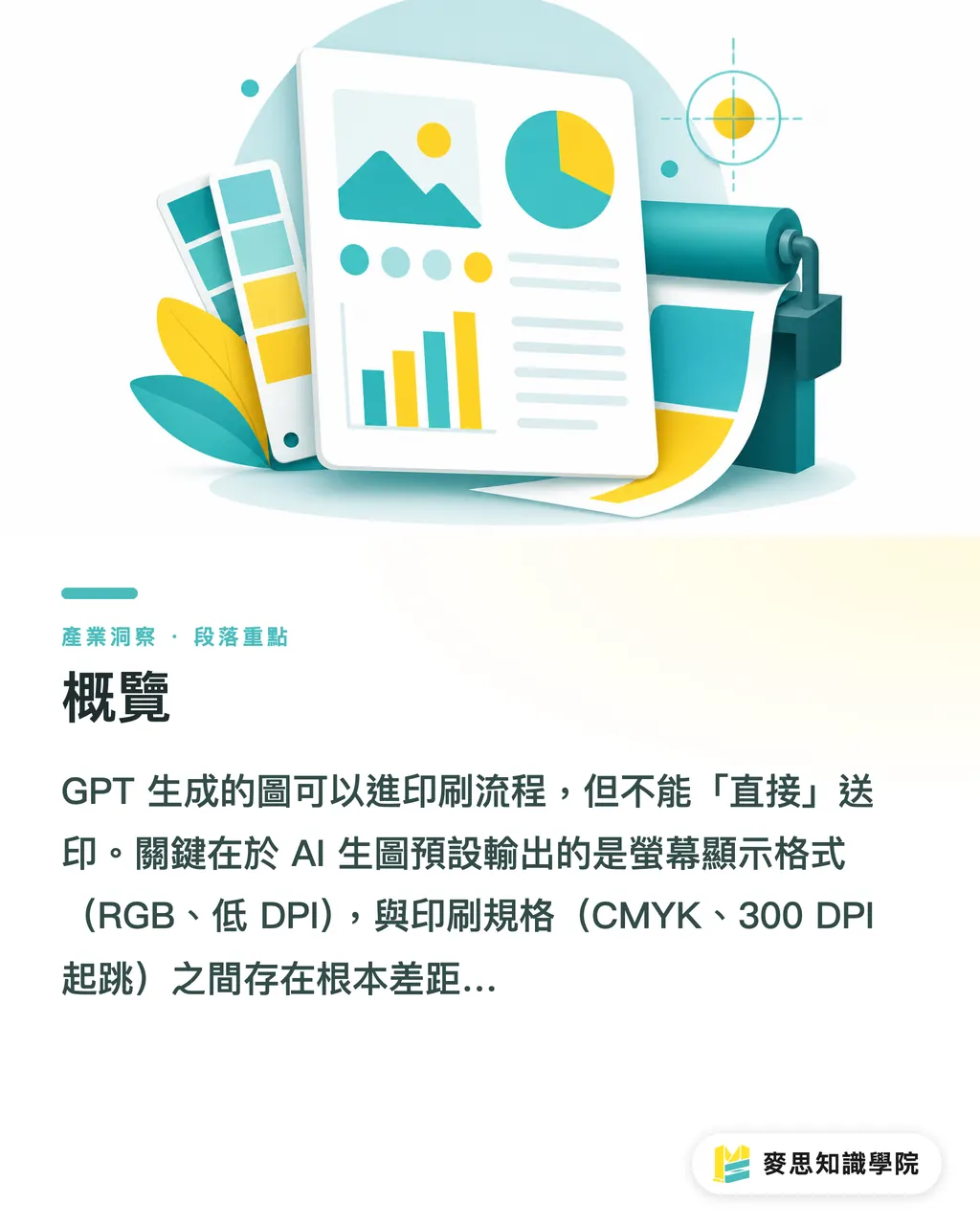
Images generated by GPT can enter a print workflow, but they can't go to press 'directly.' The reason is that AI-generated images default to a screen-display format (RGB, low DPI), and there's a fundamental gap between that and print specs (CMYK, 300 DPI and up). MINDS (MS, mid-to-high-end fully custom commercial printing) has worked with clients integrating AI tools, and through that process put together a 'MINDS (MS) Three Gates Before Sending to Press' checklist, so GPT images can actually move from creative spark to a high-quality printed product
How big is the gap between AI-generated images and print specs?
This is the part most people underestimate
GPT-Image-2's default output resolution is around 1024×1024 pixels, and the color mode is RGB. If you drop that straight into an A4 poster layout (210×297mm, 300 DPI), the actual usable size is roughly 8.7× 8.7 cm, not even enough to fill A5
The color issue is just as tricky. RGB's gamut is wider than four-color CMYK printing, so that saturated electric blue or neon orange on screen will print darker and duller. Some clients see the press proof and say the color is 'wrong,' and their first instinct is to blame the printer. The real root cause is that the image file's color space wasn't handled properly
These two issues, insufficient resolution and wrong color mode, are the most common pitfalls when AI-generated images enter a print workflow
What three gates do GPT images need to pass before going to press?
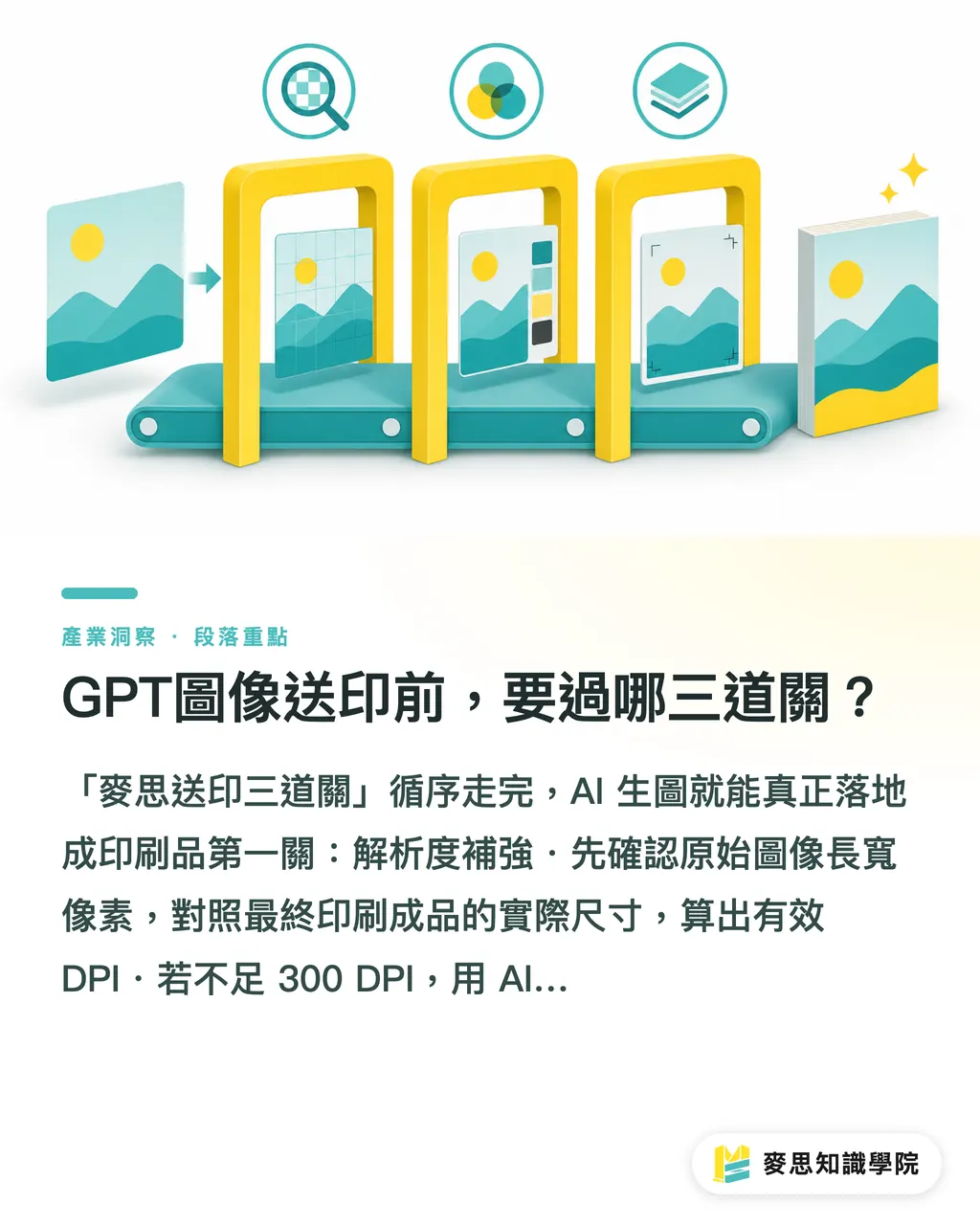
Run through the 'MINDS (MS) Three Gates' in order, and AI-generated images can actually land as printed products
Gate 1: Resolution Boost
・Check the original image's pixel dimensions against the final print size, then figure out the effective DPI
・If it's under 300 DPI, upscale with an AI enlargement tool (e.g., Topaz Gigapixel, Magnific AI). These tools are much sharper than traditional interpolation
・After upscaling, eyeball the details in Photoshop or Affinity Photo. Enlargement tools sometimes produce weird artificial textures at the edges
・Backgrounds with large color blocks or gradients tolerate upscaling better than compositions with fine text. For layouts with complex small text, the upscaling risk is high, so always proof first
Gate 2: Color Conversion
・Open the file in Adobe RGB or sRGB, then convert to CMYK (Coated FOGRA39 is recommended, or the ICC Profile specified by the printer)
・Before conversion, note how the color reads on screen. After conversion, compare. If the gap is bigger than expected, tweak manually in CMYK mode
・Your monitor has to be calibrated. Looking at CMYK values on an uncalibrated screen doesn't tell you much
・Watch out for electric blue (around #00B2FF) and emerald green (around #00E5A0). Their saturation drops noticeably in CMYK. If those colors are the visual centerpiece of the design, plan ahead to swap them or rework the layout
Gate 3: Layout Integration and Bleed
・GPT images don't come with bleed. Once you place them in a print template, confirm there's 3mm bleed on all four sides (die-cut layouts are calculated separately based on the die)
・Critical text and logo should sit inside the safe zone (typically 3mm or more from the trim line)
・If the image subject sits very close to the edge, evaluate whether it might get cut off after trimming. AI-generated images often center the subject, which actually saves some trouble
・Before sending to press, export as PDF/X-1a or PDF/X-4, and confirm the color mode, trim marks, and bleed are all correct
Can the prompt itself affect print quality?
A lot of designers think adding '300 DPI, print-ready' to the prompt makes the image usable as-is. That's a common misunderstanding. GPT-Image-2's output resolution is determined by the model, usually around 1024×1024 pixels. No matter what DPI you write in, the actual pixel count doesn't change. Resolution is a post-production job, not something the prompt can control
But the prompt can influence a few things, and those things matter a lot for print quality:
・Color direction: add 'CMYK-friendly color palette, muted tones, no neon' to steer generation toward less saturated colors that print closer to what you see on screen
・Composition with room for bleed: 'centered composition with neutral background at edges' makes it easier to add bleed later
・Style direction: 'editorial print style' or 'flat design, minimal gradients' both push the output closer to the visual language of print media
・Aspect ratio: GPT-Image-2 supports landscape, portrait, and square ratios. Pick the ratio that matches the print piece first, and you'll save a lot of cropping work later
Combining these directions in the prompt can cut prepress revision time significantly. From what I've seen, this is the most actionable thing designers can start using right away
Which print products are most stable for AI-generated images?
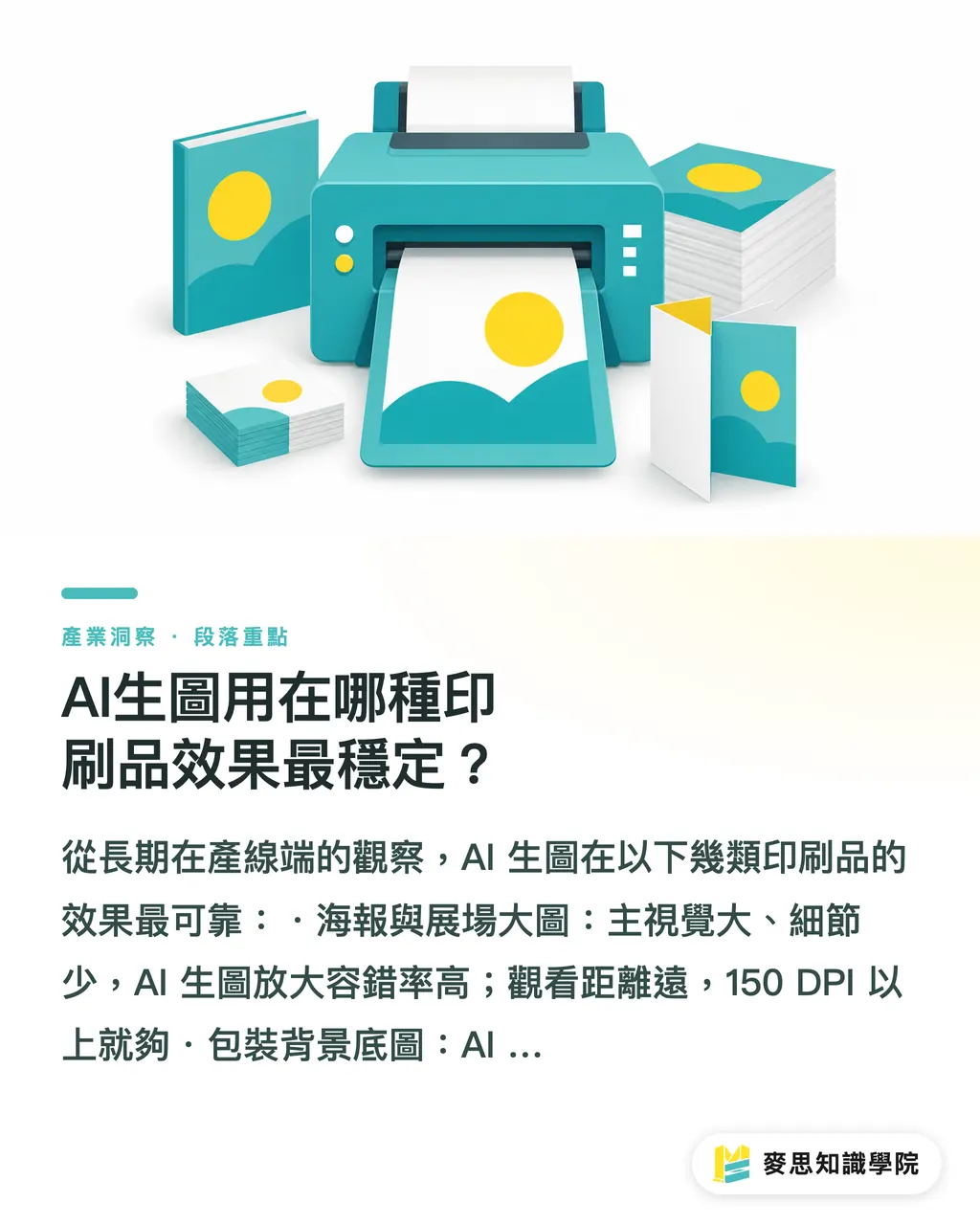
From long-term observation on the production side, AI-generated images are most reliable on these types of print pieces:
・Posters and large event graphics: large main visuals, fewer fine details, AI upscaling has a high tolerance for error. At viewing distance, 150 DPI and up is enough
・Packaging background textures: AI-generated texture patterns (paper, fabric, gradients) are especially useful. Used as background rather than main visual, the risk is low
・Social-extended merch (canvas bags, mugs): transfer-print methods already have a wider color tolerance than offset printing, so AI images pass through with less trouble
・DM and catalog illustrations: AI-generated images combined with designer post-production is the most widely adopted hybrid workflow in the industry right now
Scenarios where I wouldn't recommend going straight from AI output to press: brand collateral that requires precise corporate identity colors (e.g., Pantone-specified colors), and business cards or instruction sheets with lots of fine text. AI-generated images still aren't reliable on pinpoint color reproduction and text generation, so for these two scenarios a designer still needs to take the lead
If you're not sure whether your AI image is press-ready, or you're not clear which specs your print project actually needs, you can bring the file directly to the Mai Strategy Knowledge Academy consulting team to confirm. Usually a few questions is enough to sort it out
Key Takeaways
・GPT-Image-2's default output is RGB screen format. You have to handle resolution and color mode before printing. Skip either step and things can go wrong
・The 'MINDS (MS) Three Gates', resolution boost, color conversion, layout integration and bleed, are the shortest path from AI-generated image to finished printed piece
・The prompt can't control output DPI, but it can guide color direction and leave room for bleed, cutting post-production workload from the source
・Posters, packaging backgrounds, and social-extended merch are the print scenarios where AI-generated images fit best. Precise brand colors and layouts with fine text need more caution
・AI-generated images speed up the creative-first-draft stage. Prepress technical work still isn't optional. Once that mental model is in place, the workflow actually starts to flow
Further Considerations
For designers, the question with AI-generated images entering print isn't 'can you use them.' It's 'where in the workflow do you use them, and how do you hand off after.' I'm seeing more and more designers treat GPT-Image-2 as a direction-finding tool for the first draft. They use it to quickly try out multiple visual directions, pick one, then hand it to a human for detailed finishing before sending to press. That workflow is smart. It saves the time spent on rough drafts, and it doesn't let AI's technical limitations crash directly into the final quality
For procurement leads, if a supplier says 'AI images can go straight to press,' that line is worth pressing on: Is the layout integration done? Has the color conversion been handled? Is the bleed set? Run through those questions and you can usually tell pretty quickly whether the other side actually has a solid prepress process
MINDS currently accepts client-provided AI-generated images and handles the full prepress processing before sending to production. If you have this kind of need, feel free to bring the files over and we'll talk it through
Further Reading
FAQ
- GPT-generated images don't have enough resolution. Can AI upscaling tools fix it?
- Yes, but with conditions. AI super-resolution tools like Topaz Gigapixel do well with large color blocks, gradients, and natural textures. Run them on fine text or sharp geometric edges and you'll likely get blurry or artificial-looking edges. Always proof after upscaling. Don't judge from the screen alone
- When I convert GPT-generated images to CMYK, the colors drift a lot. What should I do?
- First check whether the original image has bright electric blue or neon-orange tones. Those colors are inherently lower in saturation in CMYK. Before converting, pull the design palette toward lower saturation and warmer tones, or do a digital proof early and confirm the acceptable range with the client. If the brand color has to be exact, switch to a specified Pantone color paired with a manually drawn design
- Can I specify '300 DPI' in the prompt to get GPT to output a high-resolution image?
- No. GPT-Image-2's output resolution is set by the model, usually around 1024×1024 pixels. Writing 300 DPI in the prompt doesn't change the file's actual pixel count. Resolution is a post-production task. You'll need an AI upscaling tool or a regenerated image at a larger size to solve it
- Can AI-generated images be used for packaging printing?
- Yes, but you need to separate the use cases. It works well as background textures, surface patterns, or supporting elements. If you need the AI image to carry the brand's main visual or precise color (such as corporate logo extensions or Pantone-specified colors), a designer still needs to step in and rework it. Going straight to press isn't recommended
- After generating images with GPT-Image-2, can the printed pieces be used commercially?
- OpenAI's current terms of use do allow commercial use, but copyright ownership still varies by region and use case. Taiwan doesn't yet have clear regulations on copyright protection for AI-generated works, so check the latest terms before using. For high-visibility commercial print pieces, run it by legal first
Related articles
The Print × AI weekly
The print and AI know-how designers, brands and enterprises can use before they commit — one email, every week
MINDS Free Tools
AI background removal, brand stamping, and a LINE sticker maker — free design tools, right in your browser, no upload.
MINDS Group
Need actual printing or gifting services?
From premium printing to online ordering and festive gifts — the MINDS Group sister brands take it from here.