
Overview
The two free AI image tools we recommend most are Microsoft Copilot (powered by DALL-E 3) and Leonardo.ai — the former excels at rapidly generating realistic contextual visuals, while the latter gives you finer control over style and output dimensions
However, if you plan to use AI-generated images in physical print, you must address two unavoidable issues: insufficient resolution and color shift when converting from RGB to CMYK
Trying AI Image Generation but Not Sure Which Tool to Pick?
Over the past few months, the question I hear most from clients is which AI image tool they should use — and I typically point beginners to just two free options to get started
Microsoft Copilot (formerly Bing Image Creator) has the most intuitive interface; simply type a description in plain English and it produces solid results
Its greatest strength is semantic understanding — it's ideal for brainstorming design concepts or generating mood board visuals for client proposals
If you need more control, Leonardo.ai is the better choice
It offers a daily free quota and lets you customize aspect ratios and generation styles, making it far more practical for designers who need images to fit specific layout dimensions
Based on recent design projects I've worked on, combining these two tools can eliminate much of the upfront cost of stock photo libraries and style exploration
What Do You Do When an AI Image Doesn't Have Enough Resolution to Print?
This is the wall every person hits the moment they try to send an AI-generated image to print
Most free AI tools output images at around 1024×1024 pixels
At that size, you can realistically print a roughly 8.5 cm square — barely enough for a business card, and nowhere near sufficient for a poster without obvious pixelation
The print industry standard is 300 DPI (300 pixels per inch), which means an A4-sized image requires approximately 2480×3508 pixels
To bridge that gap, you must go through an upscaling process
・Use the open-source Upscayl software to upscale image files locally without quality loss
・Use online tools like Let's Enhance for detail enhancement and sharpening
・After upscaling, always open the file in Photoshop at 100% zoom and inspect the edges for any unnatural distortion or artifacts
Why Do AI Images That Look Stunning on Screen Print Out Dull and Washed Out?
Stop sending AI images straight to the printer just because they look great on your monitor — nine times out of ten, the result will be a disappointment
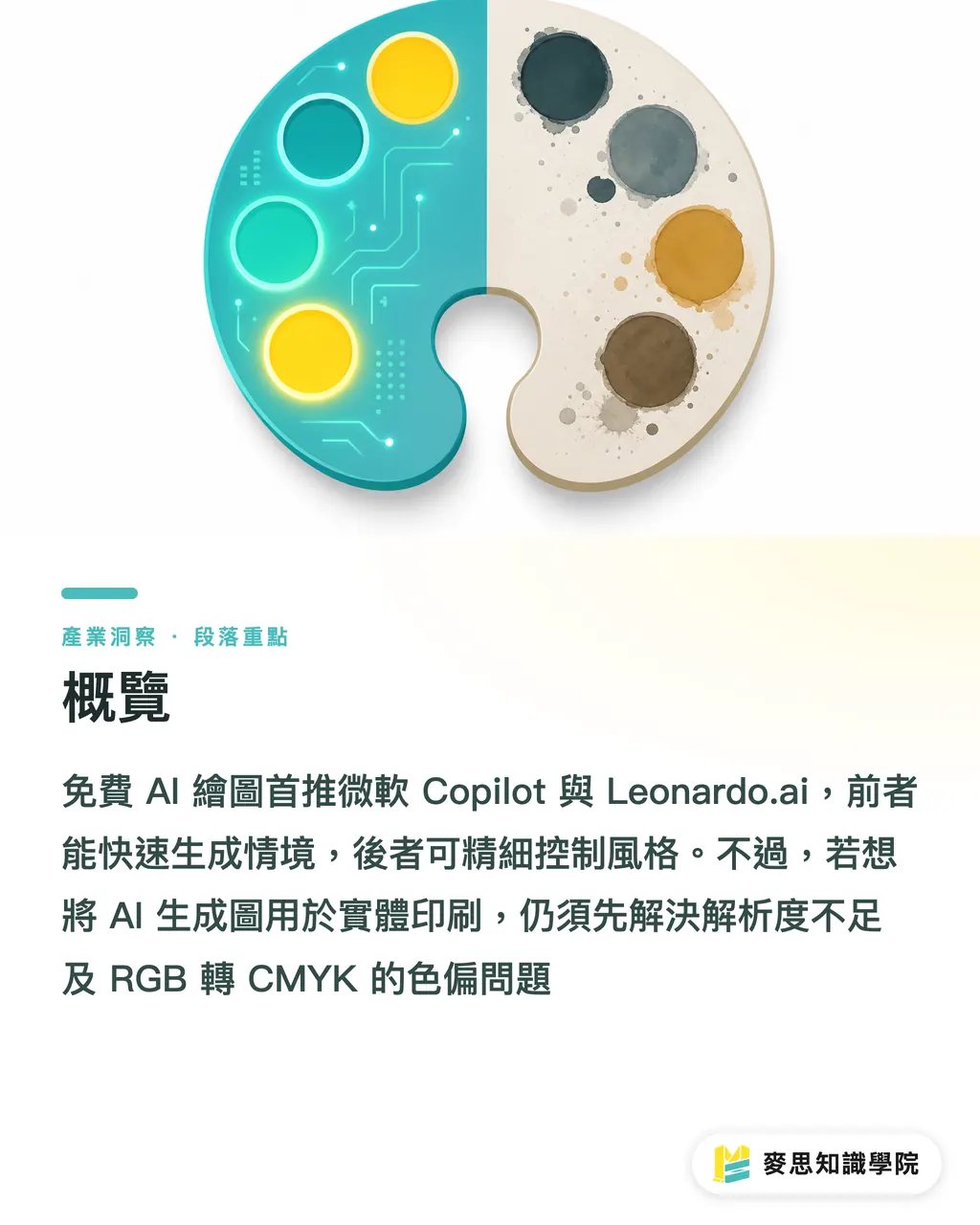
Every image generated by an AI tool is in RGB color mode, which is designed for screen displays that emit light
Printing presses, however, use CMYK four-color ink, and the two color gamuts are worlds apart
When you send an AI image with vivid neon tones or bright cyan-blue hues directly to print, the press automatically maps those colors to the closest available CMYK equivalent — and the result is a flat, murky, lifeless print
I strongly recommend converting any image to CMYK mode in your design software and previewing it before finalizing
If the color shift is too severe, use Curves or Levels adjustments to manually boost contrast — or reach out to our prepress engineers at Minds Printing to verify the color settings for you
How Do You Avoid Print Pitfalls at the Prompt Stage?
Many people think retouching happens inside software — but in the age of AI, the retouching actually starts the moment you type your prompt
If you plant the right seeds at the generation stage, the entire conversion and print submission process becomes far smoother
Drawing on experience from thousands of print jobs, I can tell you that complex lighting gradients are the most common culprits behind banding artifacts in print
Try adding explicit style constraints directly into your prompt
・flat vector style: reduces complex gradients and gives color blocks crisper, cleaner edges
・minimalist illustration: strips away cluttered background detail so the final print stays focused
・limited color palette: specifying only three or four dominant colors keeps post-print color deviation in check
Images generated with these keywords are not only more press-friendly — they're also far easier to successfully trace in Illustrator and convert into clean vector files
Key Takeaways
For free AI tools, start with Microsoft Copilot for creative ideation and Leonardo.ai for dimension control
AI-generated images are always in RGB mode — always convert to CMYK and verify color accuracy before sending to print
A 1024-pixel image is only viable for business card-sized prints; anything larger requires lossless upscaling with a tool like Upscayl first
Adding flat or minimalist style keywords to your prompt significantly reduces the risk of gradient banding in the final printed piece
Food for Thought
AI image tools can genuinely compress the exploratory phase of early-stage design — but at the end of the day, they're still just a brush for generating ideas, not a replacement for professional prepress judgment
When designers and print buyers adopt these tools, the real effort should go into figuring out how to translate AI-generated assets into flawless physical print pieces
That's precisely the core value Minds Printing delivers when we provide end-to-end integrated services — continuously helping clients optimize file settings and select the right paper stock for their specific needs
FAQ
- What free AI image generation tools do you recommend?
- Beginners should start with Microsoft Copilot — it supports natural language input and handles semantic understanding exceptionally well. For advanced control over dimensions and style, Leonardo.ai offers a generous daily free quota and is worth exploring
- Can I send AI-generated images directly to a print shop?
- Absolutely not. Raw AI-generated images are typically only 1024 pixels and in RGB color mode — sending them to print without processing will result in insufficient resolution and severe color shift
- How do I fix the resolution problem with AI-generated images?
- Use free open-source software like Upscayl to perform AI-powered lossless upscaling on your computer, ensuring the final image meets the 300 DPI standard required for professional printing
- Why do AI-generated images print out looking gray and dull?
- Because AI tools produce images in RGB mode, which is optimized for screen display, while printing presses use CMYK inks. Before submitting files to print, convert the color mode inside your design software and fine-tune the contrast to compensate