
Overview
To produce high-quality images with AI that are ready for printing, the key is to lock in resolution, material style, and color mode within the prompt from the start, rather than simply describing the content of the image
I have handled thousands of print projects, and in the last six months, more and more clients have brought me beautiful artwork generated by Midjourney to print, only for 99% of them to be a massive disappointment
Either the edges are blurry, or the colors turn out extremely dull when printed
To solve this pain point, we must start from the very source of the instructions
Why are AI images that look good on screen often a disaster in print?
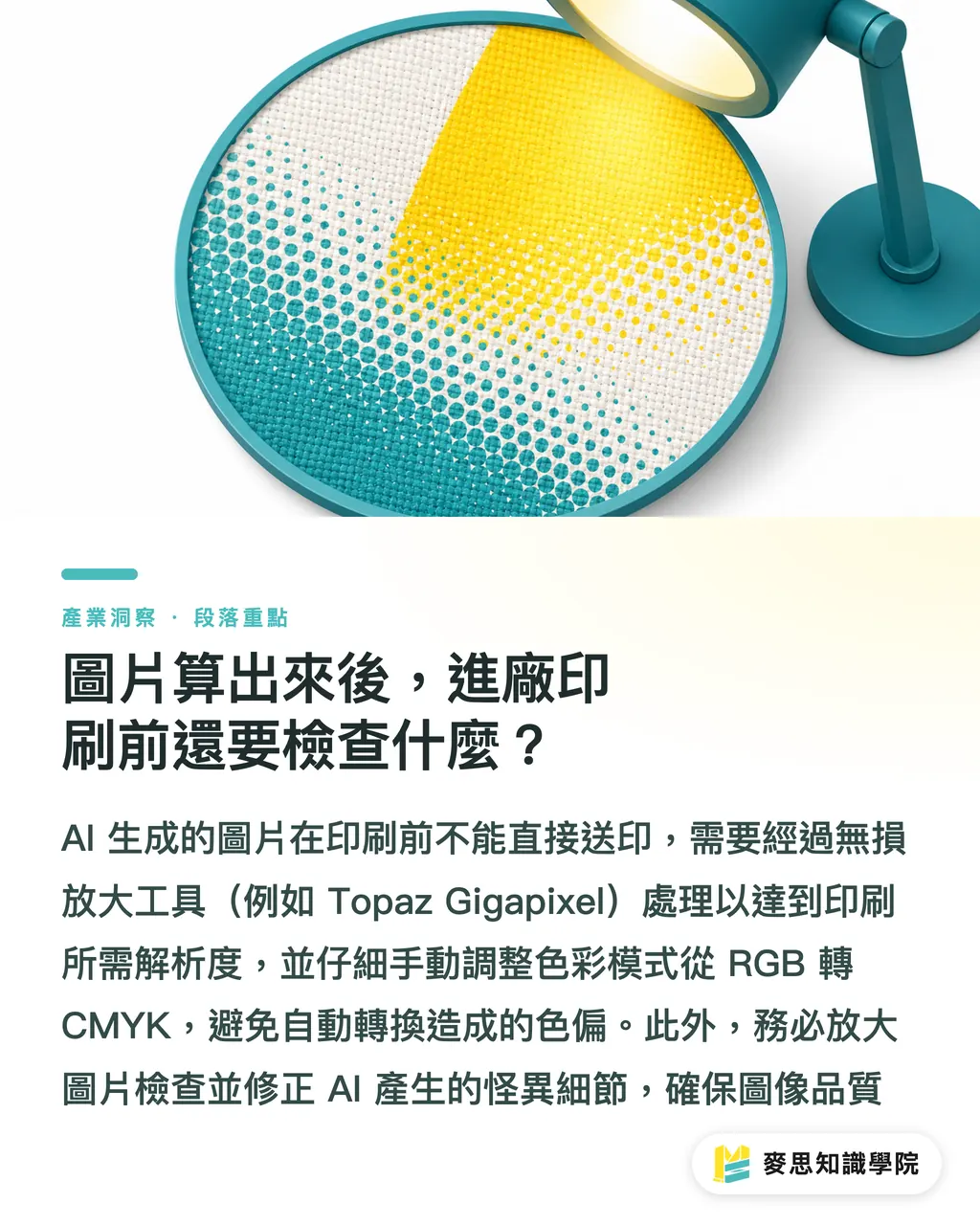
The default output environment for AI drawing models is screen display (RGB color space, 72 dpi), which has a fundamental physical gap compared to physical printing (CMYK color space, 300 dpi)
When you only write "cyberpunk style city" in the prompt, AI will give you a low-resolution image full of neon fluorescent colors
These vibrant colors cannot be reproduced on traditional four-color printing presses and will automatically convert to dull, approximate shades
Coupled with insufficient dimensions, once scaled up to poster size, the pixel artifacts become impossible to hide
To bridge this gap, you must act as the print shop manager in your prompts, clearly defining your specification requirements
How should AI drawing prompts be written to meet print specifications?
A high-quality prompt that is ready for direct printing must include three levels: subject description, stylistic tone, and technical specifications
Many designers focus only on the first level—the subject—and neglect the latter two, which determine the success or failure of the print
You can refer to the following practical framework to optimize your instructions:
・Explicitly specify resolution and details: Add keywords like "8k resolution" and "hyper-detailed" to force the model to generate more edge details, which is critical for subsequent upscaling
・Simulate real materials and lighting: Do not just write "illustration"; specifically specify "vector art," "screen printing style," or "studio lighting" to make the color banding and lighting produced by AI better align with physical characteristics
・Avoid extreme colors that are difficult to print: Add "neon" and "fluorescent" to your negative prompts to reduce the appearance of colors that fall outside the CMYK color gamut from the source
After the image is generated, what should be checked before sending it to print?
Even with the best prompts, the native image files produced by AI cannot be sent directly to print
From the design side to the manufacturing side, there are several essential conversion procedures
These are the three critical points I always check when assisting clients in finalizing their work:
・Must be recreated using non-destructive upscaling tools: AI native images are usually only 1024x1024 pixels, but printing an A4 requires at least 2480x3508 pixels; please use tools like Topaz Gigapixel for 2x to 4x upscaling
・Final conversion of color mode: When converting from RGB to CMYK in Photoshop, be sure to check the gamut warning and manually fine-tune bright colors that have lost saturation; do not let the software perform a forced, heavy-handed conversion
・Check for weird details generated by AI: After upscaling, be sure to inspect the entire image at 100% scale and use the healing brush tool to clean up unrecognizable fragments or redundant structures
Key Takeaways
・Prompts cannot just describe the scene; you must write technical specifications for high resolution and sharp details into them
・Make good use of negative prompts to exclude neon and fluorescent colors, reducing color disasters during the RGB to CMYK conversion
・AI native image files should absolutely not be sent directly to print; non-destructive upscaling and color mode conversion are indispensable post-production processes
Extended Reflections
For designers and marketers, AI tools can indeed significantly speed up the creative brainstorming process, but what you see is completely different from what can be printed
While pursuing efficiency in generation, possessing basic knowledge of print physics and knowing how to avoid pitfalls at the prompt stage is the true core competitiveness for future design professionals
If you are unsure whether your AI artwork can actually be printed, I recommend chatting with a team that has integration experience, like MINDS, before finalizing the work, to help you conduct an overall assessment from paper materials to finishing processes
FAQ
- Can AI-generated images be used directly to print posters?
- No. AI defaults to generating small dimensions in RGB mode. Printing directly as a poster will result in severe blurriness and significant color errors. It must undergo non-destructive upscaling and CMYK conversion first
- Which AI drawing prompts can improve the print quality of an image?
- Adding terms like "8k resolution" and "sharp focus" to your prompt, and specifically describing lighting such as "studio lighting," can effectively increase image detail and depth
- Why do my AI-generated images look so dark when printed?
- Because AI images default to the RGB color space—which emits light on screens—they contain many vibrant colors that printing inks cannot reproduce. It is recommended to avoid fluorescent color schemes during generation or to manually adjust colors when converting color modes