
What Does "Free" Actually Mean? Start by Separating the Three Models
When AI image tools say they are "free," they usually fall into three very different models:
・Free forever, but with usage limits: You get a fixed number of credits per day or per month. Once they are gone, you stop, then wait for the next cycle to reset. Microsoft Copilot, with DALL-E 3 built in, works this way. You get about 15 boosts per day for faster generation. After they run out, you can still generate images, just more slowly
・Free trial period: You get a few hundred credits or a few attempts after signing up. Once you have tried it, you have to pay. Plenty of tools use this playbook
・Free, but with locked features: The core function is available, but resolution is capped at 512×512 or 768×768. If you want high-quality output, you need to upgrade to a paid plan
These three are fundamentally different things, yet they all get called "free." Mix them up, and you may only find out halfway through a job that you cannot export what you need. That is where the real time gets wasted
Which Free Allowances Are the Most Practical Right Now?
Based on what I have seen over the past year or two with designers and marketing-side clients, only a handful of tools are truly free and still usable over time:
・Microsoft Copilot (DALL-E 3): No separate installation. You generate images directly inside the Copilot interface. It gives you daily boost credits, understands text prompts well, and handles Chinese prompts with steady results. The biggest advantage is that it does not require a credit card. Output resolution is around 1024×1024, which is enough for proposal drafts
・Leonardo.ai free plan: You get 150 credits per day. One image costs about 4-8 credits, so that works out to roughly 20-35 images a day. It has its own model ecosystem, with more style options, making it a good fit for designers who need to explore visual directions quickly. Free outputs are also around 1024×1024
・Adobe Firefly free tier: You get 25 generative credits per month. Once they are gone, you stop. Its strength is clearer commercial licensing. It is one of the few platforms that plainly says commercial use on the free tier has limits. Credits reset at the end of the month, which is not enough for people with heavier project volume
・Canva free version (Text to Image): 50 uses per month. It is built into Canva's editing flow, so it is convenient for designers, but output resolution is limited
As for truly "unlimited free" options, you are basically left with local Stable Diffusion deployments. But that means setting up your own environment, which is a separate barrier altogether
Where Do Free Tools Cause Trouble in Print?
This is the question I get asked most often. The short answer: most free AI tools do not output enough resolution for direct print use
A standard AI output is 1024×1024 pixels. If you want to print an A4 piece, 210×297mm, at 300 DPI, you need roughly 2480×3508 pixels. Do the math and a native 1024 image stretched to A4 ends up at an effective DPI of only about 123, far below print standards
Common ways people get burned:
・They drop an AI-generated background straight into a business card template, export it as a PDF, send it to print, and the finished cards come out blurry
・An AI-generated cover draft gets shown around, sales says "let's just use this one," then it gets enlarged and prints like a mosaic
・The free export includes a watermark, as some tools do, and the submitted artwork gets rejected
There are a few ways to handle it. First, use the free version to confirm the visual direction, then move to a paid tool or Photoshop's AI Generative Fill to rebuild it at higher resolution. Second, if the image is only for screen mockups, proposal PDFs, or social media, 1024 is often enough. Third, some tools, such as Leonardo.ai paid tiers, offer Upscale features that enlarge images to 2048×2048 or higher. The free version does not include that function
Color mode is another thing to watch. AI images are all RGB, while print needs CMYK. Bright AI images often shift a lot after conversion, especially electric blue, fluorescent green, and other colors outside the CMYK gamut
How Do You Calculate the Hidden Cost?
The real cost of a "free" tool is usually not the tool itself. It sits in these places:
・Time cost: Free plans are slower. Waiting 30-60 seconds in Leonardo.ai's non-priority queue is common. When you need to run many versions, that waiting time adds up fast
・Post-production cost: Low resolution has to be fixed. Colors need conversion. Background removal needs cleanup. All of that takes designer time
・Rework cost: Some platforms have murky commercial licensing, and some free tools are not transparent about training data sources. If a client or brand owner questions the artwork later, the cost of replacing the design is very real
・The paid threshold is lower than many people think: Leonardo.ai's entry plan is about USD 10/month. Adobe Firefly is included with Photoshop subscriptions. If you already use Adobe CC, you already have a more complete pool of generative credits
What I usually tell clients is this: if you use fewer than 50 AI images a month, and they are only for proposals and screen-based work, free tools are completely enough. But once the workflow moves into "commercial print-quality output," you need to count post-production and possible paid upgrades into the cost. Otherwise, you save on tool fees but spend more on design hours, and that is not a good deal
How Should You Check AI Image Quality Before Sending It to Print?
Here are a few checks you can do yourself:
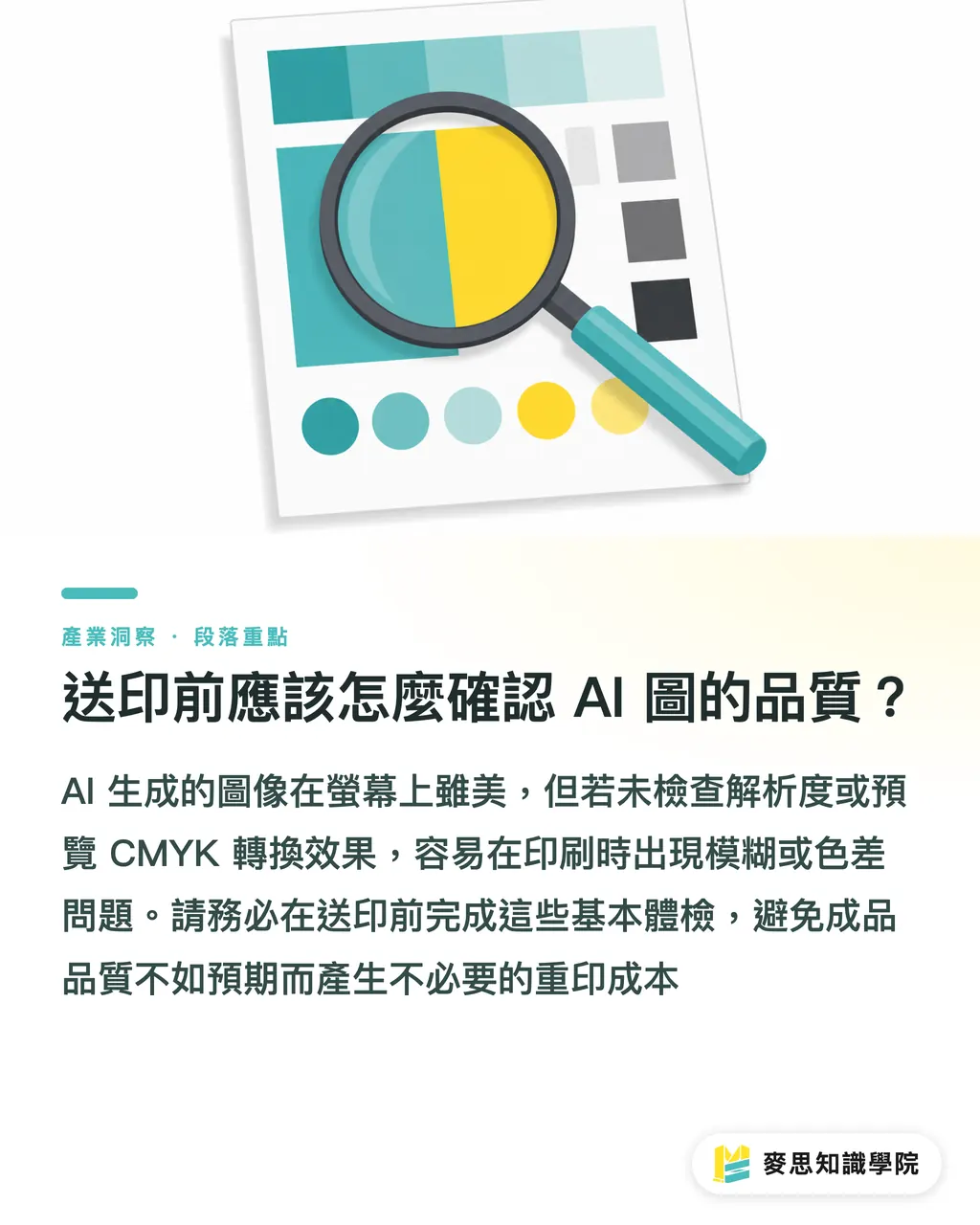
・Open the image in Photoshop or Illustrator and check the resolution in "Image Size." If it is 1024×1024 at 72 DPI, it is a screen image. Do not send it straight to print
・View it at 100% and check whether the edges look soft or have pixel artifacts. AI images often have strange local details
・Try a CMYK preview, especially for images with bright color blocks. If the color changes a lot after conversion, the printed piece will not match what you saw on screen
・If the image will be used in the bleed area, make sure the composition has enough empty margin to extend. AI images tend to center the subject, with too little space around the edges
These steps are not complicated, but many people skip them. They only find out there is a problem after the job is printed, and reprinting is where the cost really hurts. At MINDS Printing (MINDS, mid- to high-end fully custom commercial printing), our customer service team also does a basic resolution check when receiving files. If there is a problem, we flag it early. That step saves many clients from paying for avoidable mistakes
Key Takeaways
・Free AI image tools come in three fundamentally different models: usage limits, trial periods, and locked features. Know which one you are using so you do not get stuck halfway through
・Microsoft Copilot and Leonardo.ai are currently the two most practical free options that do not require a credit card
・Free tools usually output only 1024×1024 pixels. That is almost never enough for direct print use. A4 printing needs about 2480×3508 pixels to reach 300 DPI
・The tool itself may cost nothing, but post-production, waiting time, and potential licensing risk are the real hidden costs
・The fastest way to check whether an image is print-ready is to open it in Photoshop and look at the resolution numbers, not whether it "looks clear."
Further Thoughts
The real value of free tools is at the early proposal stage. Use them to run visual directions quickly and give the client something to look at during a whiteboard discussion. At that stage, resolution does not matter at all. But the reality of many small and mid-sized design projects in Taiwan is this: the client sees an AI draft, says "let's use this one," and asks to move straight into print production, with no refinement step in between
That gap is one of the problems I run into most often when helping clients. A better approach is to say it clearly from the start: AI-generated images are "visual drafts." Before they go to print, there must be a "quality upgrade" step. That step takes time, takes tools, and sometimes costs money. Setting that expectation early is much easier than explaining later why the piece has to be reprinted
For designers, it is worth spending a bit of time learning Photoshop's Generative Fill and Generative Expand. These two features can push an AI draft up to print specs, and in workflow terms they are much faster than starting over. Using free AI tools for the first draft, then Adobe CC for post-production enlargement, is currently the most cost-efficient way to keep quality under control
FAQ
- Is Microsoft Copilot image generation completely free? What are the limits?
- Copilot image generation, using DALL-E 3, is basically free and does not require a credit card. You get about 15 fast generations, or boosts, per day. After they run out, you can still generate images, but more slowly. Output resolution is around 1024×1024 pixels, which is suitable for proposal drafts and screen-use images. It is not recommended for direct print output
- Can images from free AI image tools be sent directly to print?
- In most cases, no. Mainstream free AI tools output around 1024×1024 pixels. Printing at A4 size requires about 2480×3508 pixels to meet the 300 DPI print standard. If you stretch the original AI image to A4, the actual resolution drops to about 123 DPI, and the print will look blurry. Before sending it to print, you need to increase the resolution with tools such as Photoshop, or upgrade to a paid plan with an Upscale feature
- How many images can the free version of Leonardo.ai generate per day?
- The free version of Leonardo.ai gives you 150 credits per day. Generating one image costs about 4-8 credits, so in practice you can create around 20-35 images. Credits reset daily. The free version does not include the priority queue, so wait times during peak hours are around 30-60 seconds. It also does not include high-resolution Upscale features
- Are there commercial licensing issues with free AI image tools?
- Policies vary by platform. Adobe Firefly clearly states that commercial use on the free tier has limits. For images generated with Copilot, Microsoft says users own them, but usage is still subject to its terms. Some smaller tools are not transparent about their training data sources, which creates potential risk. For commercial printed materials, choose a platform with clear licensing policies, or use a paid plan to confirm the scope of commercial rights
- How can I tell whether an AI-generated image has enough resolution for print?
- Open the image in Photoshop, choose "Image > Image Size," and check the pixel dimensions and resolution. The print standard is 300 DPI. A4 requires about 2480×3508 pixels, while A5 requires about 1748×2480 pixels. If the image is 1024×1024 / 72 DPI, it is screen spec and needs higher resolution before it goes to print
Related articles
The Print × AI weekly
The print and AI know-how designers, brands and enterprises can use before they commit — one email, every week
MINDS Free Tools
AI background removal, brand stamping, and a LINE sticker maker — free design tools, right in your browser, no upload.
MINDS Group
Need actual printing or gifting services?
From premium printing to online ordering and festive gifts — the MINDS Group sister brands take it from here.