
How Does Laser Engraving Actually "Carve" an Image Onto a Surface?
Start by understanding the principle, and the file preparation rules that follow will make much more sense
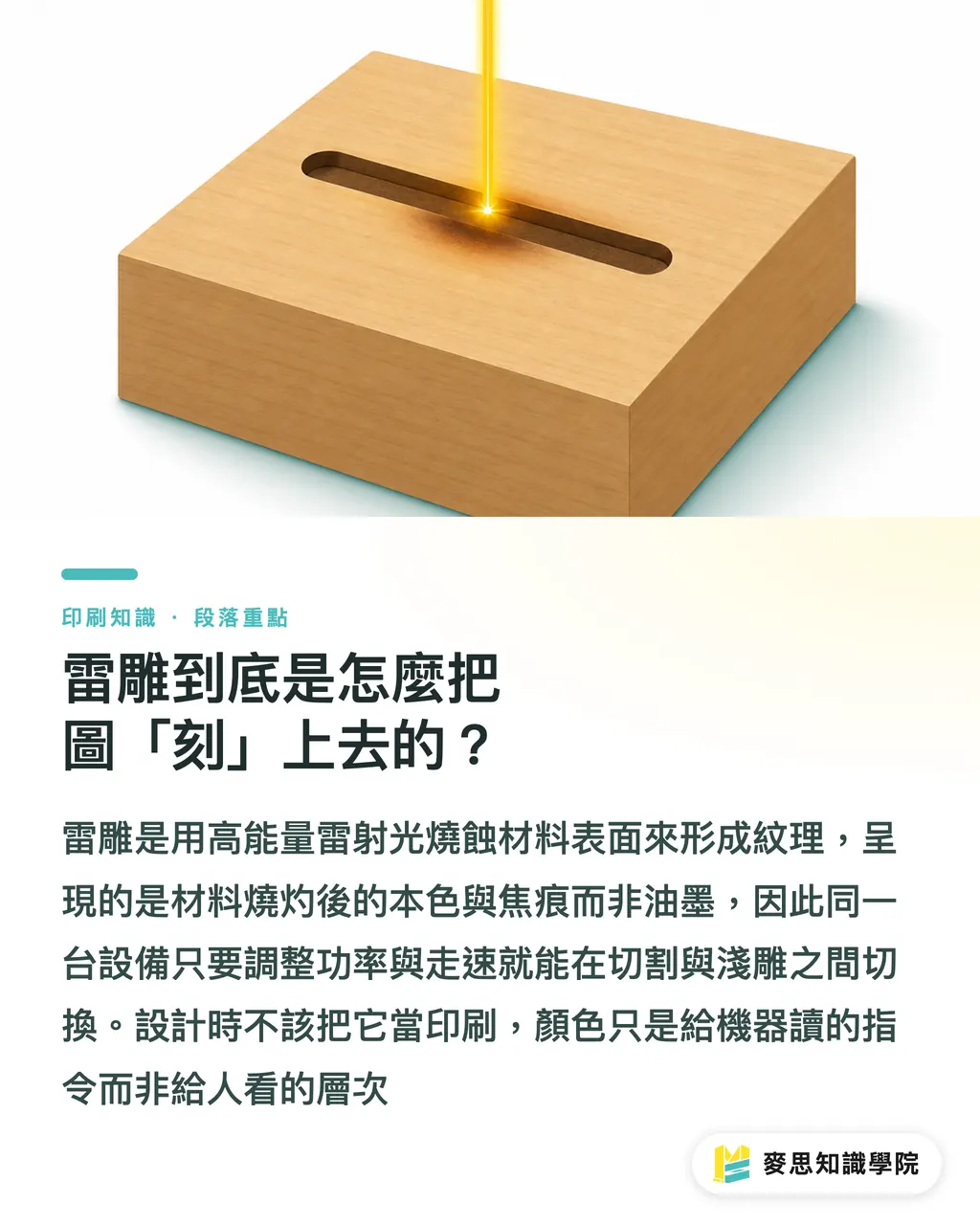
At its core, laser engraving uses a high-energy laser beam to hit the surface of a material, burning away that top layer to create grooves and texture
It does not use ink, and it is not pressed into the material. It is burned in. That means the visual depth you see comes from how much of the material itself has been removed, not from layers of color
This principle leads to two key differences you should keep in mind
・There is no such thing as "ink" in laser engraving. What appears is the natural color and burn mark of the material after scorching. Wood tends to turn dark brown, while acrylic cut edges often become frosted
・On the same machine, adjusting power and speed can either cut through the material or lightly mark the surface. So "cutting" and "engraving" are two modes of the same equipment
After years of observing production workflows, the mistake I see designers make most often is thinking of laser engraving like printing. They put gradients and CMYK swatches into the file, only for all of it to become useless once it reaches the vendor
In laser engraving, color is not there for people to look at. It is there for the machine to read as instructions
Why Do Laser Engraving Files Have to Be Vector Files? Won't JPG Work?
Almost every beginner asks this question, and the answer is firm: no
A laser machine reads "paths," not "pixels."
The machine needs to know which line the laser point should follow and which area should be scanned back and forth for engraving. All of that has to be defined as mathematical vector paths. Raster images such as JPG and PNG blur when enlarged, and the machine has no reliable way to determine the boundaries
In practice, vendors usually accept two main file formats
・AI (Adobe Illustrator): The format designers are most familiar with, and it handles lines, text, fills, and layers cleanly
・DXF: A common CAD exchange format that is less prone to layout shifts across software, often specified for precision cutting or industrial parts
Before submitting the file, always convert text to outlines
The reason is simple: the font installed on your computer may not exist on the vendor's machine. If the text is not outlined, characters may disappear or be automatically replaced with another font. By the time you discover it during proofing, it is already too late
Red Lines for Cutting, Black Areas for Engraving: How Should Layers Be Marked?
This is the most important part of laser engraving file preparation, and also where mistakes happen most easily
A laser machine needs to handle two completely different actions at the same time: cutting the material apart and engraving texture onto the surface
Your file has to make it immediately clear to the machine which lines should be cut through and which filled areas should be engraved. That is done through layer organization and color marking
Over time, the industry has developed a widely accepted convention. Follow it and you are much less likely to have your file rejected
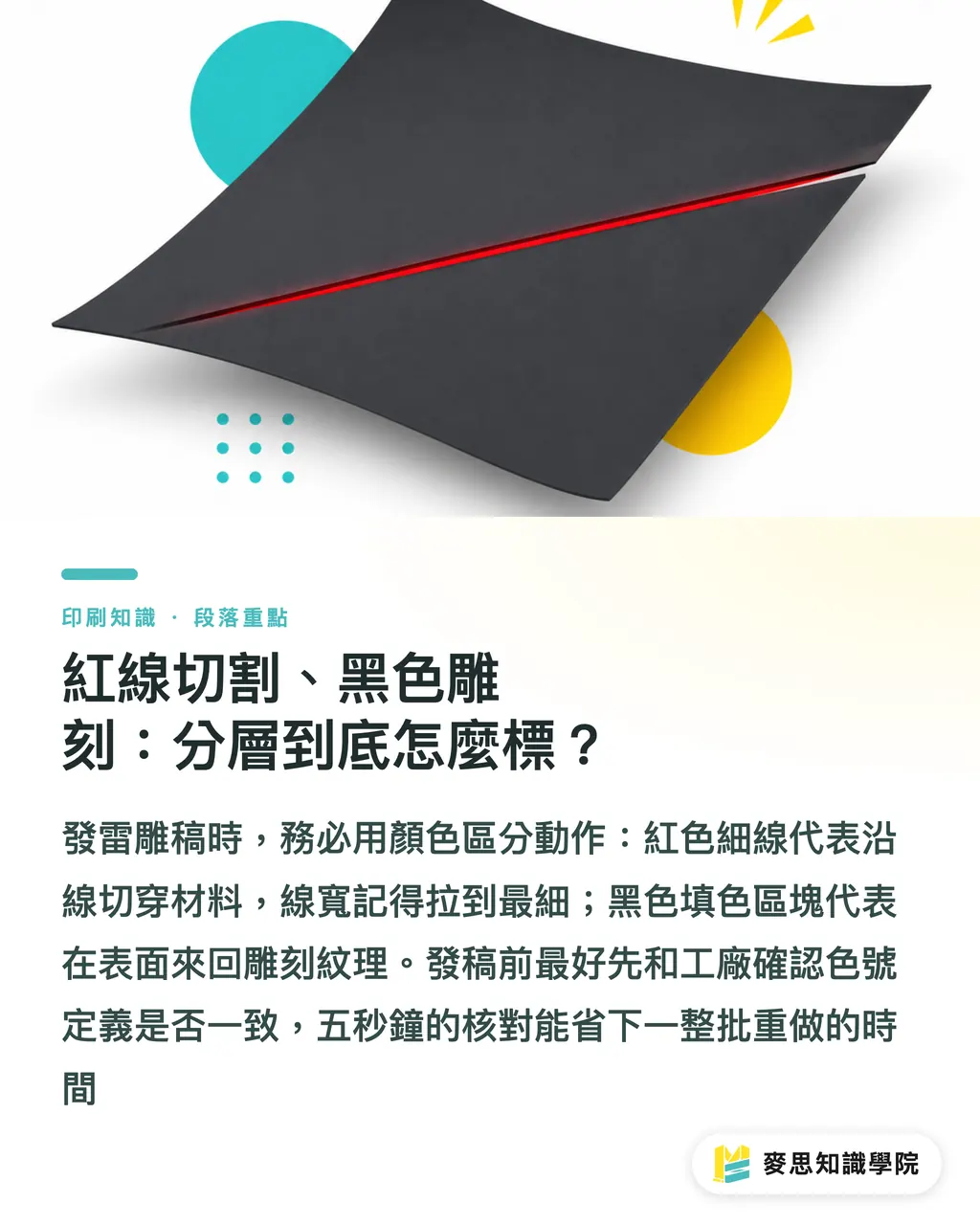
・Thin red lines (usually pure RGB red, with the thinnest possible stroke): indicate "Cutting," where the laser follows the line and cuts through the material
・Black filled areas: indicate the "Engraving" surface, where the laser scans back and forth over that area to create texture or a pattern
Here is one detail beginners often miss: cutting lines should be set to the thinnest possible stroke, ideally 0.001mm or hairline
Cutting means the laser makes one pass along the center of the line. If the line is too thick, the machine may not know whether to cut along the outer edge or inner edge, and the dimensions will shift
That said, conventions are still only conventions. Each vendor may define colors slightly differently
The safest approach is to ask before submitting: "Do you use red for cutting and black for engraving, or do you have your own color chart?" A five-second confirmation can save an entire batch from being remade
How Deep Will It Engrave, and Will the Edges Burn? These Can Only Be Confirmed by Sampling
Many designers assume engraving depth can be specified by typing a number into the artwork file. That is a misunderstanding
Engraving depth is determined by the machine's power and speed at the time of production: the higher the power and the slower the speed, the deeper the burn
Those two parameters are set on the vendor's side. There is no field in the design file where you can write "engrave 0.3mm deep."
So depth and darkness can only be communicated verbally and confirmed through samples. There is no shortcut
Before submitting your file, check these design details, because they directly affect whether the job succeeds or fails
・Text and fine lines: A minimum of 8pt or above is recommended. If strokes are too thin, one laser pass may blur or burn them away, making the work pointless
・Large-area filled engraving: For surface engraving, the machine has to scan the entire filled area line by line. That takes time, and cost rises accordingly. If the design can be expressed with lines, avoid filling a large solid area
・Overly dense engraving on paper: Paper does not tolerate heat well. If engraving lines are too crowded and energy concentrates in one area, the edges can easily yellow or even burn through. A premium look can instantly turn into scrap
My advice is very practical: if the job is going into mass production, always make a physical sample first
A black fill on screen and the brown scorched texture burned into wood are two different worlds. If you approve production without touching a real sample, the risk is all on you
What Materials Are Best Suited for Laser Engraving?
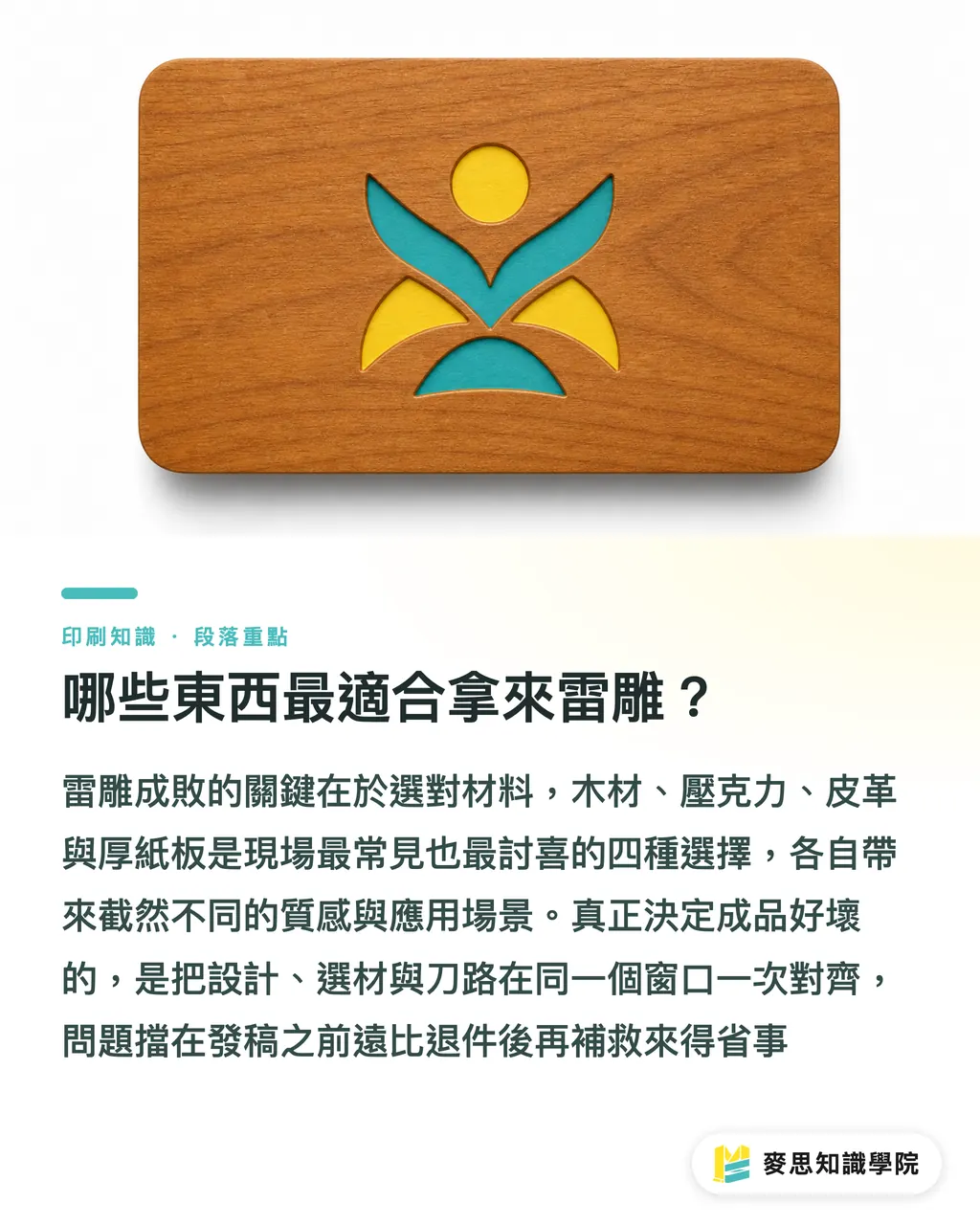
Choose the right material, and the texture of laser engraving can really come through. These are the four materials most commonly seen on production floors
・Wood: Warm natural grain with a clear burned effect. Engraved text takes on a natural dark brown tone, making it common for wooden business cards and brand plaques
・Acrylic: Strong transparency, with smooth cut edges that have a frosted quality. It works well for display stands, trophies, and illuminated signage
・Leather: A premium material with subtle, restrained impressions after laser engraving. Often used for high-end gift boxes and leather goods logos
・Thick paperboard: Affordable with a tactile feel, making it a mainstay for premium-style packaging and invitation cards
In real-world applications, laser engraving is most often specified for these categories
・Brand gift box covers: Engraving a logo on wood or leather instantly elevates the unboxing experience
・Wedding invitations: Laser-cut openings or engraved text on thick paperboard feel warmer and more handcrafted than foil stamping
・Wooden business cards: One card is enough to be memorable; the moment it is handed over, it becomes part of the brand impression
The biggest risk in this kind of post-processing is when design, material selection, and file preparation are all discussed separately
Material, tool path, and engraving depth need to be aligned through one communication window. Otherwise, the project can get stuck in the tug-of-war of "the designer can draw it, but the vendor cannot produce it."
This is also why, at MINDS, we put early-stage file checks and material recommendations at the very front of the process. Blocking problems before file submission saves far more effort than trying to fix them after rejection
Key Takeaways
Laser engraving creates depth by "burning" with a laser, not by applying ink. The colors in the artwork are machine instructions, not visual colors for people
Always submit vector files, either AI or DXF, and outline all text first. Raster images do not contain paths the machine can read
Use the standard convention of red for cutting and black for engraving, and set cutting lines to the thinnest stroke, but confirm the vendor's color chart before sending the file
Engraving depth can only be adjusted through power and speed. It cannot be specified in the file, so a physical sample is essential before mass production
Start text at 8pt or larger, and do not set engraving density too high on paper, or you may end up with blurred text and burned edges
Further Thoughts
For post-processing methods like laser engraving, the real barrier is not design software. It is whether you can communicate clearly with the vendor
Over the past year or two, I have noticeably seen more clients using generative AI images for production requests. The visuals are beautiful, but they often lack cutting paths, and the layers are usually messy. By the time the file reaches the vendor, it essentially has to be redrawn
The next step for designers is very concrete: build your own laser engraving submission checklist. Check off these six items one by one before sending the file: format (AI/DXF), text outlined, red-cut/black-engrave layers, thinnest cutting lines, controlled surface engraving area, and density limits for paper materials
For brand teams, my recommendation is to put material selection, depth sampling, and file submission standards under one integrated point of contact. With less distortion from repeated handoffs, the final product becomes much more reliable
The real way to save cost is not to squeeze the unit price. It is to stop mistakes before sampling begins
FAQ
- Do laser engraving files have to be vector files? Can JPG be used?
- They must be vector files. AI or DXF is recommended, because laser machines read cutting and scanning paths. Raster images such as JPG and PNG do not contain path information, so the machine cannot determine the boundaries and the file will not be usable
- How should cutting lines and engraving areas be marked in laser engraving artwork?
- The industry convention is to use thin red lines for Cutting and black filled areas for Engraving, with each placed on proper layers. Cutting lines should be set to the thinnest possible stroke. Before submitting the file, it is best to confirm the vendor's color chart definitions
- Can laser engraving depth be specified in the design file?
- No. Engraving depth is determined by the machine's power and speed. The design file has no field for entering a depth value. You can only communicate the desired depth with the vendor in advance and confirm the actual result through sampling
- How small can text be for laser engraving?
- Text and fine lines should generally be at least 8pt. If strokes are too thin, they can blur or burn away when the laser scans over them. Paper materials can also develop burned edges if engraving density is too high, so physical samples are essential before mass production
- What materials are suitable for laser engraving?
- Common options include wood, which has warm grain and a clear burned effect; acrylic, which is transparent with smooth cut edges; leather, often used for high-end gift boxes; and thick paperboard, which works well for premium-style packaging and invitations. Each material creates a different texture and suits different applications
Related articles
The Print × AI weekly
The print and AI know-how designers, brands and enterprises can use before they commit — one email, every week
MINDS Free Tools
Spine width and imposition calculators — skip the manual math, free in your browser.
MINDS Group
Need actual printing or gifting services?
From premium printing to online ordering and festive gifts — the MINDS Group sister brands take it from here.